Folders keep your forms organized, for example per client, project, or department. Folders can also have subfolders.
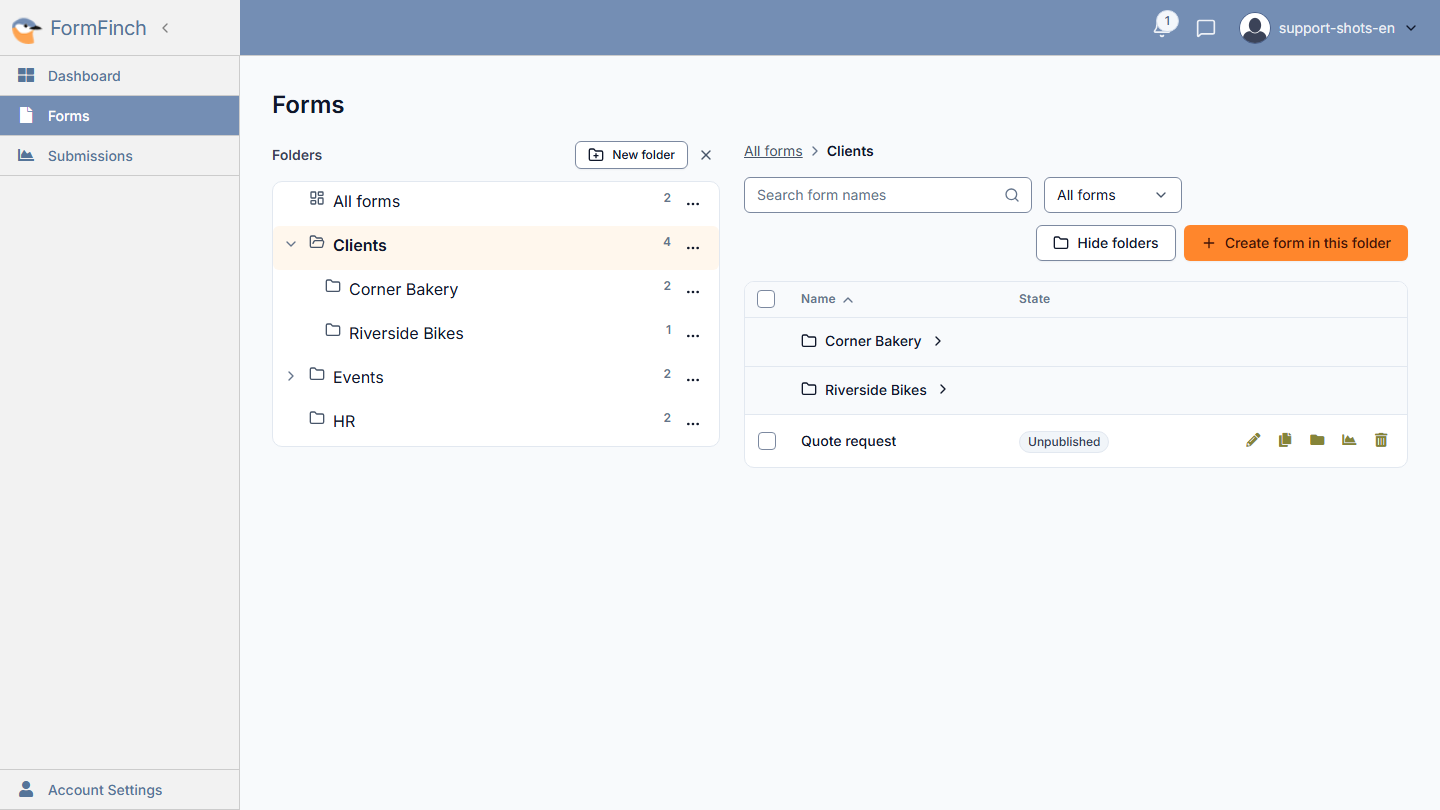
On the left you see your folders. The number next to a folder is the number of forms in it, including subfolders.
Create a folder
- Go to Forms. If you don’t see the folders panel, click Folders.
- Click New folder. The folder is created in the folder you have open at that moment.
- Type a name and click OK.
Want a subfolder inside another folder? Click ⋯ next to that folder and choose New folder.
If you are in a folder, Create form in this folder creates a new form straight in that folder.
Put forms in a folder
One form: in the form’s row, click the folder icon (Move to folder). Choose a folder and click Move. Choose All forms to take the form out of the folder again.
Multiple forms: select the forms and click Move to folder….
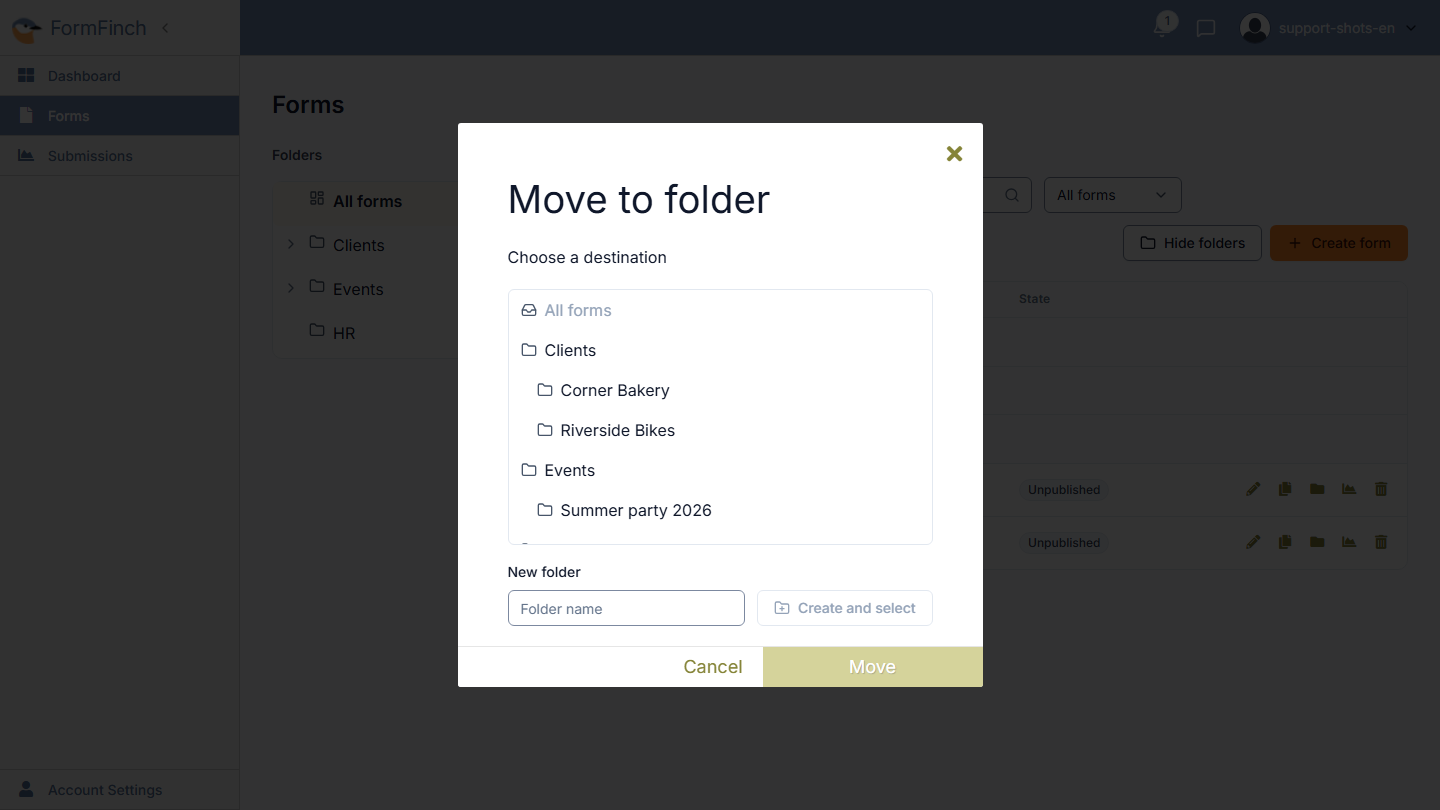
Folder not in the list yet? Type a name under New folder and click Create and select.
Drag and drop
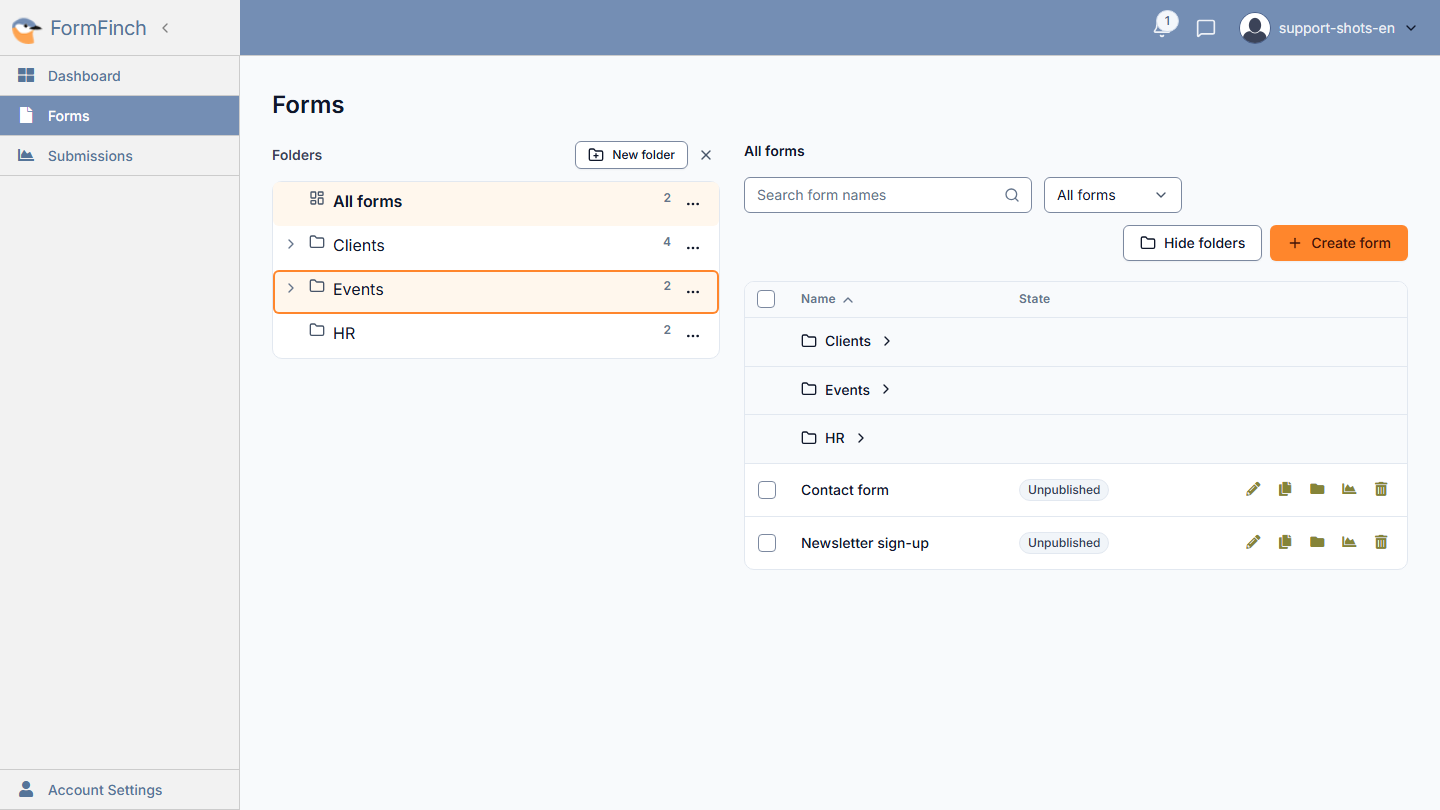
On a computer, you can also drag a form to a folder in the panel. The folder gets an orange border when you can drop the form there. If you drag it to All forms, the form leaves the folder.
Rename or move a folder
Click ⋯ next to a folder in the panel and choose Rename or Move. A folder always moves together with everything inside it.
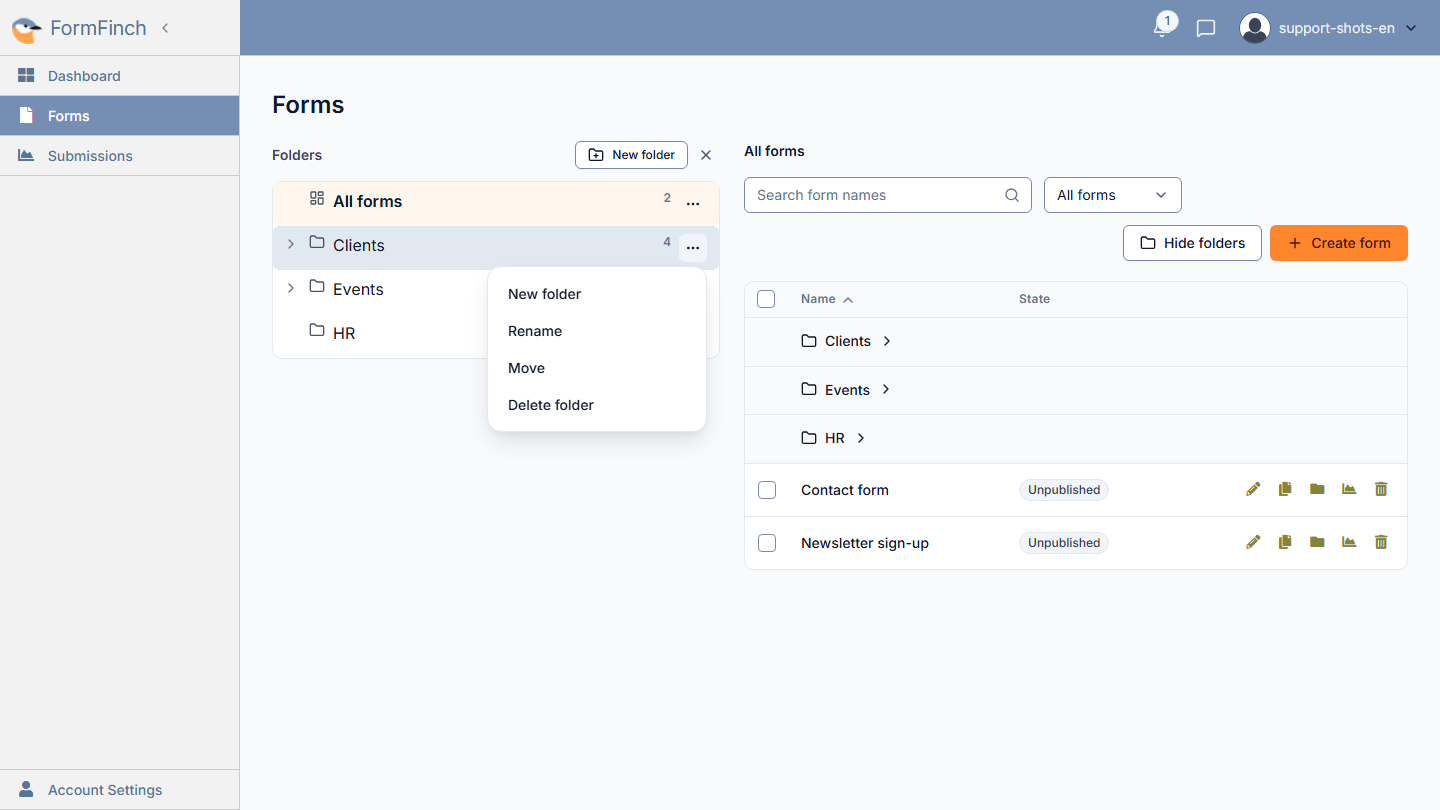
On a computer, you can also drag a folder: to another folder, or to All forms to put it at the top level.
A folder cannot go into itself or into one of its own subfolders. You also cannot move a folder in a way that creates more than 10 levels.
Search
The Search form names field searches the folder you have open, including its subfolders. If you search from All forms, you search all your forms.
If you hide the folders panel, the search results show a Folder column. It shows where each form is. This column is not available on a phone.
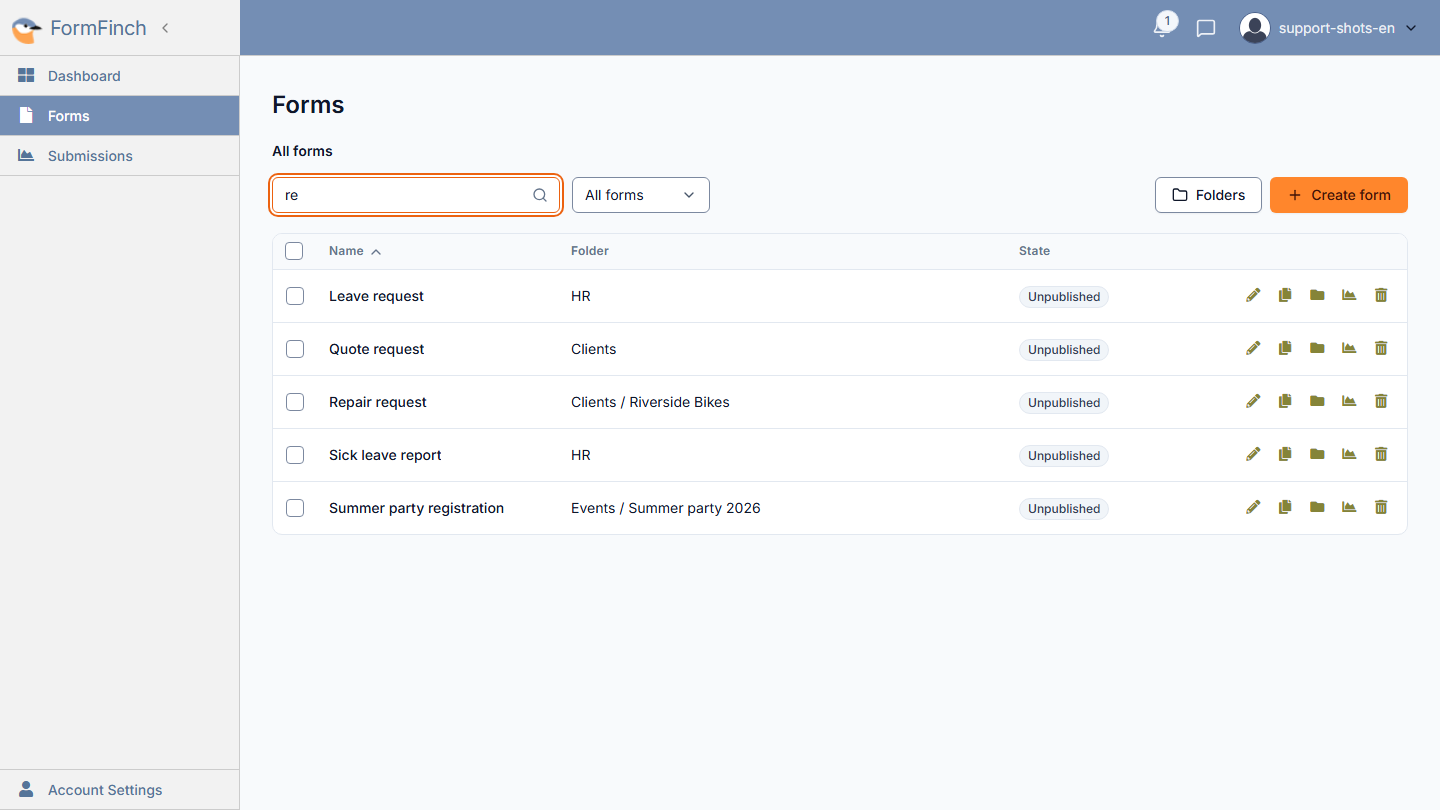
Searching from All forms. The Folder column shows where each form you found is.
Delete a folder
Click ⋯ next to the folder and choose Delete folder. You then see how many forms and subfolders will move, and where they will go.
Only the folder itself disappears. The forms and subfolders go to the folder above it. If the folder was at the top level, forms go to All forms and subfolders to Top level.
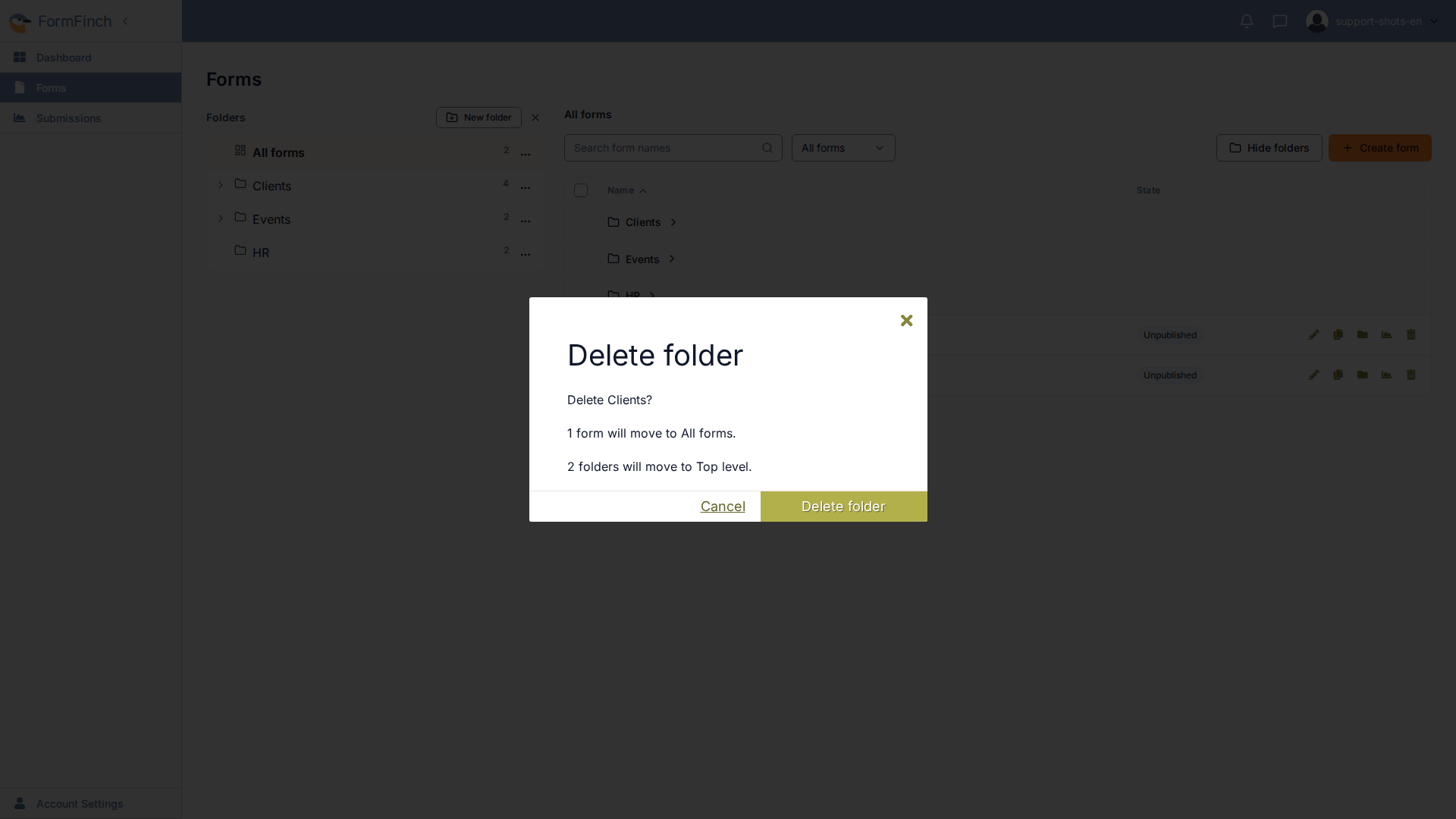
Before you delete, you see where the contents will go: forms to All forms, folders to Top level.