On Account Settings you can change the Name on the account. A new password is set through a reset link that FormFinch emails you.
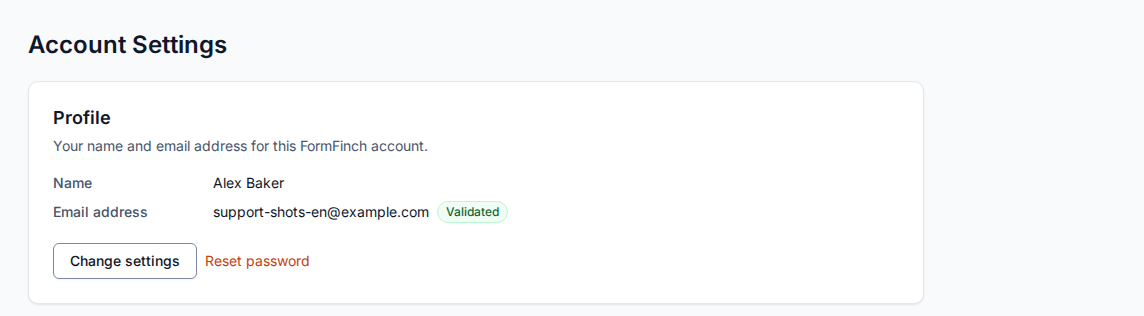
Change your name
- Go to Account Settings.
- On Profile, click Change settings.
- Edit Name.
- Click Save.
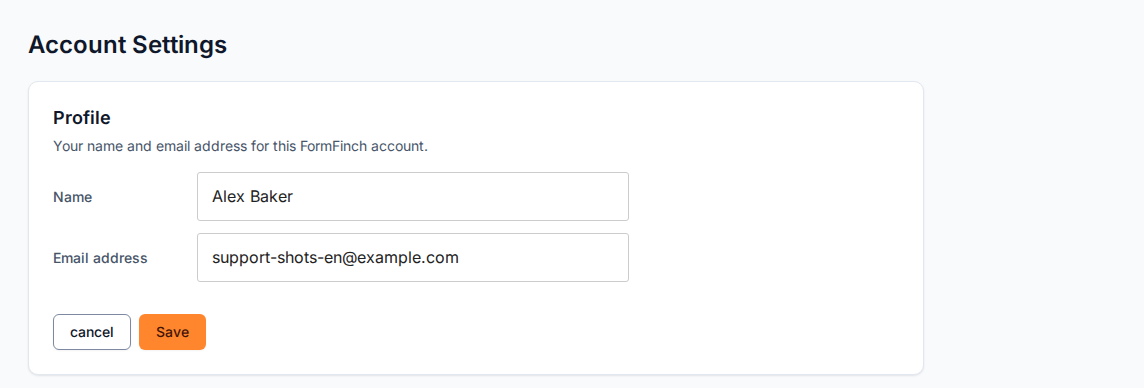
Leave Email address unchanged to save without a password.
After Save, the page reloads and Profile shows the new name. cancel discards your changes. Name accepts up to 70 characters. If it is empty, FormFinch does not save and shows Account name is required.
Change your password
- Go to Account Settings.
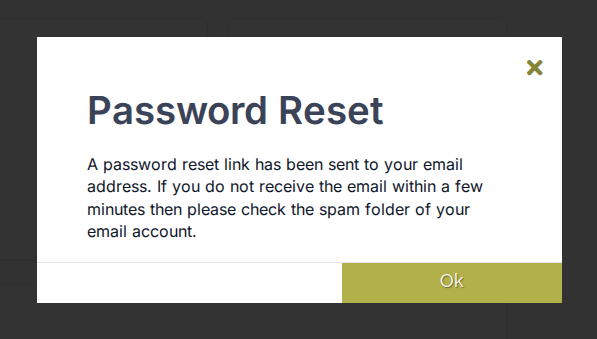
- On Profile, click Reset password.
- Open the email with the subject Reset your password and follow the link.
- On Change Password, enter the new password and click Save Password.
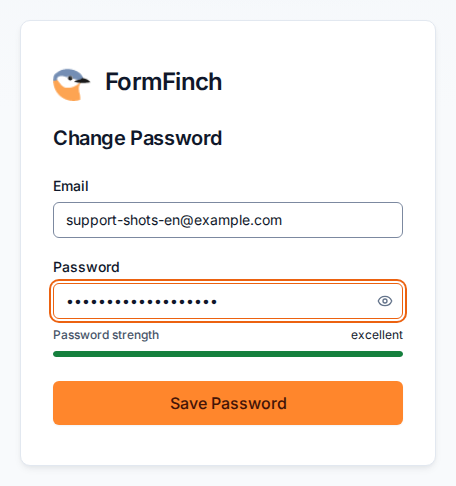
A new password needs at least 8 characters.
Nothing changes until the new password is saved. Then every session on every device ends, including the one that requested the link. If the link has expired or was already used, saving fails and a new link is needed.
Without two-factor authentication, the browser that opened the link is signed in again and opens the dashboard. With two-factor authentication on, there is no automatic sign-in. Sign in with the new password and a code from the authenticator app (or a recovery code). Two-factor authentication stays on.