Multiple Choice shows the answers as buttons, each marked with its own letter. Respondents click a button or press its letter, which makes the question quick to answer with the keyboard. The Selection limit decides whether one answer or several are allowed. For classic checkboxes, use a Checklist. For classic radio buttons, use Radio Options, and for a plain yes-or-no question, Yes/No.
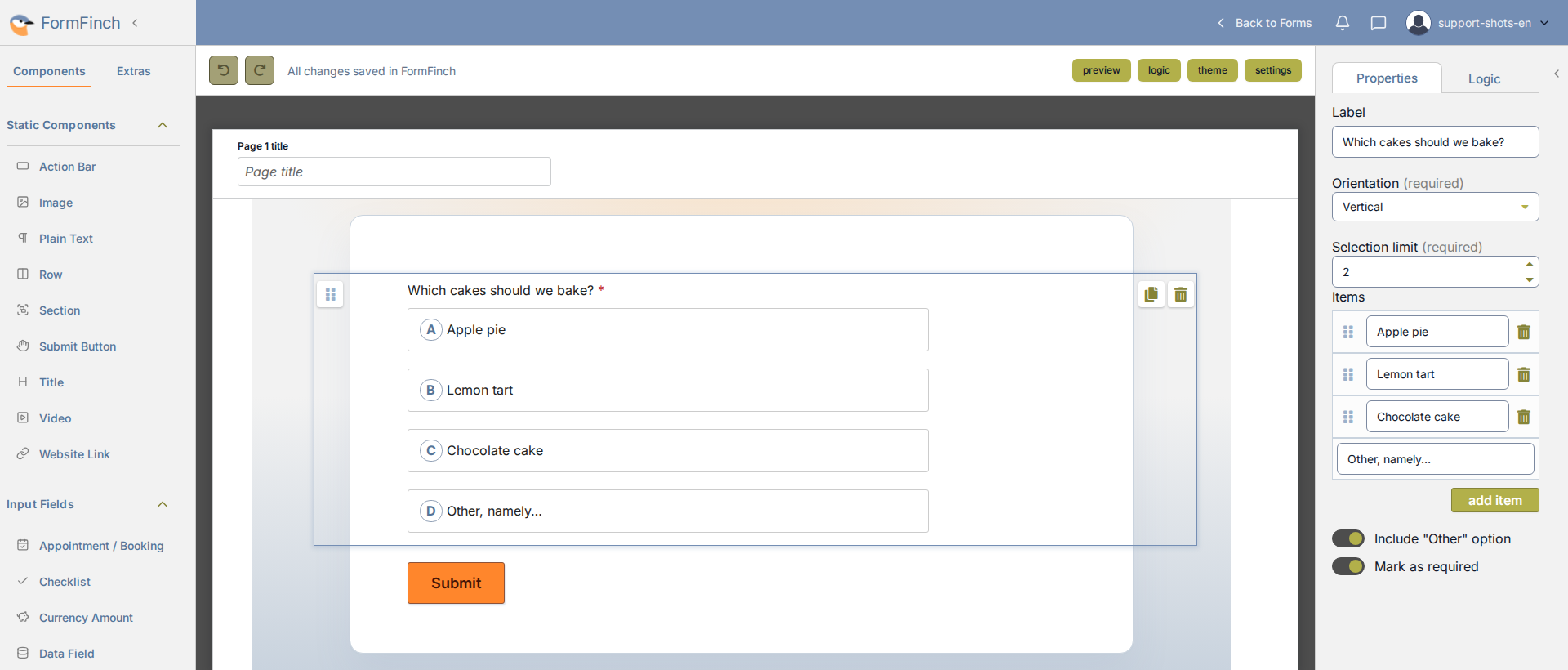
A Multiple Choice question on the canvas, with its settings in the properties panel.
Add a Multiple Choice question
In the designer, Multiple Choice is under Input Fields. Click it or drag it onto the page. The new question starts with two items, Item 1 and Item 2, in the Vertical layout and with a Selection limit of 1.
Label
Label is the question respondents see above the buttons. If the question needs more explanation than fits in one line, the Info Icon can hold it (see Logic, extras, and prefill).
Orientation
Orientation decides how the buttons are laid out. Vertical puts each button on a line of its own. Horizontal places the buttons next to each other and continues on a new line when the row is full. Grid spreads the buttons over columns of equal width.
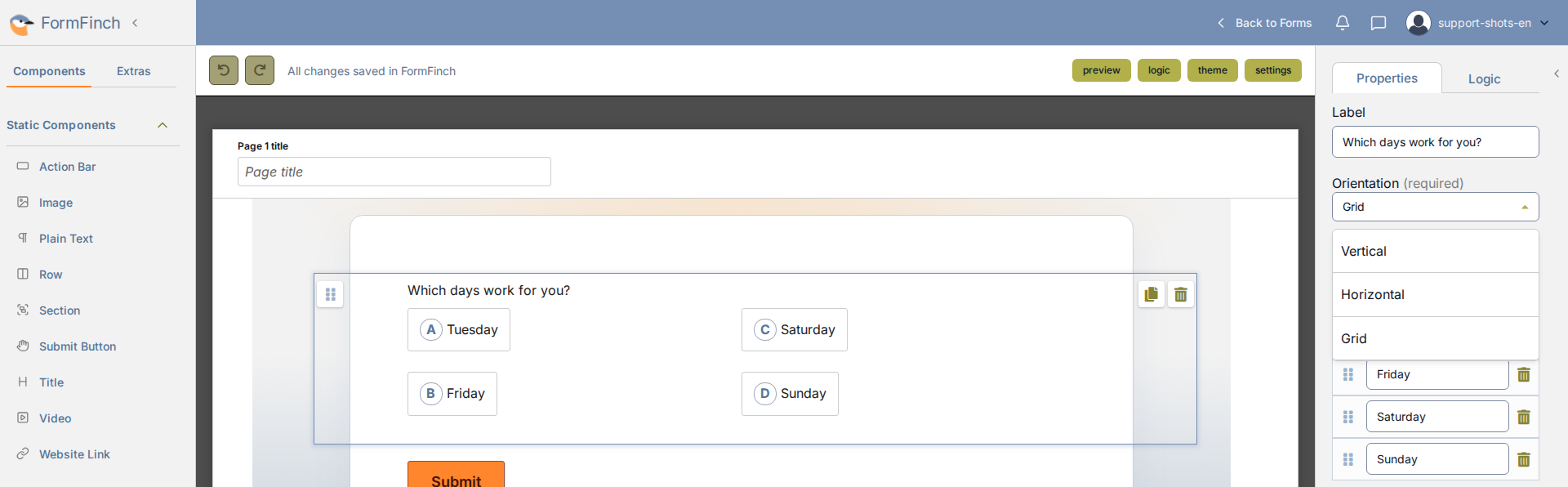
Each Multiple Choice question has its own Orientation, so questions on the same page can use different layouts.
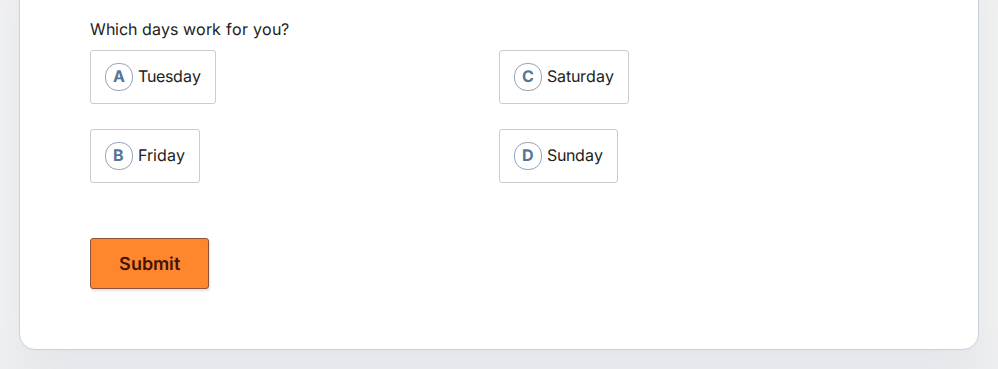
In a grid, buttons fill the first column from top to bottom before moving on to the next.
Selection limit
Selection limit sets how many buttons a respondent can select at the same time. It must be a whole number of at least 1.
At 1, clicking another button moves the answer there, and clicking the selected button again clears it. At 2 or more, each click adds an answer until the limit is reached. The remaining buttons stay disabled until one selected answer is cleared.
Items
Each item becomes one button. The texts must all be different and cannot be left empty, and the question needs at least two items. New items from add item are added at the end of the list, or just above Other when that option is on. To change the order, drag an item by its handle.
The letters follow the order of the list, so moving an item also gives it a different letter. Unlike in a Checklist, the list has no boxes for default answers.
Include “Other” option
When the list may not cover every answer, switch on Include “Other” option. An extra button called Other, namely… appears at the end, with its own letter like the others. Its text can be changed in the list of items, but it cannot be empty. The Other item has no handle and no bin icon, so it always stays last. Switching the option off removes it again.
When a respondent selects Other, a text box opens underneath with the hint Type your answer here.
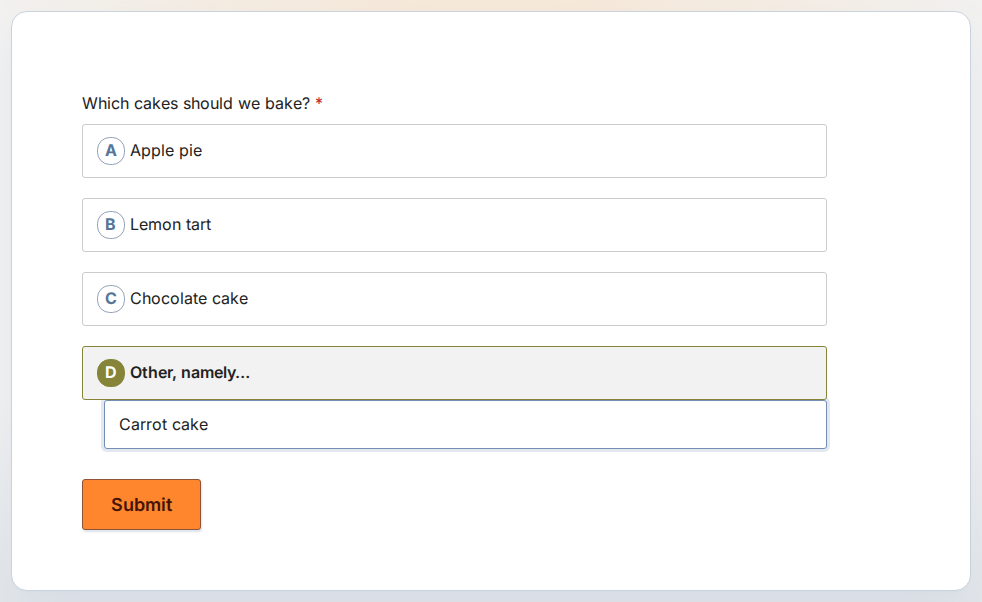
Selecting Other opens a text box for the respondent’s own answer, in this case Carrot cake.
Mark as required
Switch on Mark as required when the form should not continue without at least one answer. A respondent who skips the question then sees This is a required field. When the question is optional, it can be left unanswered, and nothing is stored for it.
Logic, extras, and prefill
To add an explanation to the question, turn on Info Icon in the Extras tab. The properties panel then shows Show info icon and Information text for the question.
With Query prefill, a link can select buttons before the respondent starts. Each item has an option ID, listed under Valid prefill values. To select more than one, repeat the parameter in the link once for each ID. IDs that do not match an item are ignored.
In conditional logic, a Multiple Choice question can be the condition of a rule, with is empty, is not empty, equals or does not equal. equals never matches the selected answers, and does not equal matches every answer. Use is empty and is not empty. As the target of a rule, it can be shown or hidden, made required or optional, or limited to fewer items with Change options. It cannot receive a calculated value, because it can hold several answers at once.
What you see in submissions
In the submissions grid, the answers one respondent selected share one cell, in the order they were selected, with a vertical bar between them (|). If they selected Other, the cell shows the text they typed instead of Other, namely…. When an optional question was left unanswered, the cell stays empty.