Radio Options shows a short list of radio buttons, and respondents choose exactly one of them, for example how they would like to be contacted. When more than one answer may apply, use a Checklist instead. A plain yes-or-no question is quicker with Yes/No, Multiple choice shows the answers as lettered buttons, and a long list takes up less room as a Drop-down list.
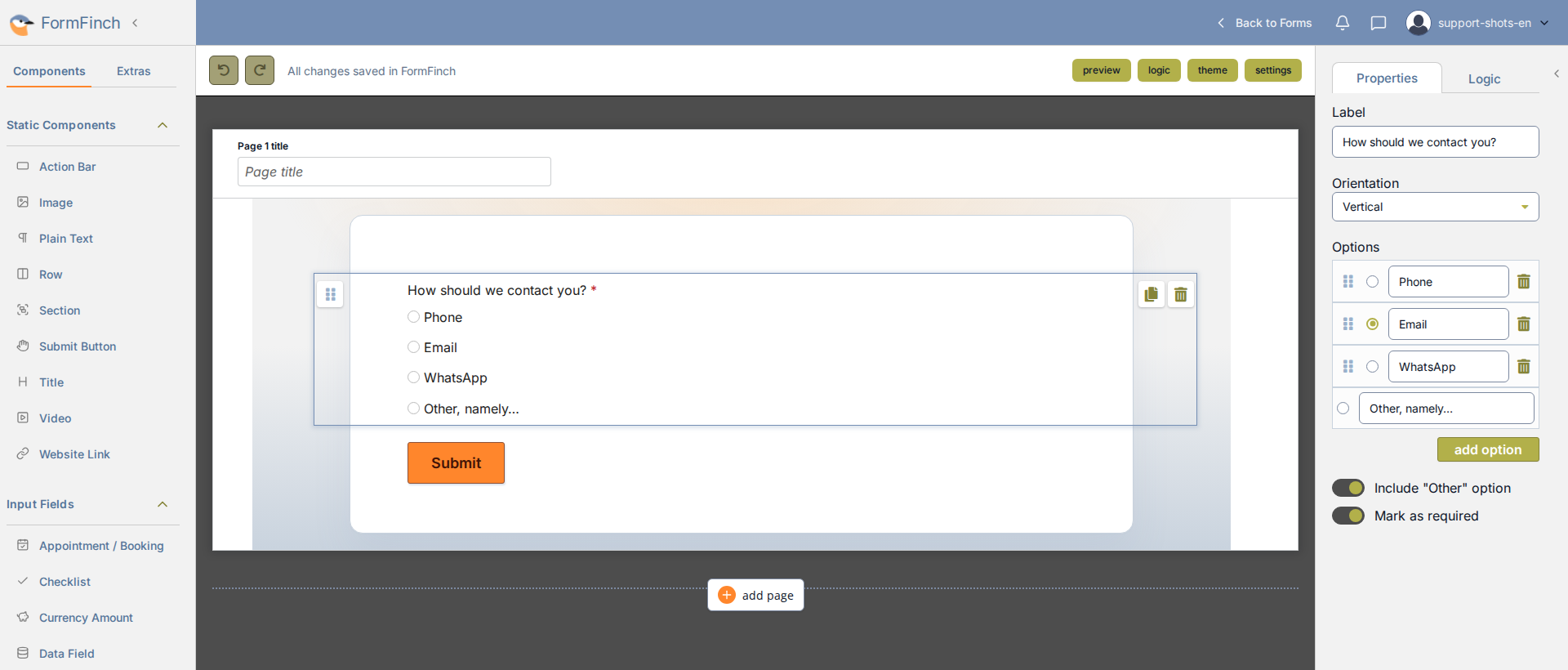
Radio Options on the canvas, with its settings in the properties panel.
Add Radio Options
In the designer, Radio Options is under Input Fields. Click it or drag it onto the page. The new field starts with two options, Option 1 and Option 2, in the Vertical layout.
Label
Label is the question respondents see above the radio buttons. If the question needs more explanation than fits in one line, the Info Icon can hold it (see Logic, extras, and prefill).
Orientation
Orientation decides how the radio buttons are laid out. Vertical puts each option on a line of its own. Horizontal places the options next to each other and continues on a new line when the row is full. Grid spreads the options over columns of equal width.
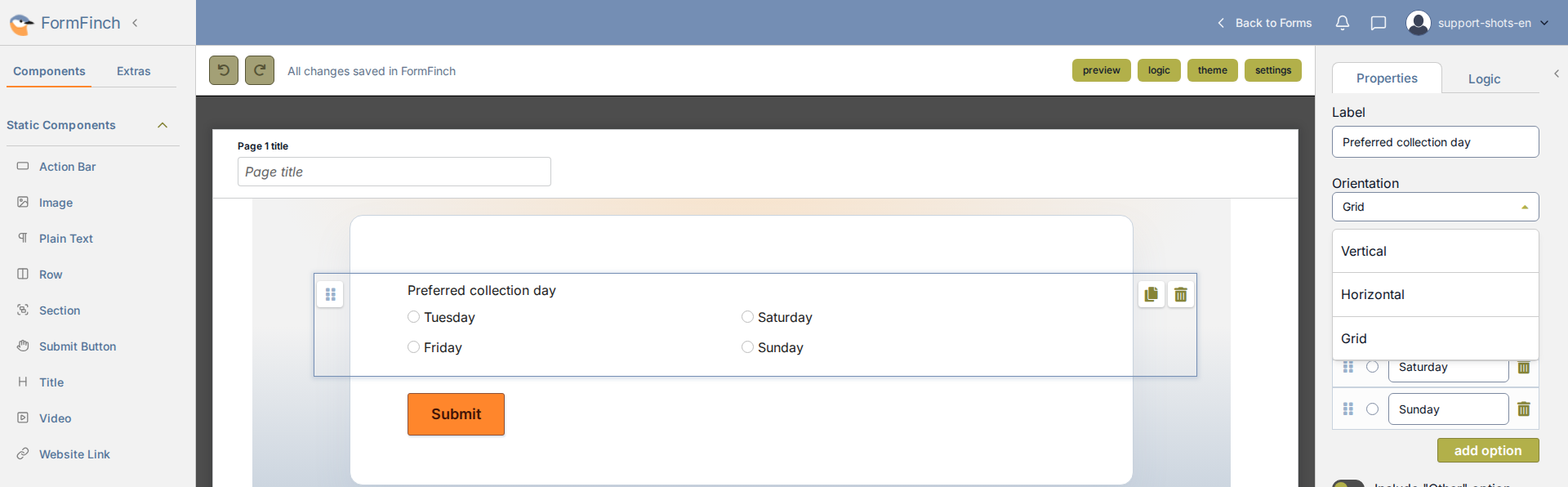
Each Radio Options field has its own Orientation, so questions on the same page can use different layouts.
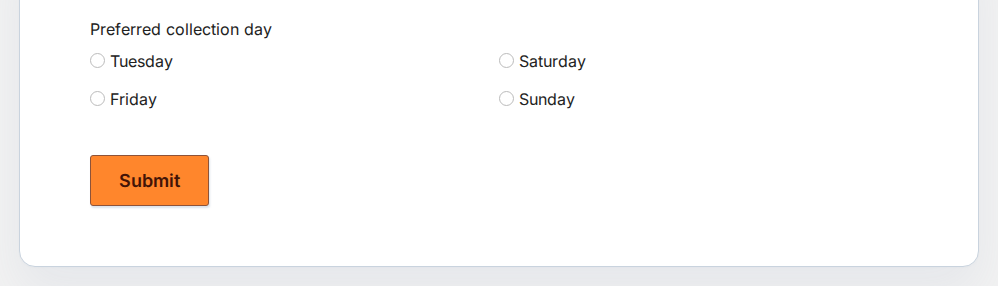
In a grid, options fill the first column from top to bottom before moving on to the next.
Options
Each option is one radio button with its text. The texts must all be different and cannot be left empty, and the field needs at least two options. New options from add option are added at the end of the list, or just above Other when that option is on. To change the order, drag an option by its handle.
Selecting the radio button in front of an option in the properties panel makes it the default. Only one option can be the default, so selecting another one moves the default there.
Include “Other” option
When the list may not cover every answer, switch on Include “Other” option. An extra option called Other, namely… appears at the bottom of the list. Its text can be changed in the list of options, but it cannot be empty. The Other option has no handle and no bin icon, so it always stays last. Switching the setting off removes it again.
When a respondent chooses Other, a text box opens underneath with the hint Type your answer here.
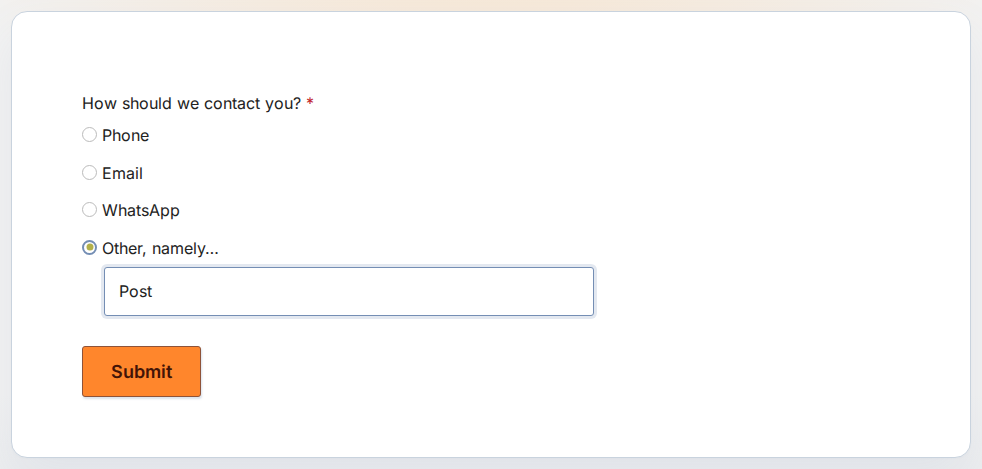
Choosing Other opens a text box for the respondent’s own answer, in this case Post.
Mark as required
Switch on Mark as required when the form should not continue without an answer. A respondent who skips the question then sees This is a required field. When the question is optional and has no default, it can be left unanswered, and nothing is stored for it.
Logic, extras, and prefill
To add an explanation to the question, turn on Info Icon in the Extras tab. The properties panel then shows Show info icon and Information text for the field.
With Query prefill, a link can choose an option before the respondent starts. Put the option’s ID from Valid prefill values in the link. An ID that does not match an option is ignored.
In conditional logic, Radio Options can be the condition of a rule, with equals, does not equal, is empty or is not empty. As the target of a rule, the field can be shown or hidden, made required or optional, filled with a calculated value, or limited to fewer options with Change options.
What you see in submissions
The submissions grid shows the text of the option the respondent chose. If they chose Other, the cell shows the text they typed instead of Other, namely…. When an optional question was left unanswered, the cell stays empty.