Use Video to embed a YouTube or Vimeo clip on a form, such as a welcome message or short walkthrough. It is a static field: respondents watch it, rather than answer it.
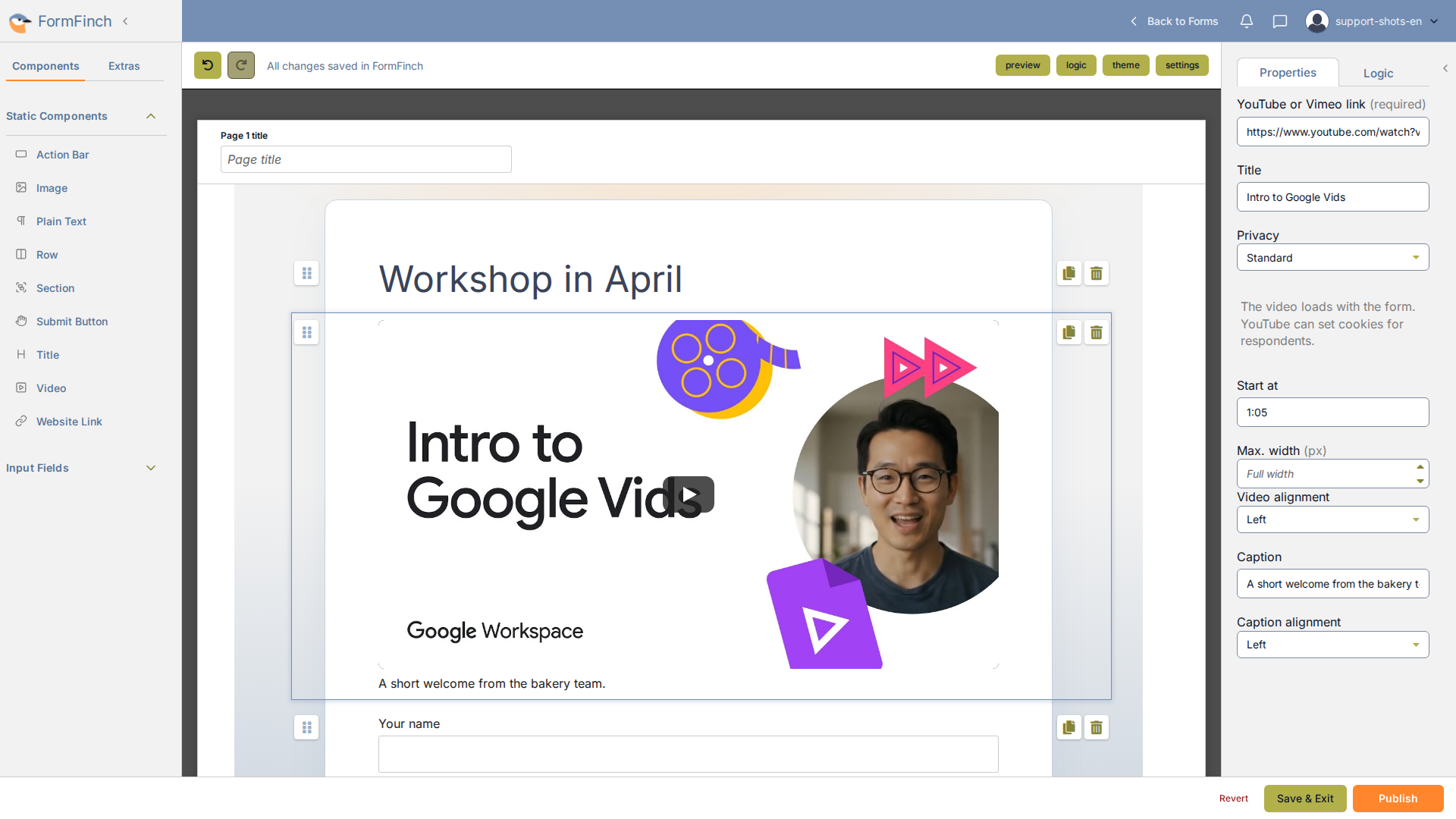
A Video on the canvas, with its properties open.
Add a Video
Click Video under Static Components, or drag it onto the page. Paste your link into YouTube or Vimeo link and press Enter, or click outside the field. FormFinch then looks up the video’s title, size, and thumbnail.
You can also add a video without the component palette:
- Paste a video link onto the canvas with Ctrl+V (outside of any text field). The video appears after the selected component, or at the bottom of the page if nothing is selected.
- Drag and drop a link from your browser onto the canvas. The video lands above or below the component you drop it on.
Like other components, a video can sit inside a Row or Section. Drag the component from Static Components into the row or section, or move the video there later. Only a pasted or dropped link always lands on the page itself. If a Row or Section (or a component inside one) is selected, the video goes after it, and you can then drag it into the row or section. If a link is not supported, nothing is added and a short notice appears at the bottom of the designer.
Properties
Details that the properties panel does not make obvious:
- Title is retrieved automatically from YouTube or Vimeo. Leaving it blank is allowed: the form will still publish, and screen readers will announce the fallback label Video.
- Start at expects minutes and seconds, such as 1:05, up to 24 hours. A start time in the pasted link fills it in:
t=1m5sorstart=65for YouTube,#t=1m5sfor Vimeo. - Replacing the link overwrites Title and Start at. If the new link has no start time, Start at is cleared. Caption, Privacy, Max. width, and the alignment settings stay as they are.
- Leaving Max. width empty scales the video to the full width of the form. Vertical formats such as YouTube Shorts default to a width of 360 px when no maximum width is set.
- Caption supports Markdown and is limited to 100 characters. Title is limited to 200 characters.
- Video alignment positions the player and, in Privacy first mode, the notice beneath it. Caption alignment positions the caption.
- YouTube or Vimeo link is required to publish the form.
Privacy and what respondents see
Privacy is either Standard (the default) or Privacy first. A note beneath the setting explains what the selected mode means for the video’s provider.
In Standard mode, the provider’s player loads with the form, so the provider can set cookies right away. The browser loads videos further down the page only when the respondent scrolls toward them.
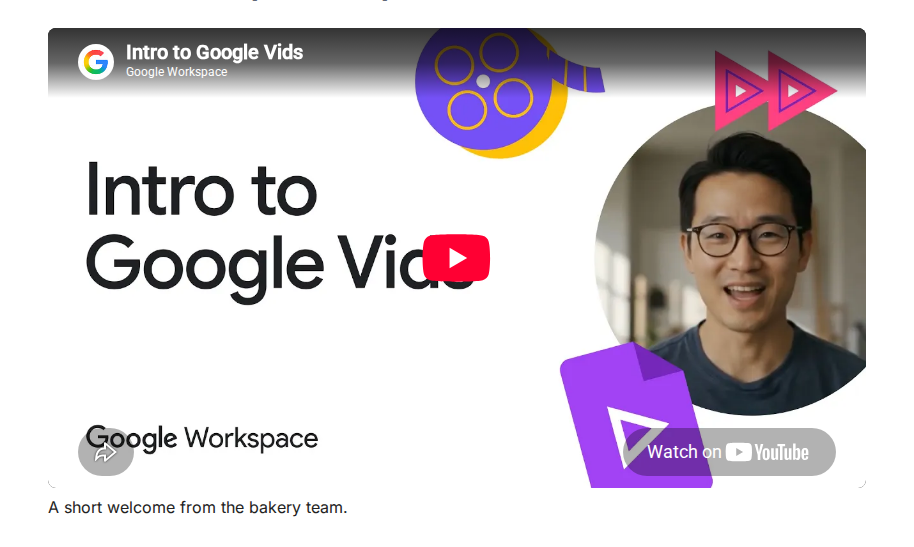
Published form in Standard mode.
In Privacy first mode, FormFinch shows a thumbnail it stores itself (when available), so nothing is requested from the provider until the respondent clicks play. Then the player loads (YouTube from the youtube-nocookie.com domain) and playback starts immediately.
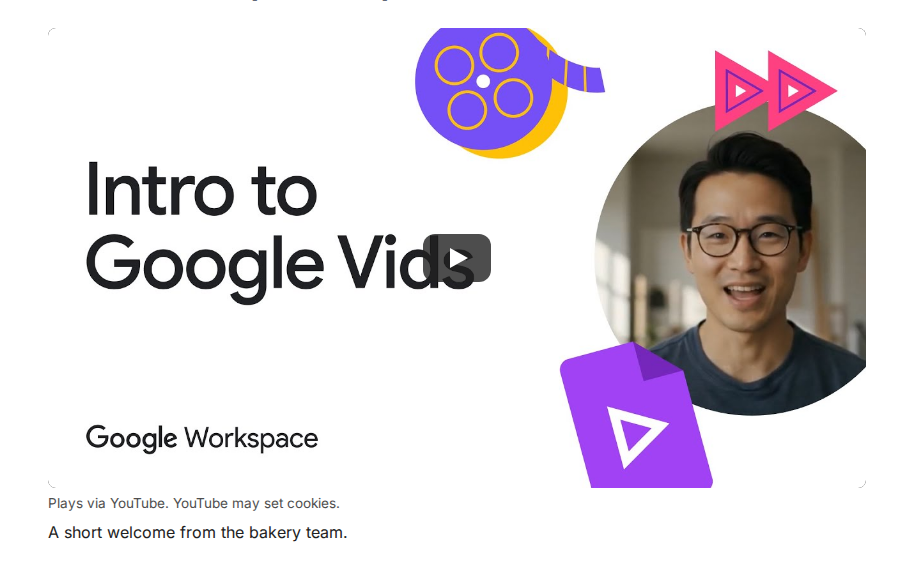
Published form in Privacy first mode, before play.
Supported links
Supported YouTube links are watch links, short youtu.be links, embed links, youtube-nocookie.com links, and Shorts. Supported Vimeo links are regular video pages and unlisted videos whose link contains a privacy hash.
FormFinch checks a link only when you add or replace it, not after the form is published.