Conditional logic lets your form adapt as someone fills it in. Each rule follows a simple pattern: when this is true, take this action. You can reveal relevant questions, require an answer only when it matters, skip unnecessary pages, calculate values, or tailor the choices in a field.
Rules work in the Form Designer, Preview, and the published form.
Where to manage logic
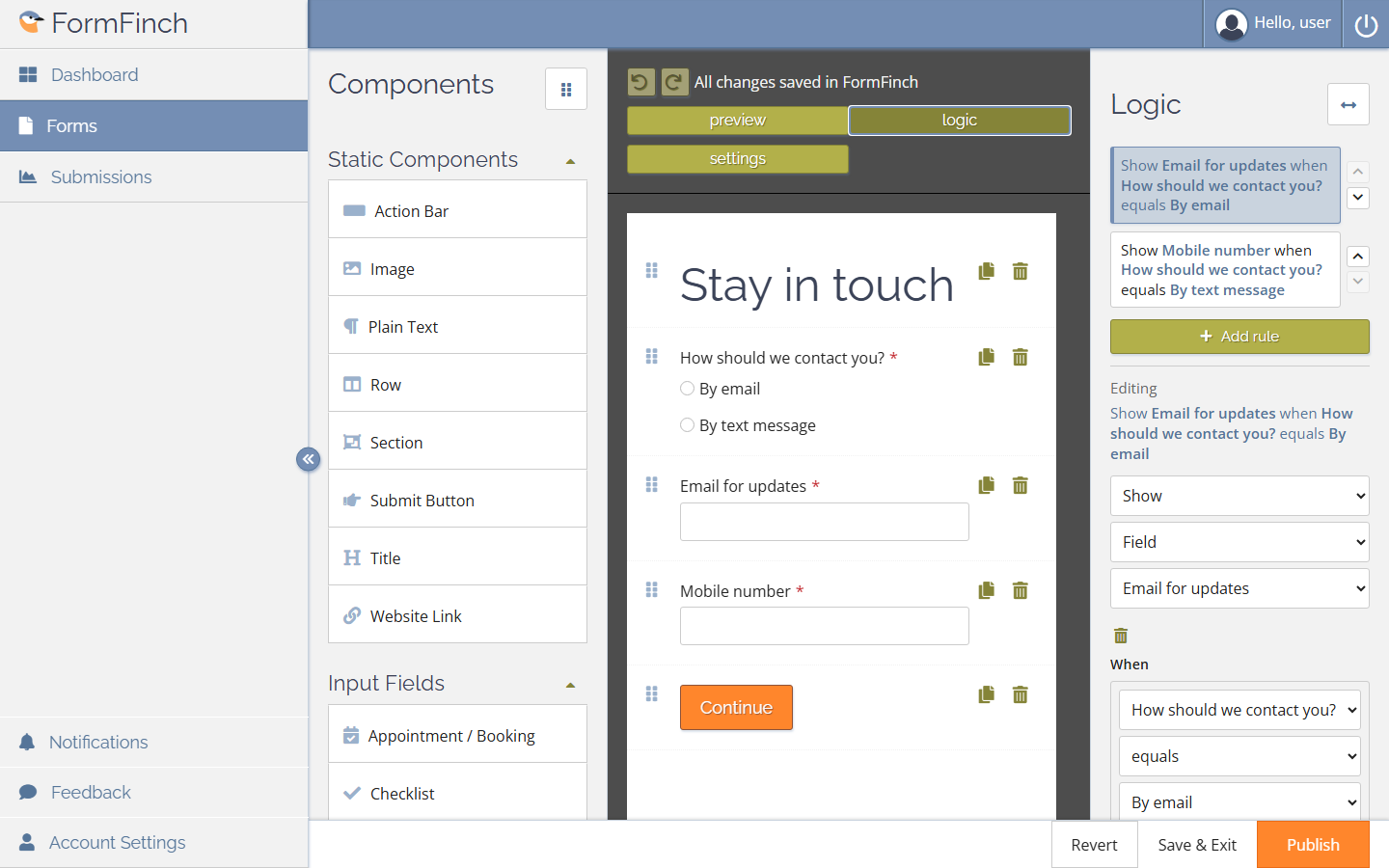
Open your form in the Form Designer and select Logic in the status bar. The Logic panel gives you a form-wide view where you can add, edit, reorder, and delete rules.
Every field also has a Logic tab next to Properties. This view is filtered to rules that target the selected field.
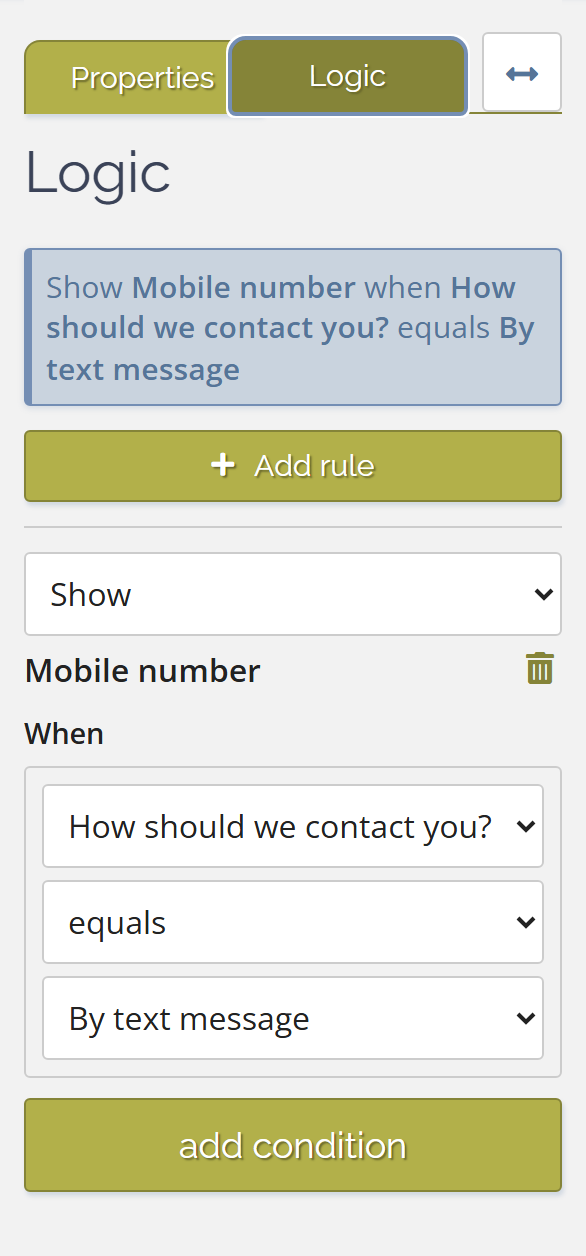
Both views edit the same rules. Use the form-wide panel for an overview and for page jumps; use a field’s Logic tab when you are concentrating on that field.
Add a rule
- Open the Logic panel or a field’s Logic tab.
- Select Add rule and choose the kind of behaviour you need.
- Choose the target and action, then define when the rule should apply.
- Read the summary as a sentence—for example, “Show Mobile number when How should we contact you? equals By text message”.
- Try the relevant answers in Preview before publishing.
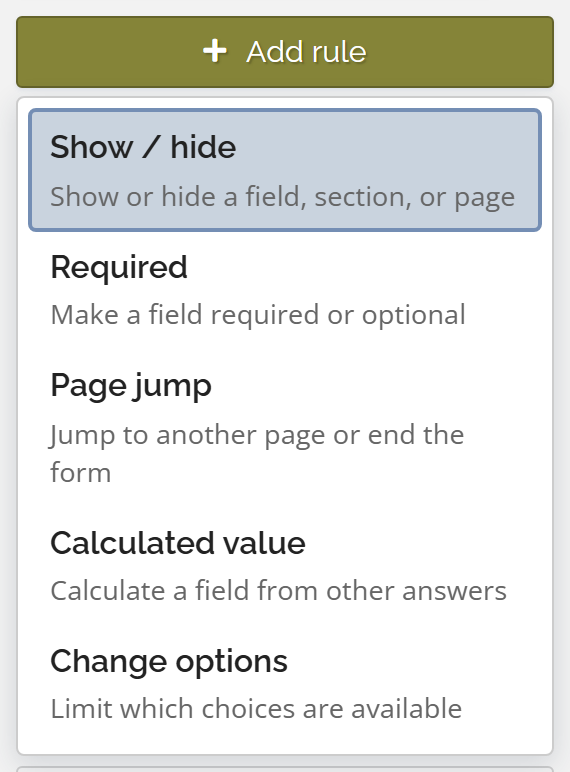
A rule has an action—what FormFinch should do—and, in most cases, one or more conditions that decide when it should happen.
Conditions
The Match setting controls how multiple conditions work together:
- All of these — every condition must be true.
- Any of these — one true condition is enough.
- Always (no conditions) — the action runs without checking an answer. This is particularly useful for values that should always be recalculated.
Each condition contains a field, an operator, and—where needed—a comparison value. The available operators are is empty, is not empty, equals, and does not equal.
Fields appear by label. If labels are duplicated, FormFinch adds context such as the page name so you can identify the right one. Renaming a field does not break its rules.
A visibility condition cannot use the target field itself or a field inside the target section or page. This prevents a rule from hiding the answer it depends on.
Rule types
The Logic panel presents rules as readable sentences. Five rule types are available.
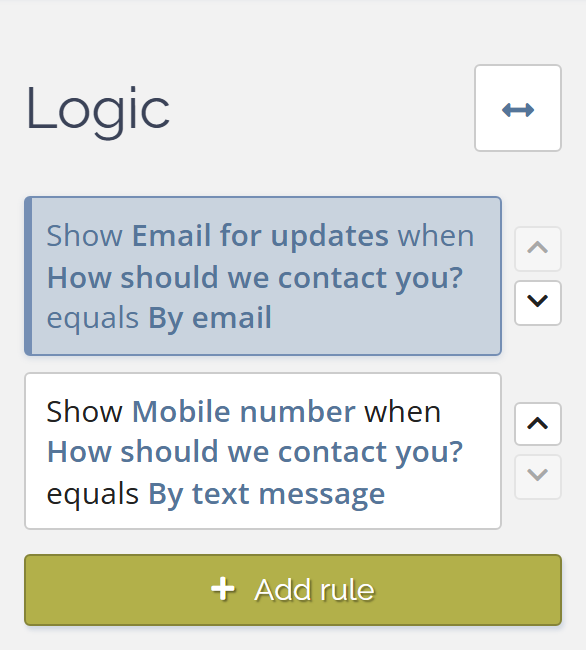
Show / hide
A visibility rule can show or hide a field, a section, or an entire page.
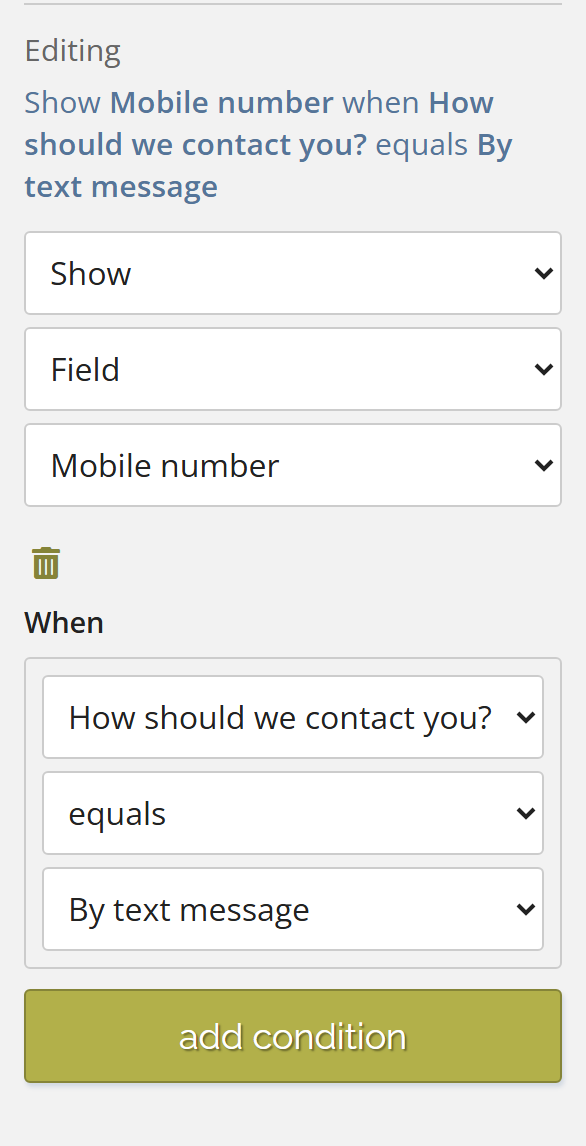
Common uses include:
- Show Email for updates when the preferred contact method is By email.
- Ask for a VAT number only when someone is completing the form for a business.
- Hide a delivery-address section when an order will be collected in person.
If a field should become both visible and required under the same condition, mark it as required in its normal properties and add only a show rule. Hidden fields are automatically excluded from required-field validation.
What happens to hidden answers?
- The field is not shown to the person completing the form.
- It is not treated as required.
- Its value is left out of the submission.
- Other rules treat the hidden field as empty.
An answer that was entered earlier remains available during the form session. If the field becomes visible again, its previous value returns. FormFinch simply ignores that value while the field is hidden.
Hiding a section or page also hides every field it contains. A row is only a layout element and cannot be selected as a logic target; target its fields, section, or page instead.
Need the opposite — a value that is never shown but always active and stored with the submission? Use a Data Field instead of hiding a question.
Required
A Required rule makes a visible field required or optional only in the situations you choose.
For example, you might require Company name for business customers, or make Supporting details optional when an earlier answer shows that they do not apply.
Use this rule when the field should remain visible regardless of whether an answer is required.
Page jump
A page-jump rule decides what happens after a particular page. It is useful when different respondents need different routes through a multi-page form.
A jump can lead to:
- a later page;
- Submit the form, which performs the normal validation and submission;
- End without submitting, which displays a final message without creating a submission.
You could skip a follow-up page when no extra information is needed, submit an eligibility check immediately, or end the form with an explanation when someone does not qualify.
Jumps only move forward. Their conditions may use fields on the source page or an earlier page, but not fields on pages that come later.
Fields on skipped pages are not required and their values are not included in the submission.
Calculated value
A calculated-value rule fills a field from other answers. While the rule is enabled, the target field is read-only for the person completing the form.
A formula can:
- copy another field’s value;
- set a fixed value;
- add, subtract, multiply, divide, or round numbers;
- join pieces of text, such as a first name and a last name;
- choose between two results with a simple if/else condition.
Supported targets include Short Question, Long Question, Email, Website URL, Date, Time, Drop-down List, Radio Options, Yes/No, Number, Currency Amount, and Rating fields.
Typical examples are building a display name from several fields or calculating an order total from quantities and prices.
To keep the result off the form — a score or total that belongs only in the submission — target a Data Field instead of a visible field.
A field can have only one calculated-value rule. Put alternative outcomes inside the formula. A formula cannot refer to its own target, and calculated fields cannot form a circular dependency.
Change options
A change-options rule limits the choices available in a Drop-down List, Radio Options, Multiple Choice, or Checklist field.
For example, an Office field can list only locations in the region selected earlier.
If a previously selected choice is removed by the rule, FormFinch clears that answer so the stored value always belongs to the active choices.
Rules that change options on the same field must be mutually exclusive. FormFinch prevents saving or publishing when they overlap. A calculated-value rule and a change-options rule also cannot target the same field.
Combining rules
FormFinch combines show, hide, and required rules that target the same item. Reordering these rules does not change the outcome:
- When several show rules target the same item, all of their show conditions must be satisfied before it becomes visible.
- Any matching hide rule hides its target.
- Any matching require rule makes its field required.
Page-jump and change-options rules are not allowed to overlap. Use the up and down controls to organise the list, not to resolve conflicting behaviour.
Testing and publishing
Test rules with realistic answers in Preview. At a minimum, check:
- the ordinary path through the form;
- every answer that shows or hides a field, section, or page;
- every jump, including submit and end-without-submitting outcomes;
- calculations with empty, hidden, and unexpected source values;
- choice fields whose options depend on an earlier answer.
Complete every condition before leaving the rule. Incomplete or conflicting rules cannot be saved or published.
Practical tips
Section titled “Practical tips”- Start with one clear rule and test it before building a larger set.
- Give fields distinctive labels so rule summaries remain easy to read.
- Use End without submitting only when you deliberately do not want to keep a submission, such as after an eligibility check.