A Data Field allows you to store hidden values in your form submissions. While invisible to respondents, Data Fields remain fully active in your form’s logic. They can be read by rules, updated by calculations, and are saved with the submission whenever they have a value.
Use Data Fields to track campaign sources from URLs, attach internal reference codes, or store calculated scores that shouldn’t be visible on the form itself.
Data Field vs. Show/Hide rules
Data Fields serve a different purpose than fields hidden by Show/Hide rules:
- Conditionally hidden fields are inactive while invisible. They aren’t required, logic rules treat them as empty, and their data is excluded from the submission.
- Data Fields are permanently invisible but always active. Logic rules can interact with them, and their values are included in the submission whenever they have one.
Rule of thumb: Use Show/Hide rules for respondent questions that only apply in specific situations. Use Data Fields for internal values like defaults, URL parameters, or calculations.
Add a Data Field
- Open your form in the Form Designer.
- In the Components panel, locate Data Field under Input Fields.
- Click or drag the component onto your canvas.
- Select the newly added component to configure its properties.
In the designer, Data Fields are displayed as subdued components with a Not shown to respondents badge. This component is only visible in the Form Designer and will not appear in the Preview or the published form.
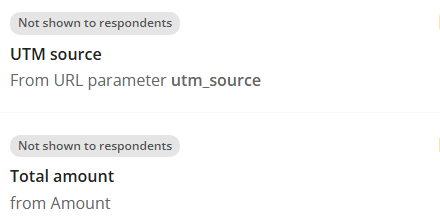
A Data Field functions normally regardless of its placement, even inside hidden sections or skipped pages. However, its position on the canvas determines its column order in submissions and exports, so place it where it makes the most sense for your data analysis.
Properties
Data Fields have two configurable properties:
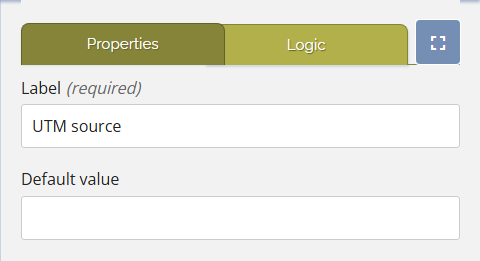
The required Label acts as the internal name for the field. It is used to identify the field in logic rules and serves as the column header in your submissions and exports.
Default value
Section titled “Default value”The optional Default value provides a static fallback value (e.g., a department code). This value is used only if no other source populates the field.
Value sources
Since respondents cannot interact with Data Fields, their values must come from one of three sources:
- Default value: The static value defined in the field’s properties.
- Query prefill: Values passed through URL parameters (e.g., ?campaign=newsletter) using the Query prefill Extra.
- Calculated value: Values generated by Logic rules based on other form inputs.
If multiple sources are configured, FormFinch prioritizes them as follows:
- Active calculated-value rules take highest priority.
- URL parameters via Query prefill are used next.
- The Default value acts as the final fallback.
- If no source provides a value, the field remains empty and is excluded from the submission.
Note: URL parameters are always treated as text. For numeric operations or comparisons, use a calculated-value rule to generate the number.
Using Data Fields in logic
Data Fields can be selected by their Label in your logic rules.
When used as a source, logic conditions can evaluate Data Fields just like regular fields (e.g., checking if Campaign source equals newsletter). The available comparison operators depend on whether the field contains text or numbers.
When used as a target, calculated-value rules can output their results to a Data Field. You can configure this from the field’s Logic tab or the main Logic panel. This makes Data Fields ideal for storing calculated scores or formatted export data.
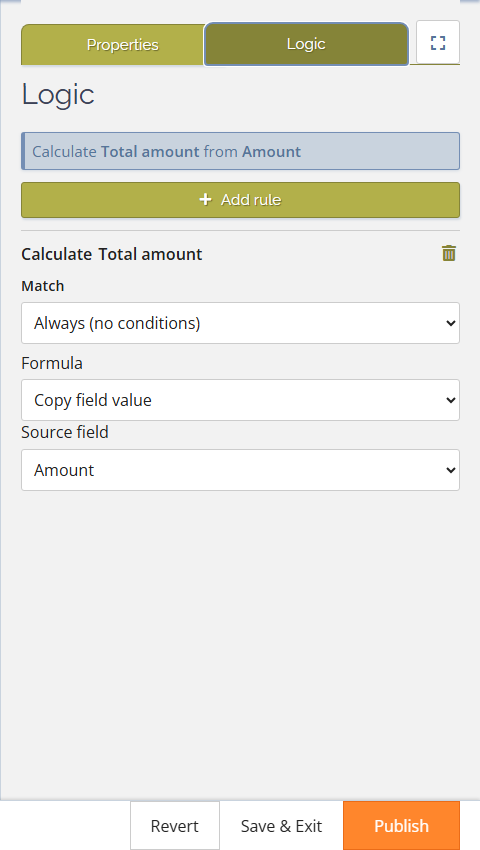
Note: Data Fields cannot be targeted by Show/Hide, Required, Page jump, or Change options rules, as these actions require respondent interaction.
Designer warnings
The Form Designer will alert you to potential configuration issues:
- No value source: The field lacks a default value, Query prefill, or calculation. It will remain empty and won’t appear in submissions.
- Value always overridden: An unconditional calculation is overwriting your default value or URL parameter. Either add conditions to the rule or remove the conflicting value source.
- Rule no longer matches: A logic condition referencing this field is incompatible with its current value type. Review and update the flagged rule.
Submissions and exports
In your submission data, Data Fields appear as standard columns using their Label as the header. They are ordered based on their canvas position. Empty fields will result in blank cells. This makes them perfect for injecting tracking data or reference codes directly into your exports.
Example: Tracking campaign sources
If you share a registration form across multiple channels (like newsletters and social media), you can track the source of each submission automatically:
- Add a Data Field and set its Label to Campaign source.
- Enable the Query prefill Extra and link it to your Campaign source field using the parameter name campaign.
- Share channel-specific links, such as …?campaign=newsletter or …?campaign=social.
Submissions will now automatically include the source channel in the Campaign source column. You can even use this data to trigger specific logic rules, like showing a special message only to newsletter subscribers.
You can use the same approach to silently store calculated scores or totals by targeting a Data Field with a calculated-value rule.