Query prefill automatically populates form fields using values from the web address (URL). For example, a link like …?email=ada@example.com will open the form with the email address already filled in. This feature is perfect for saving respondents time by pre-filling known information or for silently passing tracking data into your submissions.
Query prefill is an Extra—an opt-in feature you enable per form. You can manage Extras from the Extras tab in the Form Designer. Enabling an Extra simply unlocks its settings for compatible fields, allowing you to configure them individually.
Enable Query prefill
- Open your form in the Form Designer.
- Navigate to the Extras tab, located next to Components.
- Toggle Query prefill to the on position.
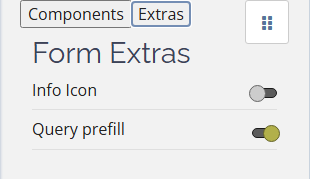
The Extra is now active for this form and ready to be configured on individual fields. You can click its name in the list to open its properties and rename it if desired.
Disabling and re-enabling
When you toggle the Extra off, FormFinch will ask for confirmation (Disable Query prefill?) and show you how many fields currently use it. Click Disable to confirm.
Don’t worry about losing your work—your per-field settings are saved. If you re-enable Query prefill later, your previous field connections and parameter names will be restored automatically.
Attach Query prefill to a field
- Select a compatible field on your canvas.
- In the properties panel, toggle on Query prefill.
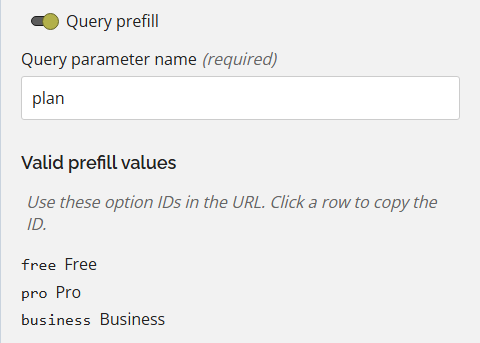
- Enter a Query parameter name. This is the exact name you’ll use in your URL (e.g., email or campaign).
The prefill configuration becomes active as soon as you provide a parameter name. You can configure Query prefill on as many fields as needed, assigning a unique parameter name to each.
For choice-based fields (Drop-down List, Radio Options, Yes/No, Checklist, and Multiple Choice), the properties panel will display a list of Valid prefill values. These are the exact option IDs you must use in your URL. Simply click a row to copy its ID.
Compatible fields
The Query prefill toggle is available in the properties of any field that accepts a value. This includes: Short Question, Long Question, Email, Website URL, Number, Currency Amount, Date, Time, Drop-down List, Radio Options, Yes/No, Checklist, Multiple Choice, and Data Field. Components that don’t accept input will not display the toggle.
Building the URL
To pass data to your form, append parameters to your form’s URL using the format ?name=value. You can chain multiple parameters together using an ampersand (&). Here are some examples:
- Text: ?name=Ada+Lovelace
- Email: ?email=ada@example.com
- Numbers or currency: ?quantity=3 or ?price=19.95 (use digits and an optional decimal point, respecting the field’s limits)
- Dates: ?start=2026-09-01 (format: YYYY-MM-DD)
- Times: ?at=14:30 (format: 24-hour notation)
- Single choices: ?plan=pro (where pro matches an ID from the Valid prefill values list)
- Multiple choices (Checklist or Multiple Choice): Repeat the parameter name, like ?tag=news&tag=promo
FormFinch strictly validates incoming data. If a URL provides an invalid value—such as an unknown option ID, text for a Number field, or an incorrectly formatted date—the parameter is ignored, and the field falls back to its default state. Only values that a respondent could legitimately enter are accepted.
Testing in Preview
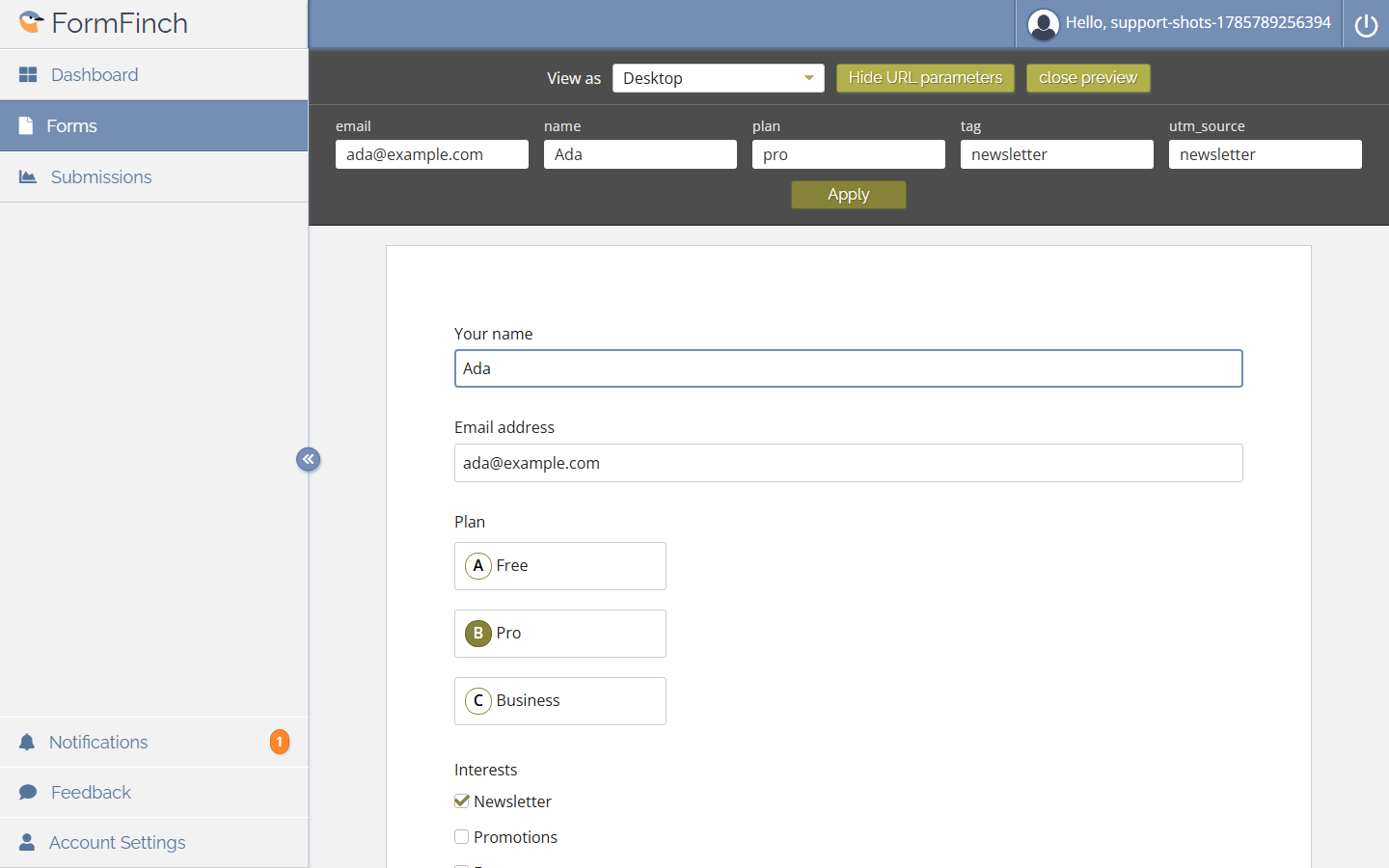
When Query prefill is active, a URL parameters button will appear in the Form Preview. Clicking this button opens a panel listing all your configured parameters. You can enter test values and click Apply to reload the preview and verify that your fields populate correctly. This allows you to test your setup thoroughly before publishing.
How prefill interacts with other values
- URL parameters always override a field’s default value.
- Query prefill only provides the initial value. Once the form loads, the respondent can edit or clear the prefilled data.
- For Data Fields, active calculated-value rules override Query prefill, and Query prefill overrides the default value.
- If a respondent is editing a previously submitted form, their saved answers take precedence. URL parameters will never overwrite existing submission data.
A note on trust and security
Because prefilled values are passed through the browser’s address bar, they are visible to the respondent and can be easily modified. While FormFinch validates these values to ensure they don’t break your field constraints, the data itself is neither secret nor verified. Always use Query prefill for convenience or tracking purposes, never for sensitive or secure information.
Example: Silent campaign tracking
If you’re promoting a registration form across multiple channels (like a newsletter and social media), you can tag each submission with its source without asking the respondent:
- Add a Data Field labeled Campaign source. This field remains invisible to respondents but is saved with their submission.
- Enable Query prefill and link it to the Campaign source field using the parameter name campaign.
- Distribute channel-specific links, such as …?campaign=newsletter for your email campaign and …?campaign=social for your social posts.
Your exports will now include a Campaign source column indicating where each submission originated. You can apply this same technique to visible fields, such as sending personalized links that automatically fill in a contact’s email address.