Use a Row to place fields side by side, such as first name and last name, or postal code and city. A Row does not collect an answer of its own.
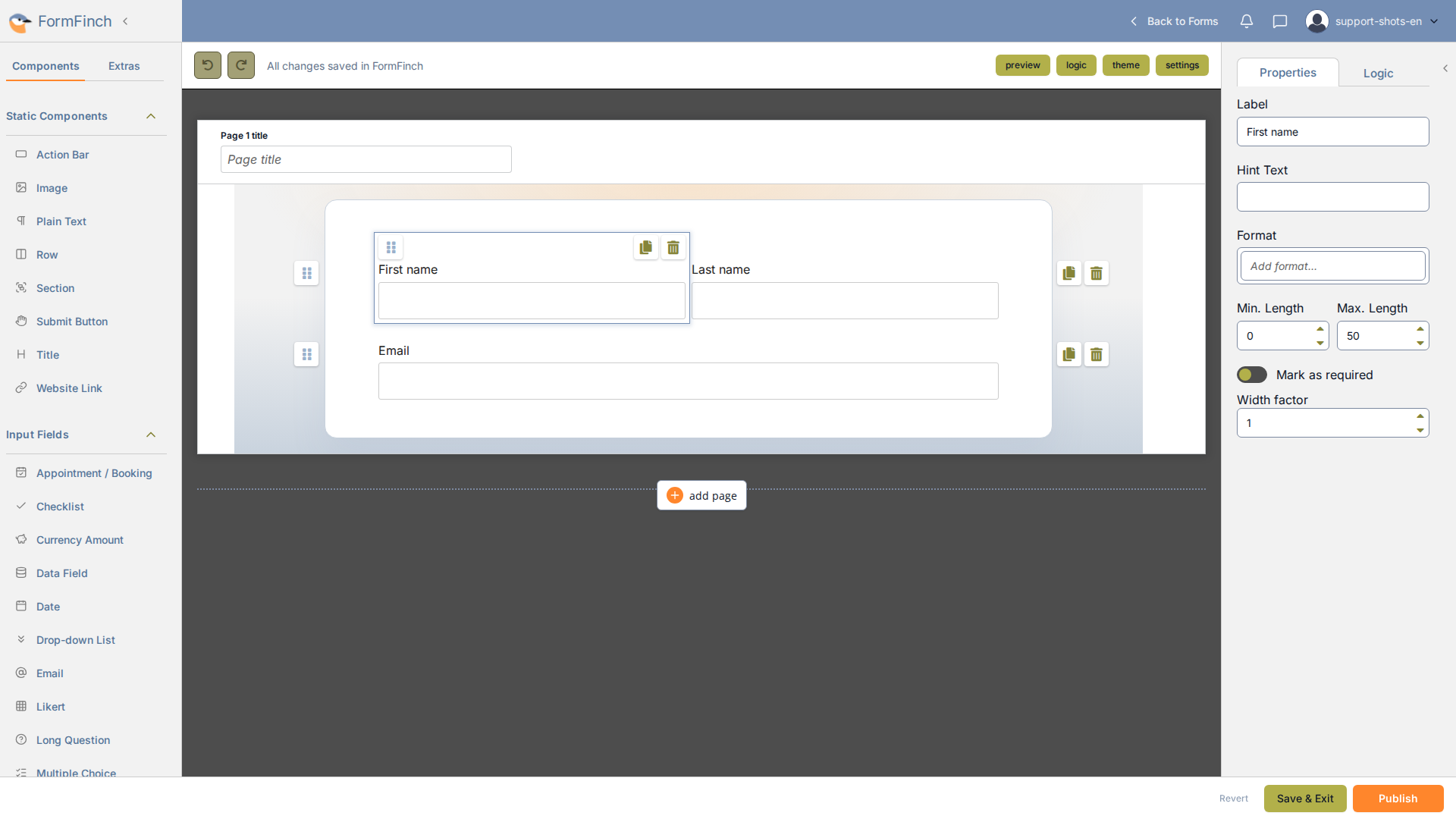
A Row on the canvas. Width factor is on the selected field.
Add a row and fill it
Drag Row from Static Components onto the page, then drag fields into it. An empty Row shows Drag fields here to place them side-by-side.
Clicking a field in the palette adds it to a Row when that Row, or a field already inside it, is selected.
Width of fields in a row
Select a field inside the Row and set its Width factor in the properties panel.
Width is relative across the Row. Two fields set to 1 and 1 split the space evenly. Values of 1 and 2 give the second field twice the width of the first. New fields start at 1.
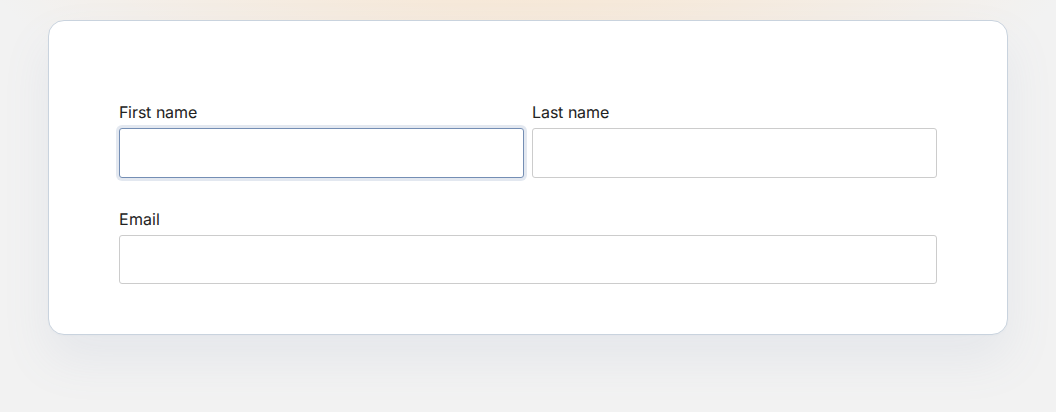
On a wide screen the fields stay side by side.
On a phone
On a phone or narrow window, every field in the Row stacks at full width, in left-to-right order. Width factor has no effect while fields are stacked.
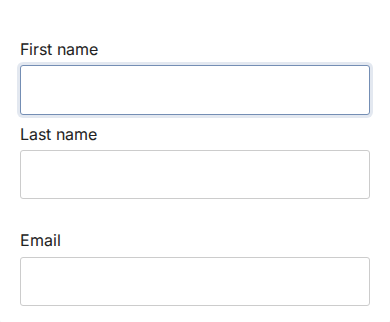
On a narrow screen the same fields stack.
Row and Section
A Row can sit on the page or inside a Section. A Section cannot be placed inside a Row.
When a Section has Lock contents enabled, its Rows and the fields inside them cannot be selected, edited, copied, deleted, or dragged.
Show or hide fields in a row
Click logic in the designer toolbar, then Add rule and Show / hide. Choose each field in the Row as a target. A Row itself cannot be a target.
To show or hide all fields in a Row at once, place the Row inside a Section and target that Section. See Conditional logic.
Move, copy, or delete a row
Drag a Row by its handle to move the whole group. Its fields move along.
Fields inside a Row can also be dragged individually: reorder them within the Row, or drag them out onto the page or into a Section.
Copying a Row creates a duplicate directly below it, complete with all fields and settings. Logic rules targeting any field in the Row are duplicated for the copy.
Deleting a Row deletes every field inside it. Logic rules targeting those fields, or using them in a condition, are removed as well.