Split a long form across several pages. Respondents fill in one page at a time and move with next and previous. With page progress on, they can see how far they have come.
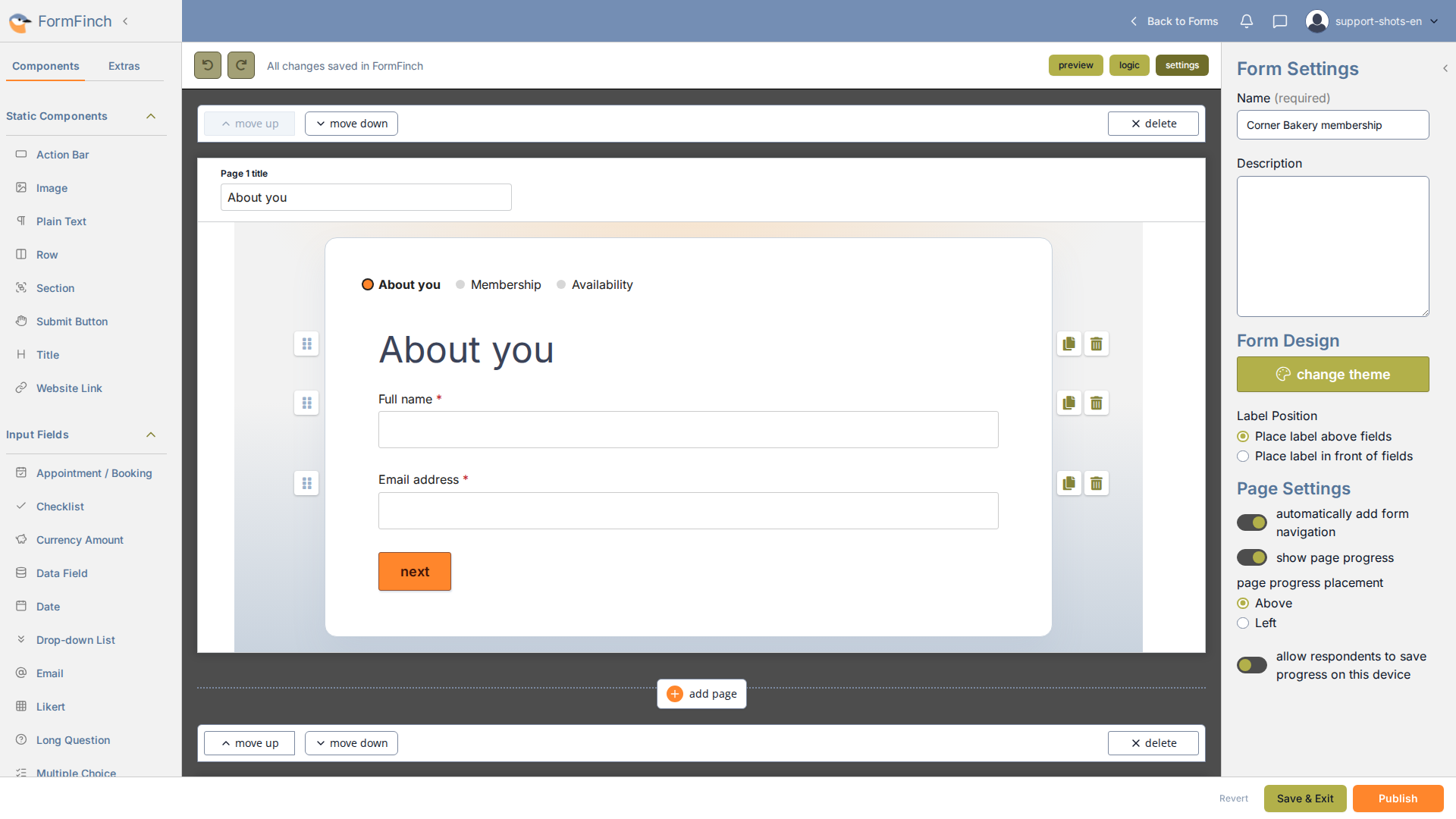
Each page has a title field above the canvas. Those titles are the labels in the progress.
Add pages
Under a page, click add page. The new page is inserted after that one.
Use move up and move down to change the order. The last remaining page cannot be deleted.
Name the pages
At the top of each page, fill in Page title. That is the name respondents see in the progress.
Keep it short. FormFinch stores at most 40 characters.
Show page progress
Open Form Settings (the settings button in the status bar if a field is selected). Under Page Settings, turn on show page progress.
page progress placement appears only while that switch is on:
- Above — a row of steps over the questions. This is the default.
- Left — a column of steps beside the questions. The first step lines up with the first field on the page, usually the title.
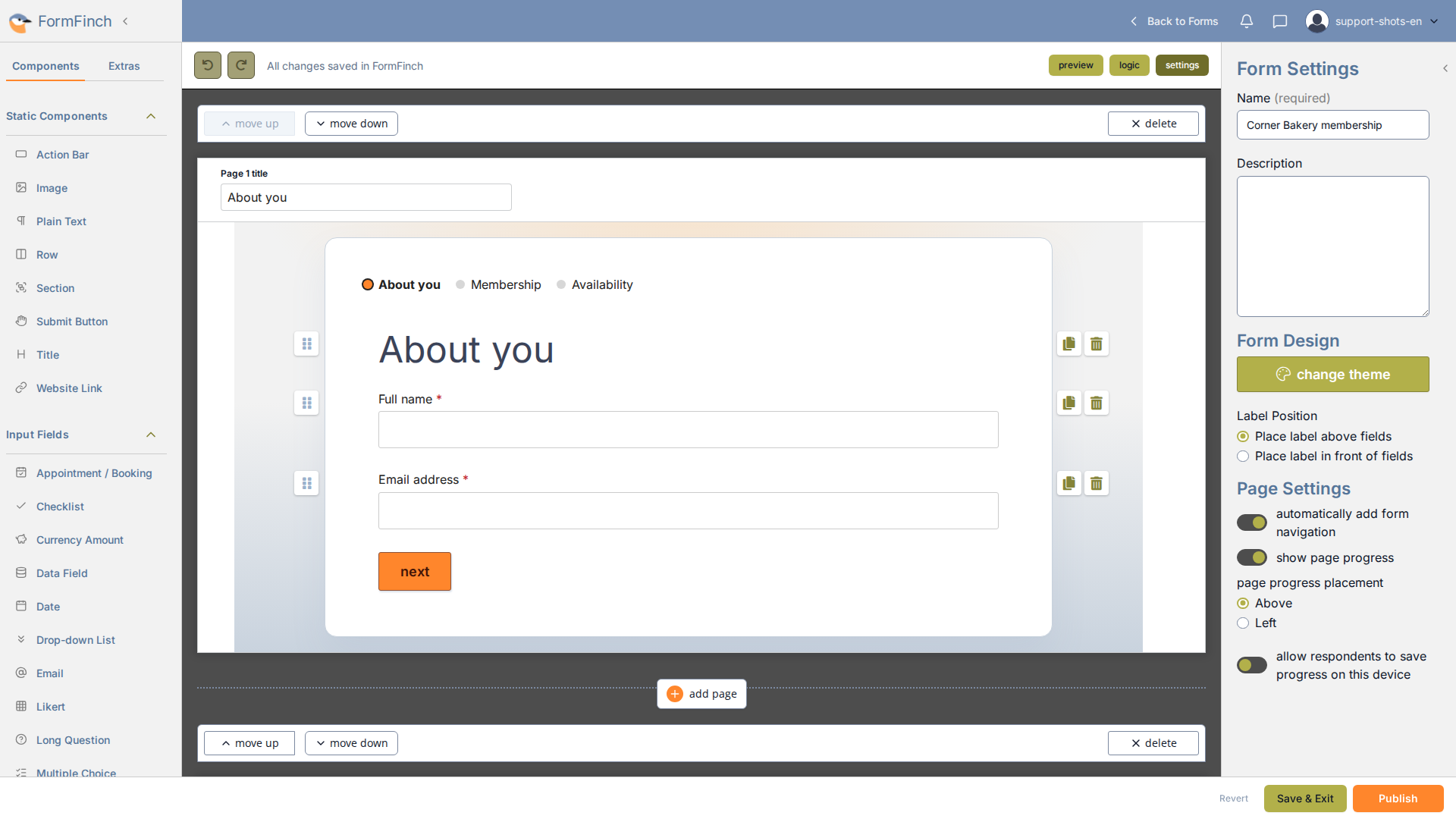
Placement is a choice under Page Settings, next to the progress switch.
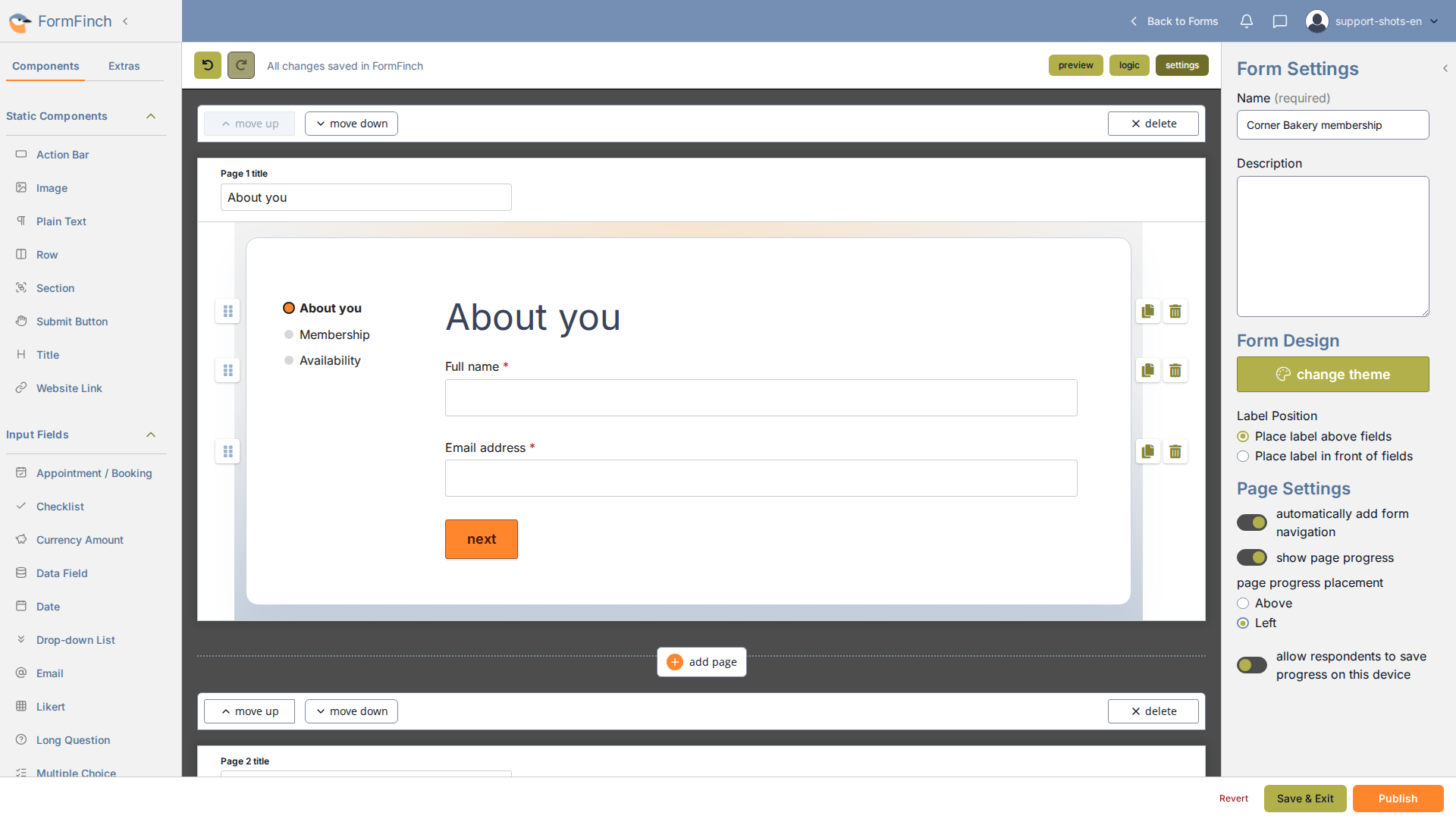
With Left, the first step sits on the same line as the first component.
What respondents see
On a computer, each visible page is a labelled step. The current step is bold, with an orange marker. Earlier steps look complete. Later steps stay muted until they are reached.
Respondents can click an earlier step to go back. They can click a later step only when the current page is valid, and every visible page in between is valid too. next uses the same check: unanswered required fields keep people on the page.
Pages that conditional logic hides do not appear in the progress. The count is the number of pages someone can actually open, not the number of canvases in the designer. A page without a title still keeps its original number, so a later visible step can say Page 3 even when the phone line reads Step 2 of 2.
In the designer, every other step is clickable so you can jump around while you build. The live form is stricter.
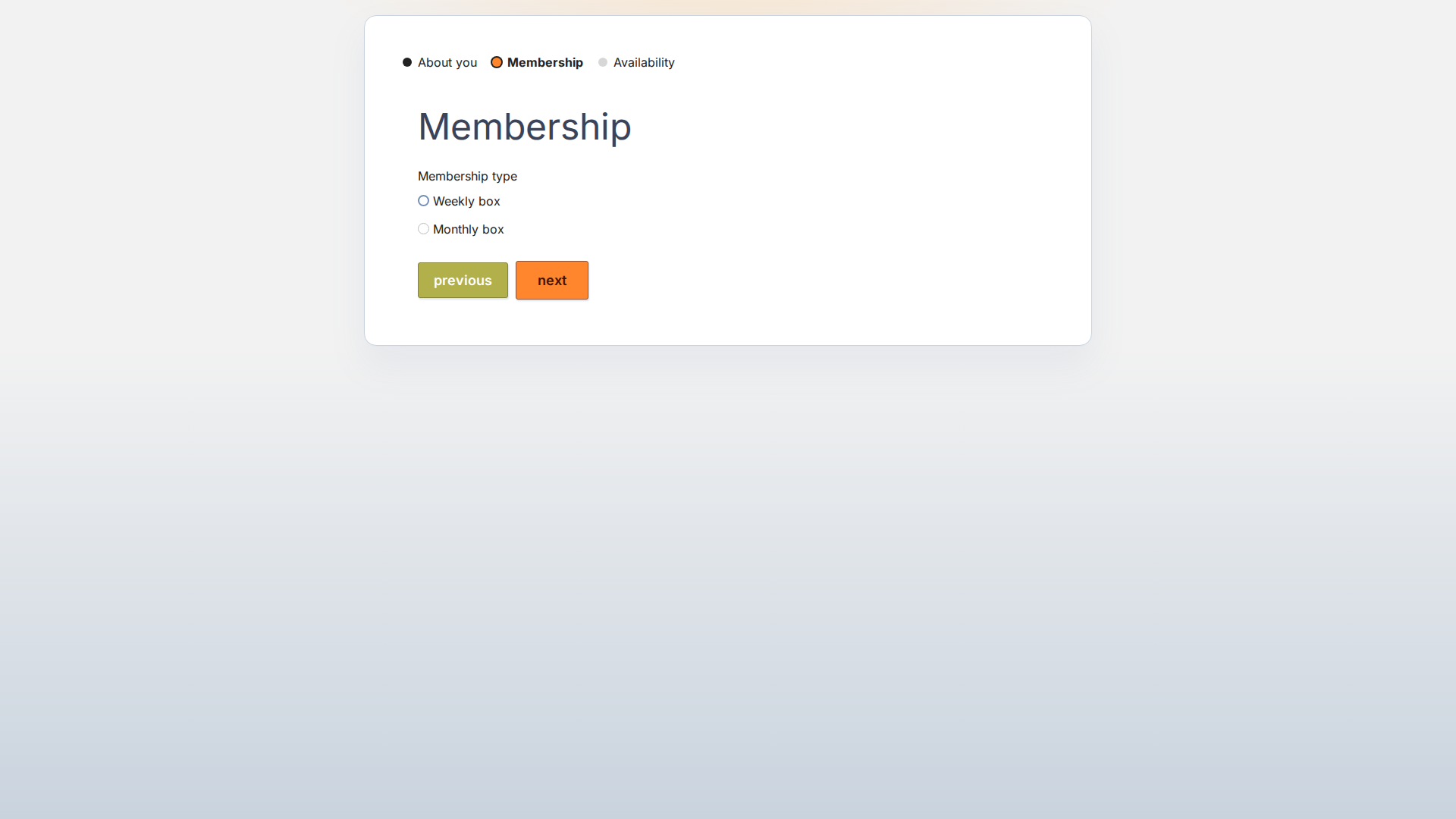
On page 2 of 3, About you is complete. Membership is the current step.
On a phone
On a small screen the labelled steps disappear. Respondents see one line instead, for example Step 2 of 3 — Membership. If the page has no title, the line is only Step 2 of 3.
They cannot tap a step to jump. Respondents move between pages with previous and next; next still checks the current page.
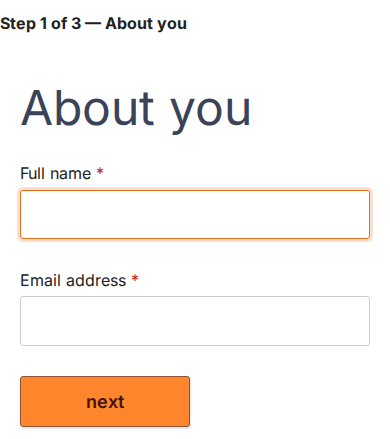
On a phone, progress is a single line: the step number and the page title.