Exporting your form submissions allows you to analyze responses in spreadsheet applications like Microsoft Excel, Google Sheets, or Apple Numbers, import contact details into your CRM, or archive records offline. FormFinch makes exporting straightforward with flexible format options and background processing for large datasets.
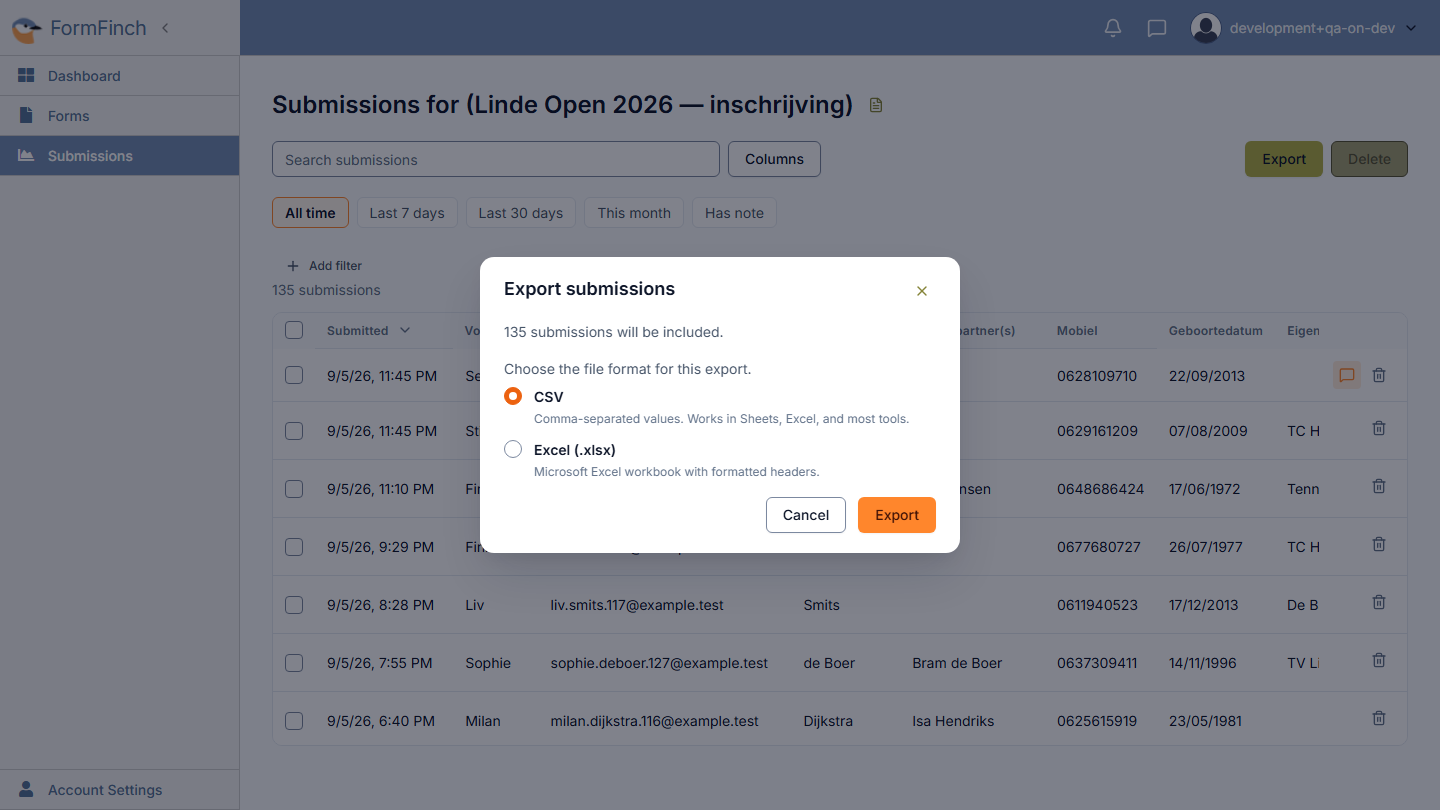
Export all or filtered submissions
- Open your form in Forms > [Form Name] > Submissions.
- (Optional) Apply any search terms, date ranges, or column filters to narrow down the submissions you want to export.
- Click the Export button in the upper right toolbar.
- In the export dialog, select your preferred format:
- CSV: Comma-separated values. Works in Sheets, Excel, and most tools.
- Excel (.xlsx): Microsoft Excel workbook with formatted headers.
- Click Export. Your browser will immediately download the exported file.
Export a specific selection
If you only need a handful of responses:
- Check the boxes next to the submissions you want to include.
- The export button in the toolbar updates to Export selection.
- Click Export selection, choose your file format, and confirm to download just those selected rows.
Export respects visible columns and order
FormFinch exports your data using the exact column layout configured in your view:
- Visible columns: Only columns currently visible in your grid will be included in the exported file. If you hide questions using the Columns menu, those fields will be omitted from the export.
- Column order: The order of columns in the exported spreadsheet matches the column order you have arranged in the submissions grid.
- Private notes omitted: Internal submission notes are never included in exports, ensuring your private administrative comments stay confidential.
Handling large exports with background jobs
For standard exports, FormFinch generates and downloads your spreadsheet in real time. For forms with very large submission counts (over 25,000 entries), FormFinch automatically processes the export as a background job to keep your browser fast and responsive:
- When you initiate a large export, FormFinch queues a background CSV job and shows a progress indicator.
- Once processing is complete, a Download CSV button appears in the dialog.
- You can also view and re-download completed files anytime within 7 days from the Exports menu in the toolbar.
Tip: If you only need a subset of a large dataset, use date presets or column filters before exporting to keep the file size compact and download your spreadsheet instantly.