As your form collects responses, locating specific submissions or analyzing subsets of your data is straightforward with FormFinch’s powerful search and filtering tools. You can search across all responses in seconds, apply granular column rules, and even bookmark your filtered views.
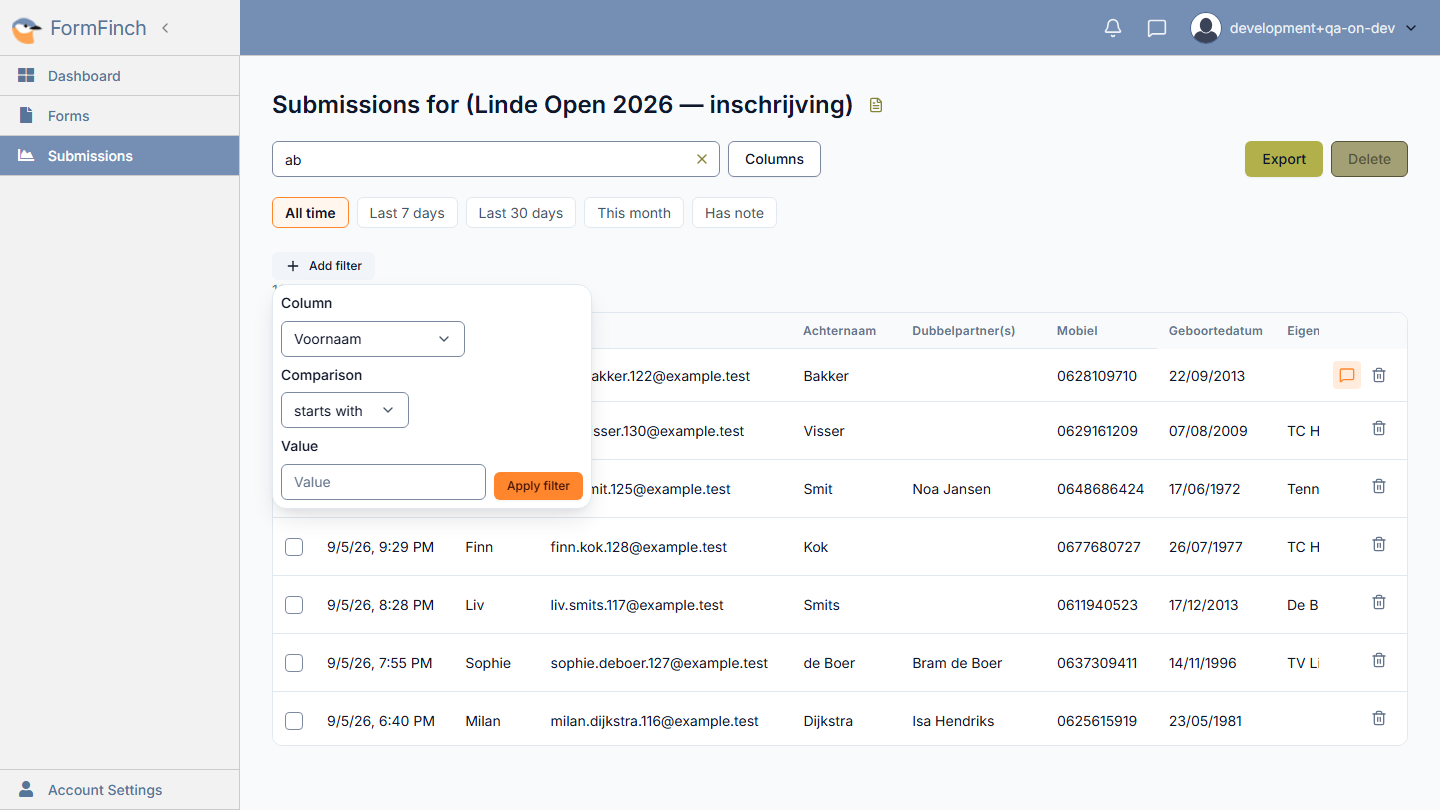
Search submissions across all fields
Search submissions is built for speed: type a name, city, email, or any other answer and jump straight to matching rows across the whole form—without building a filter first.
- Click the Search submissions box in the upper toolbar.
- Type your search term (minimum 2 characters).
- The grid updates as you type and shows only submissions that match in indexed fields.
- To reset your search, click the clear icon (×) or press the Escape key.
Tip: Reach for Search submissions when you already know what you are looking for. Use Add filter when you want a precise rule you can keep, combine, or bookmark.
Filter by submission date
Quickly focus on recent activity using the date filter chips located directly below the toolbar:
- All time: View all submissions collected since the form was created.
- Last 7 days: Show responses submitted within the past week.
- Last 30 days: Review submissions from the past 30 days.
- This month: Isolate entries received during the current calendar month.
Click any preset chip to apply the time window instantly. Clicking another chip switches the range, while clicking All time clears the date restriction.
Filter submissions with notes
If you use internal notes for tracking customer follow-ups or processing status, the Has note filter chip makes it easy to find submissions that require attention.
- Click the Has note chip in the filter bar to display only submissions that have an internal note attached.
- Click the chip again to turn off the note filter and return to the full list.
Add custom column filters
When you need to narrow down submissions by a specific answer—such as responses from a certain city, a particular choice option, or a minimum quantity—use custom column filters:
- Click the Add filter button in the filter bar.
- Select the Column you want to filter on from the dropdown list.
- Choose a Comparison operator:
- is: Exact match for text, numbers, or dates.
- starts with: Matches responses beginning with your input text.
- contains: Matches responses containing your keyword (standard for choice and multi-select options).
- Enter the target Value in the text field.
- Click Apply filter.
Active filters appear as chips above the grid. You can apply multiple column filters simultaneously to combine criteria. To remove a filter, click the × on its chip.
Filter by form version
If you published changes to your form design over time, FormFinch tracks which version each respondent filled out. A Filter by form version chip allows you to view submissions from a specific publication or review all versions combined.
Bookmark or share filtered views
Whenever you search, filter, or sort your submissions, FormFinch updates the web address (URL) in your browser with your active parameters (such as q, filter, sort, and date ranges).
Tip: You can bookmark the URL in your browser or share the link with anyone who has access to your FormFinch account. Opening the link will instantly load the exact filtered view—for example, all responses from this month that have notes attached.