Once you publish a form and share it with your audience, FormFinch collects every response securely and organizes the entries in a clean, interactive submissions grid. You can quickly scan recent activity, open detailed responses, customize your view, and manage your records with ease.
Open the submissions grid
You can access submissions for any form directly from your dashboard:
- Sign in to your FormFinch account and navigate to Forms.
- Click on the form you want to review.
- Select Submissions from the top navigation, or click the submissions link on the form details page.
If you have multiple forms collecting data, you can also click Submissions in the main navigation menu to see a list of all forms with received responses, including the total count and unread entries.
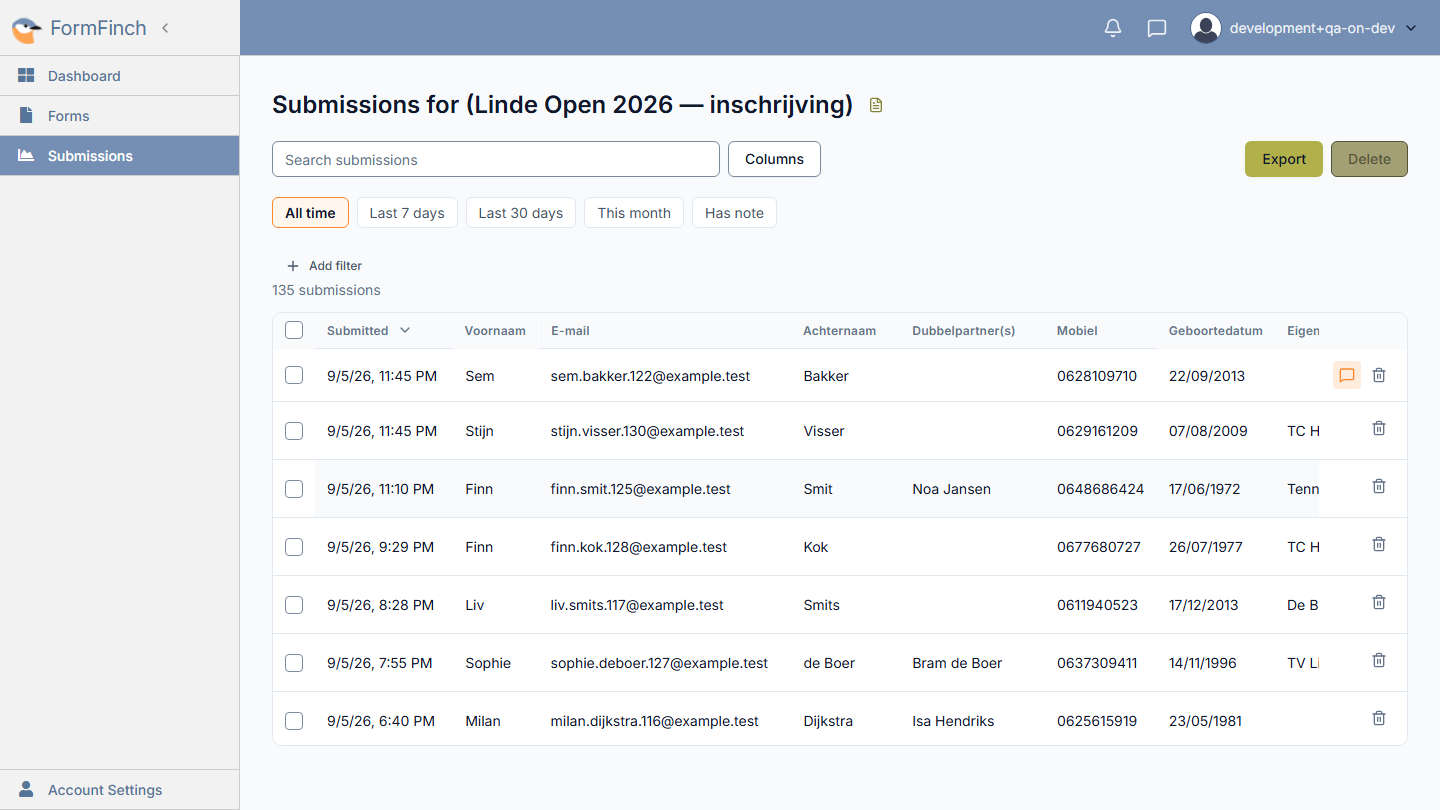
Navigating the submissions grid
Each row in the grid represents an individual response submitted by a respondent.
- Submitted timestamp: Shows the date and time the form was completed.
- Form fields: Each column displays the answer submitted for a specific question or component on your form.
- New badge: Any submissions received since your last visit display an eye-catching New badge so you never miss fresh responses.
- Note indicator: A speech bubble icon in the row indicates that a private internal note is attached to that submission.
- Smooth browsing: FormFinch loads submissions smoothly in windows as you scroll down the page, giving you fast, uninterrupted browsing whether you have ten responses or ten thousand.
Inspect full submission details
To view all answers from a single respondent in one place, click anywhere on a submission row. A detail drawer slides open on the right side of your screen:
- Complete field answers: Review all answered questions in a clean, vertical layout, including uploaded file attachments.
- File downloads: Download submitted files directly with the Download button next to file fields.
- Previous and Next navigation: Use the arrow buttons at the top of the drawer (or your keyboard’s arrow keys) to step through submissions sequentially without closing the panel.
- Private notes: Add, view, or update internal notes at the bottom of the drawer.
- Close drawer: Press Escape or click the close icon (×) in the top right to return to the full grid view.
Customize column order and visibility
You can tailor the submissions grid to focus on the fields that matter most to your workflow:
- Click the Columns button in the toolbar above the grid.
- Check or uncheck column names to show or hide specific questions.
- Drag columns up or down in the list to change their display order.
- In the grid itself, hover between column headers and drag the divider to resize column widths.
Your column preferences are saved automatically for each form, so your customized layout stays in place whenever you return.
Select and delete submissions
You can delete individual submissions or perform bulk actions when cleaning up test entries or managing data retention:
- Delete a single submission: Click the trash icon at the far right of the row (Delete submission). Confirm in the dialog to permanently remove the response.
- Select rows: Use the checkbox on the left of a row to select it. The header checkbox selects all matching this filter (not only the rows on screen).
- Bulk actions: When one or more rows are selected, toolbar buttons appear so you can export or delete your selection in one step.
Tip: Deleting a submission permanently removes all submitted field values, uploaded attachments, and attached notes. This action cannot be undone.