Take a one-time payment on a form. The money goes straight to your own Stripe account through Stripe Connect Express.
Respondents pick an amount, click Pay now (or your own Pay button label), and pay on a Stripe Checkout page. Afterwards they land on a FormFinch page that shows the payment status.
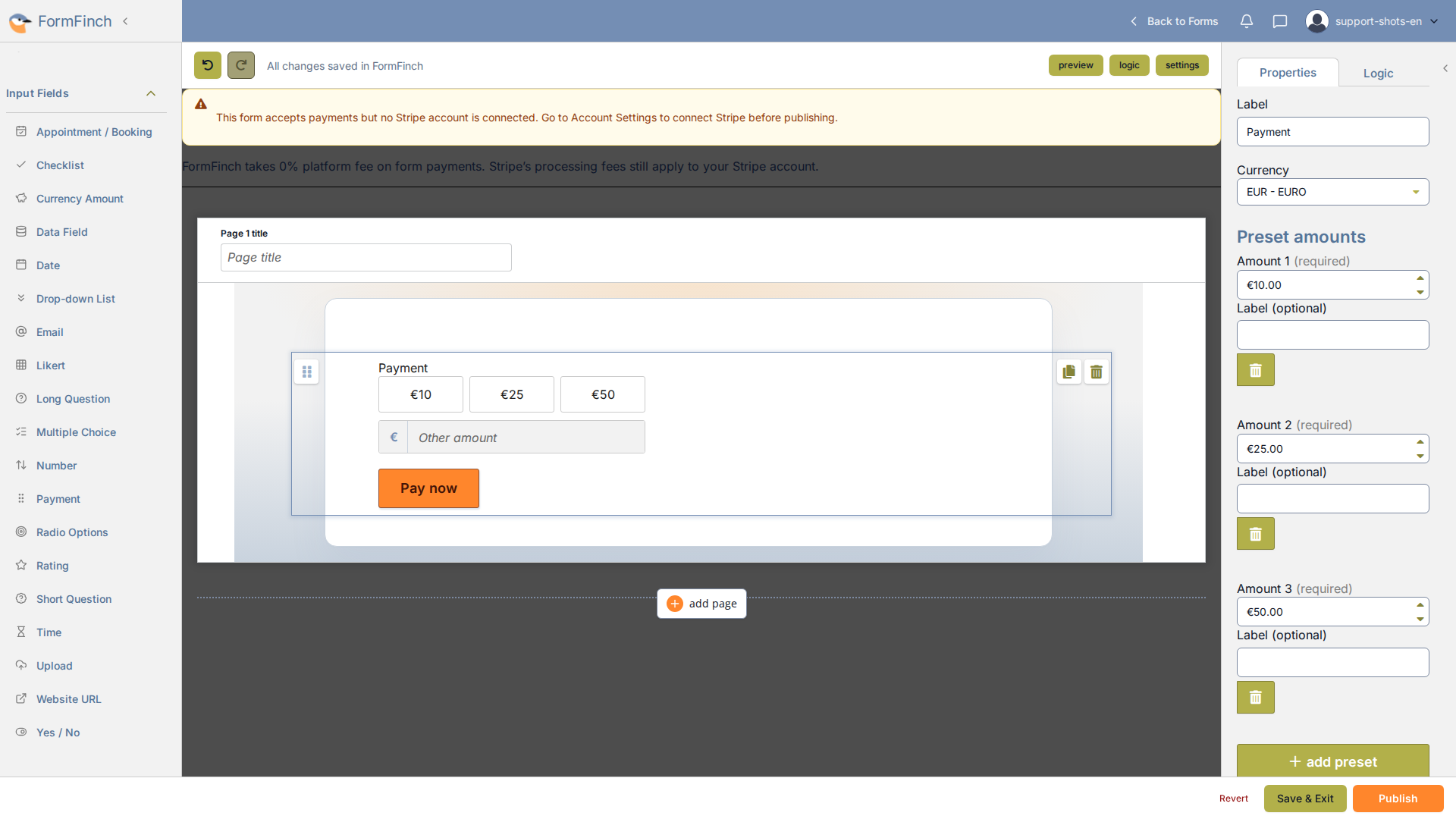
Payment on the canvas, with amount presets and the pay button.
Connect Stripe
Open Account Settings and find the Stripe payouts card.
- Click Connect Stripe.
- Open the link in the confirmation email from FormFinch within 30 minutes.
- Complete the setup with Stripe.
- Back on Account Settings, click Finish setup if the card still asks for it. No new email is needed.
Stripe’s review can take days. The setup can be finished later.
When the account is connected, the card shows Yes or No for Details submitted, Test charges and Live charges. Open Express Dashboard opens your Stripe Express Dashboard in a new tab.
If Stripe pauses charges, the card shows Payments paused — action required. Click Open Express Dashboard to see what Stripe needs. For a closed or disconnected account, click Connect Stripe to link a new one.
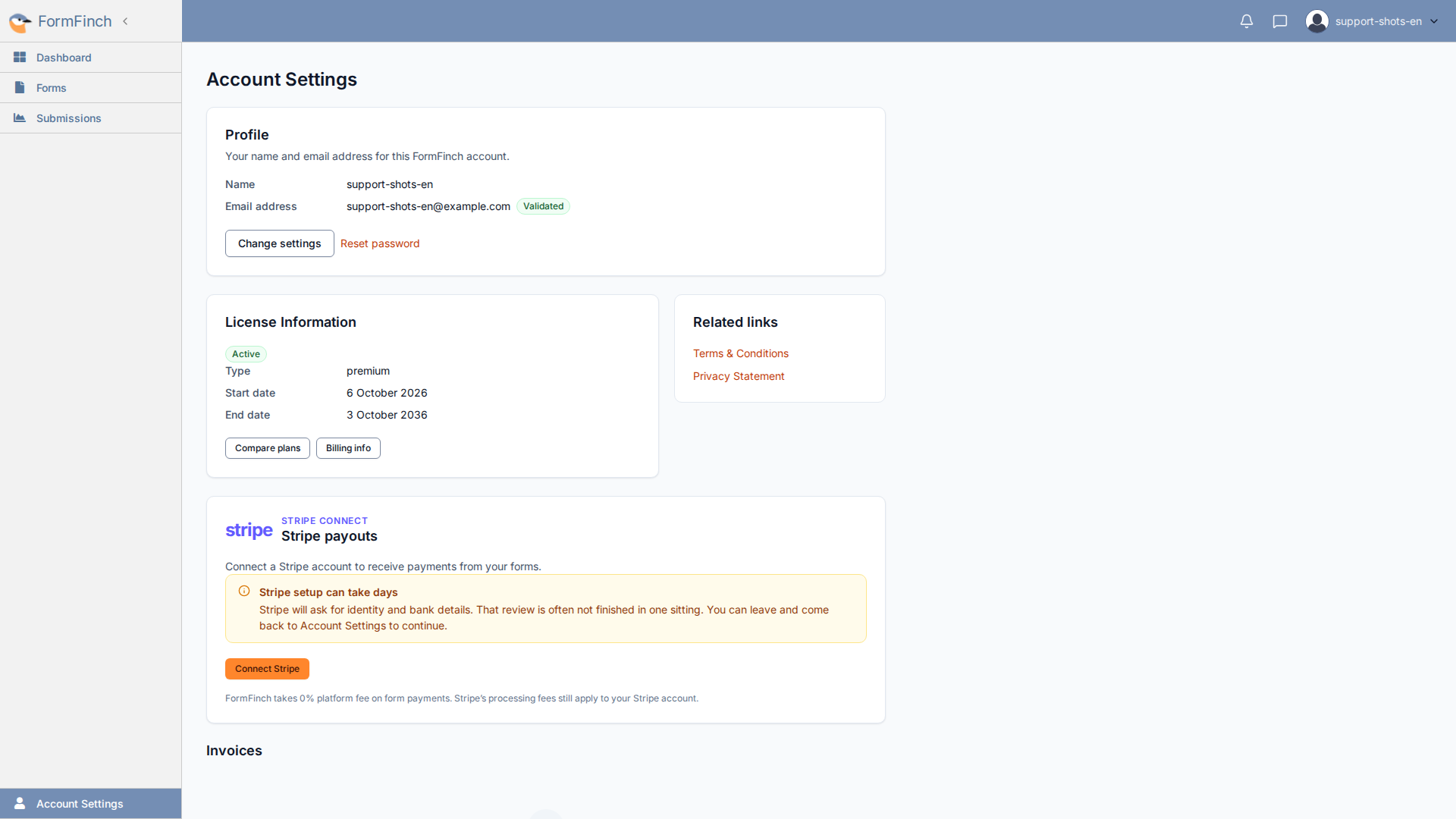
Stripe Connect lives on Account Settings, not in the form designer.
Add and set up Payment
Drag Payment from Input Fields onto the canvas. It starts with preset amounts of 10, 25 and 50 in EUR, a custom amount field and the button Pay now. On a payment form, the Payment component takes the place of the submit button.
In the properties panel:
- Currency: The currency must be one that your connected Stripe account accepts.
- Preset amounts: Click Add preset for another amount. A Label (optional) replaces the amount on that preset’s button.
- Allow custom amount: Adds the Other amount field.
- Default amount: Preselects this amount when the form opens.
- Min. amount and Max. amount: Set the range for presets and custom amounts. A typed amount outside the range is replaced by the nearest limit.
- Pay button label: The text on the button.
- Mark as required: Adds an asterisk to the label. Respondents always need an amount to pay.
A Payment component needs at least one preset or Allow custom amount.
What respondents see
Respondents see the preset amounts, the Other amount field if it is allowed, and the pay button. Without an amount, the button shows “Select or enter an amount before paying.”
Clicking the button sends the respondent to Stripe Checkout. Card details are handled by Stripe. Canceling in Checkout returns the respondent to the form.
After Checkout, a status page shows one of:
- Payment received — thank you
- Payment is being processed
- Payment failed
- Payment canceled
When Stripe provides a receipt, the page links to it with View receipt.
On the Free plan, the published form shows a Test mode banner and no real charges are made. On a paid plan, charges are live and the banner is not shown.
In the toolbar preview, Stripe Checkout never opens. The pay button shows “Publish this form to test Pay. Preview cannot start Stripe Checkout.”
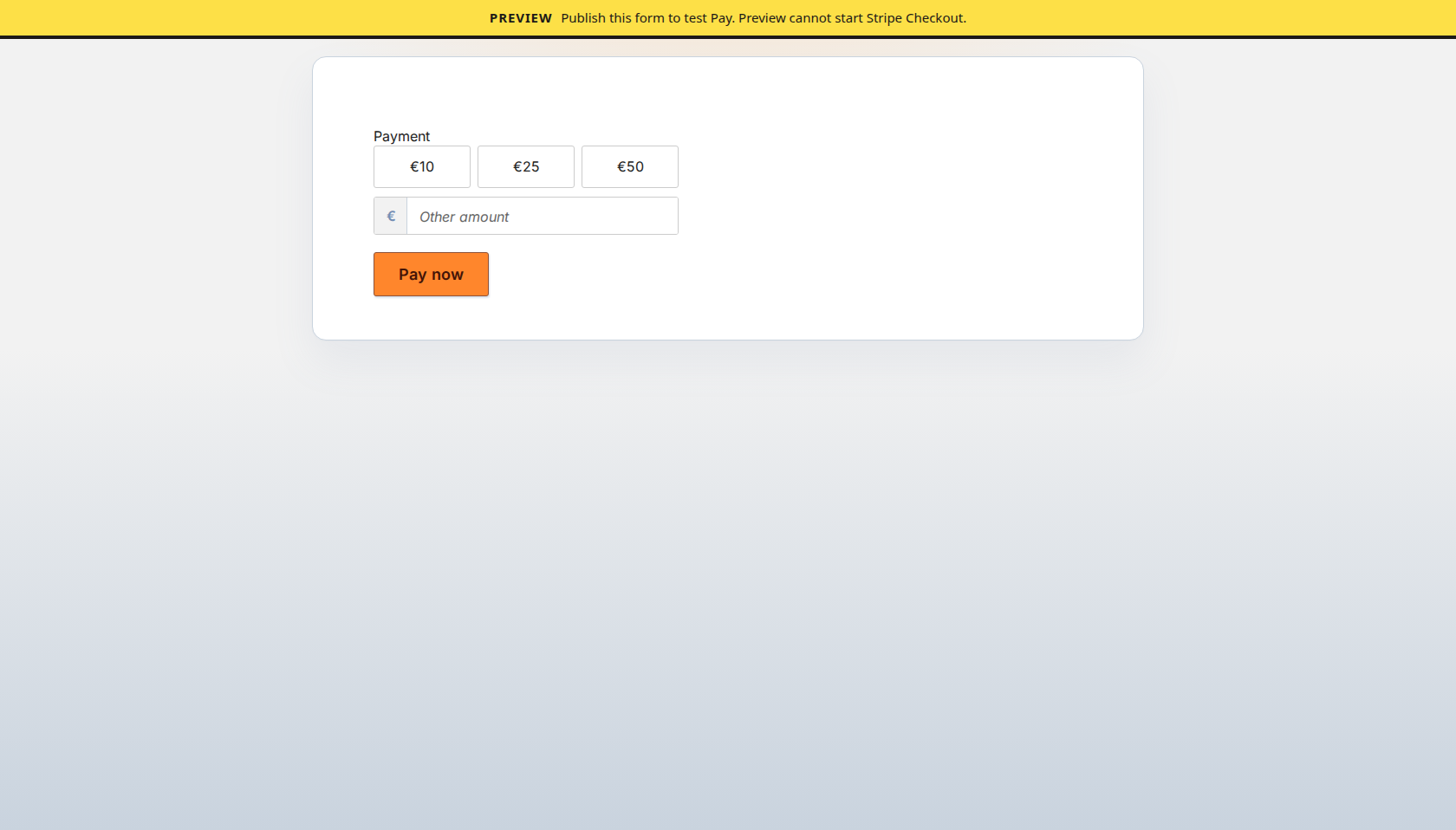
Preview shows the pay UI. Checkout only starts on a published form.
On a phone
On a phone, the component shows the same amount buttons, amount field and pay button.
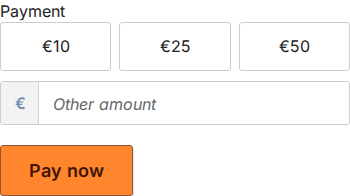
On a phone, respondents still pick an amount and tap the pay button.
What you see in submissions
A submission appears once its payment is paid or still processing. The submissions grid then has a Payment column with a status badge and the amount. The badge reads Paid, Processing, Failed or Canceled.
The detail panel of a submission lists Payment, Amount and Reference. The reference is the Stripe payment ID.