Make sure the answer to a Short Question is a UK phone number, a UK postcode, an NHS number, an IBAN, or another format from the catalog. Respondents see an error until the answer fits.
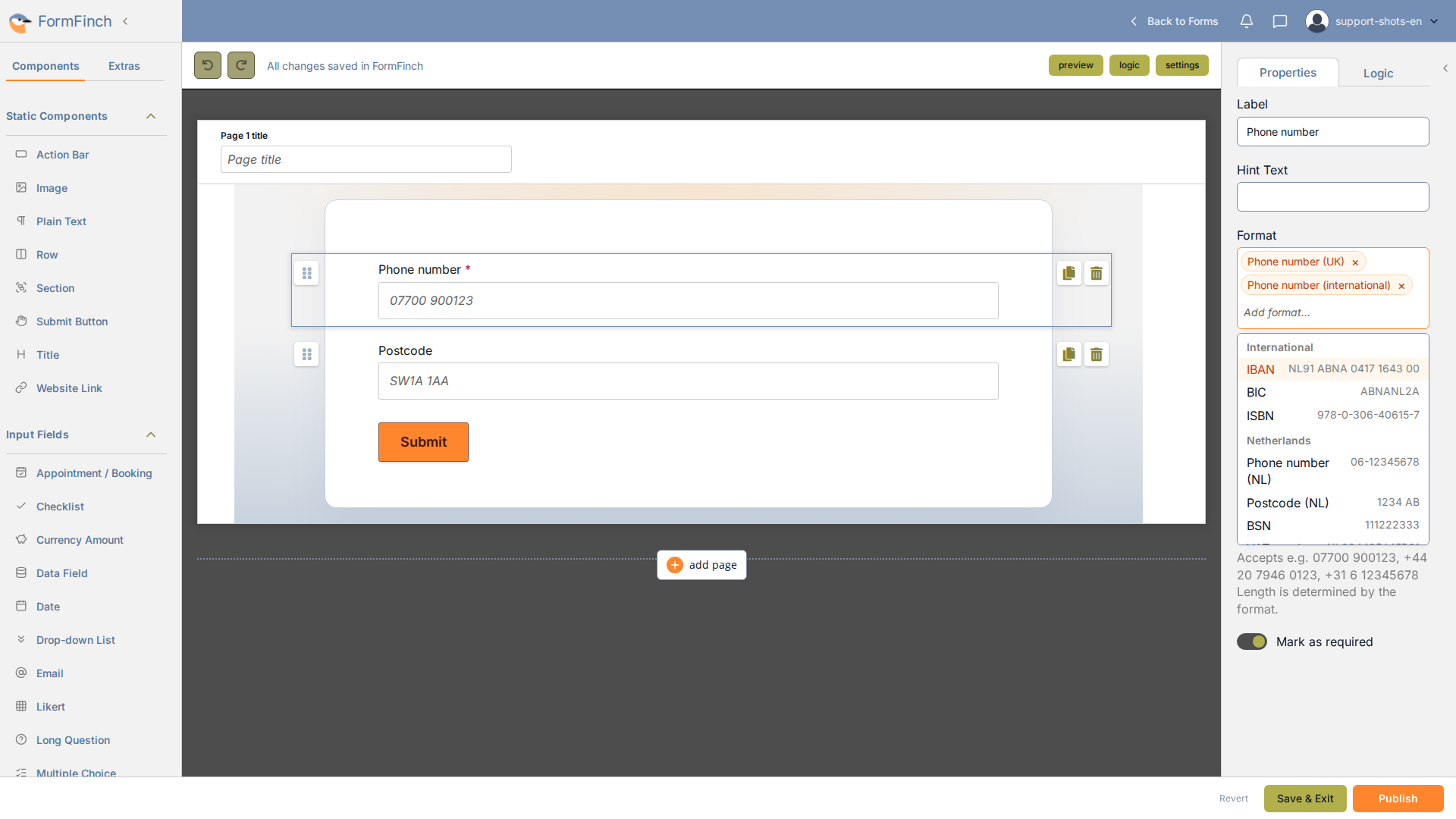
Format chips on Short Question properties, with the catalog open to add another format.
Choose formats
Select a Short Question and click Add format… under Format. The list is grouped by region, such as International, United Kingdom, and Netherlands, and shows an example next to each format.
Type to search by name, country, or abbreviation, for example iban, nhs, nino, or sort code. Accents are ignored. Click a format to add it as a chip. To remove one, click the × on its chip.
Examples and length
Under the chips, Accepts e.g. lists up to three example values, taken from each selected format in turn. Length is determined by the format. means the formats decide what is valid, so Min. Length and Max. Length are not used.
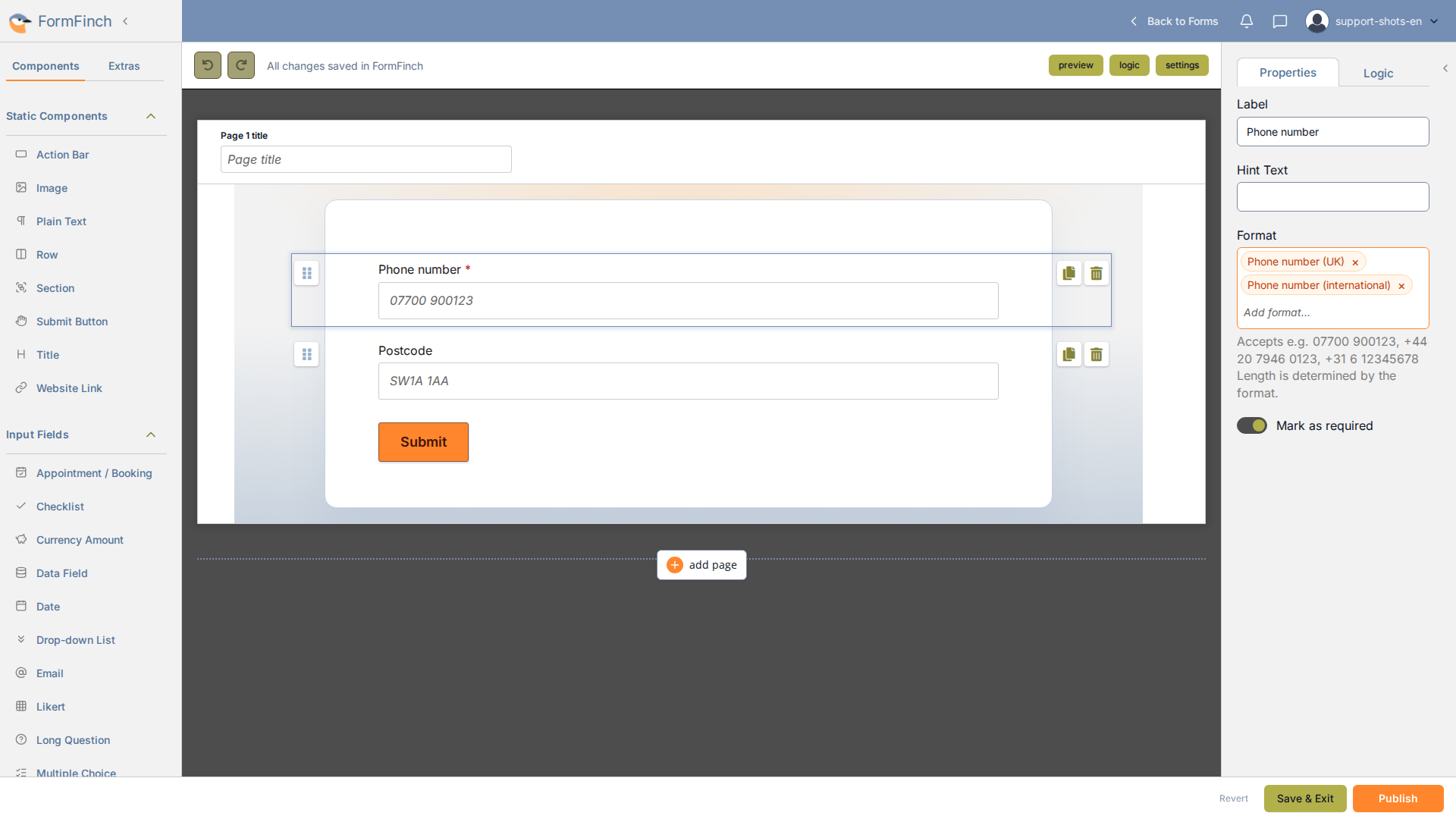
Selected formats show example values and that length follows the format.
What respondents see
The answer is checked when the respondent leaves the field and when the form is submitted. An answer that matches none of the selected formats shows an error that names the expected format:
- Phone number (UK) and Phone number (international): Enter a valid UK or international phone number.
- Postcode (UK): Enter a valid UK postcode.
- NHS number: Enter a valid NHS number.
- IBAN and BIC: Enter a valid IBAN or BIC.
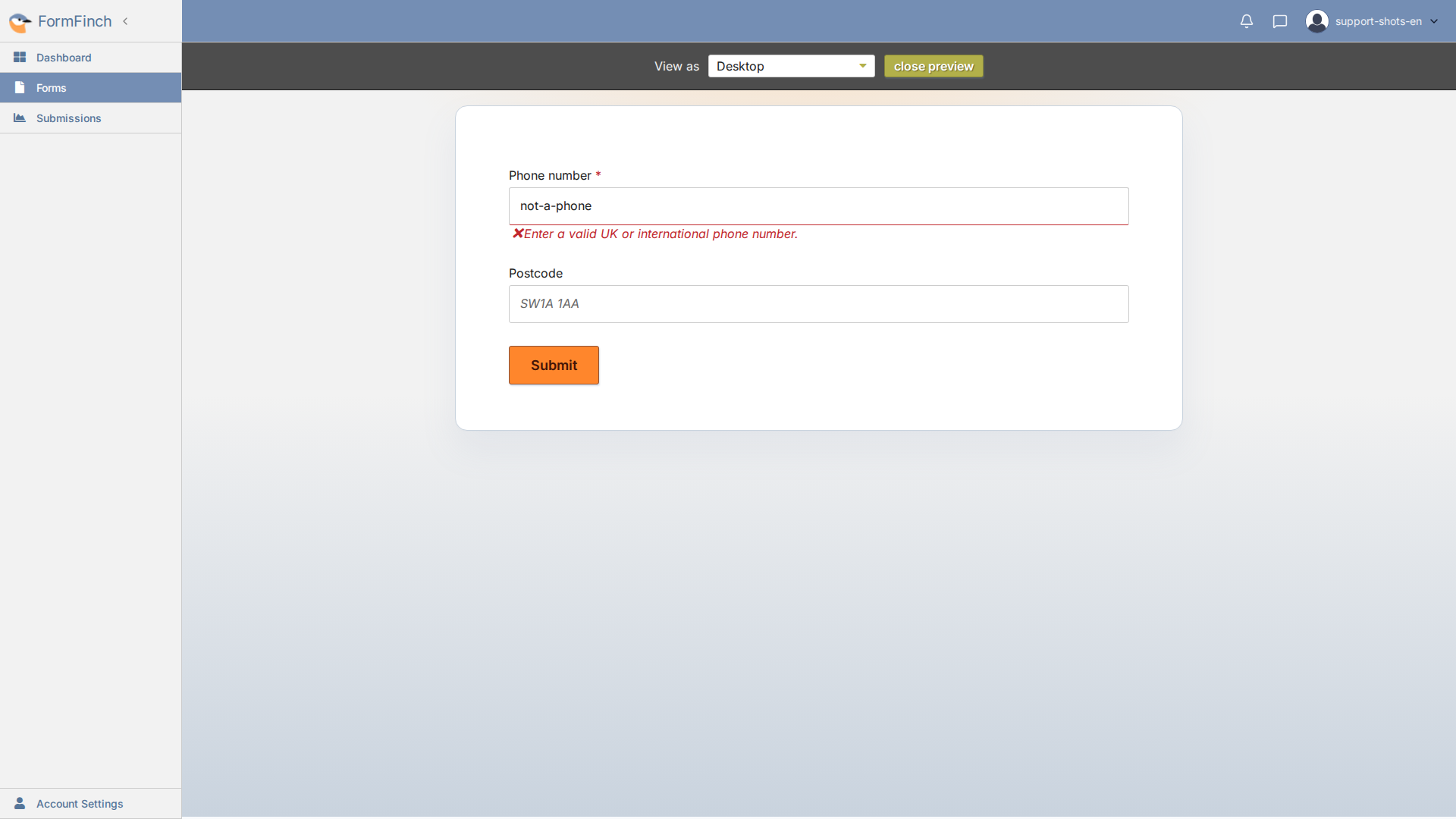
A value that matches none of the selected formats shows an error.
An empty field is not checked against the formats. Turn on Mark as required to make an answer mandatory; an empty field then shows This is a required field.
On a phone, the field works the same way. When all selected formats are phone numbers, the phone keypad opens.
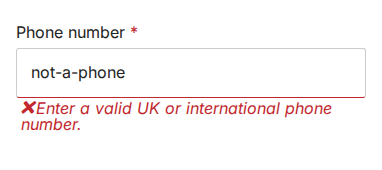
On a phone, the same error appears under the field.