You can adjust the fonts, colours, background, and picture of any catalogue theme in the Theme panel. Changes show on the canvas straight away. To reuse a finished look on other forms, save it under My themes.
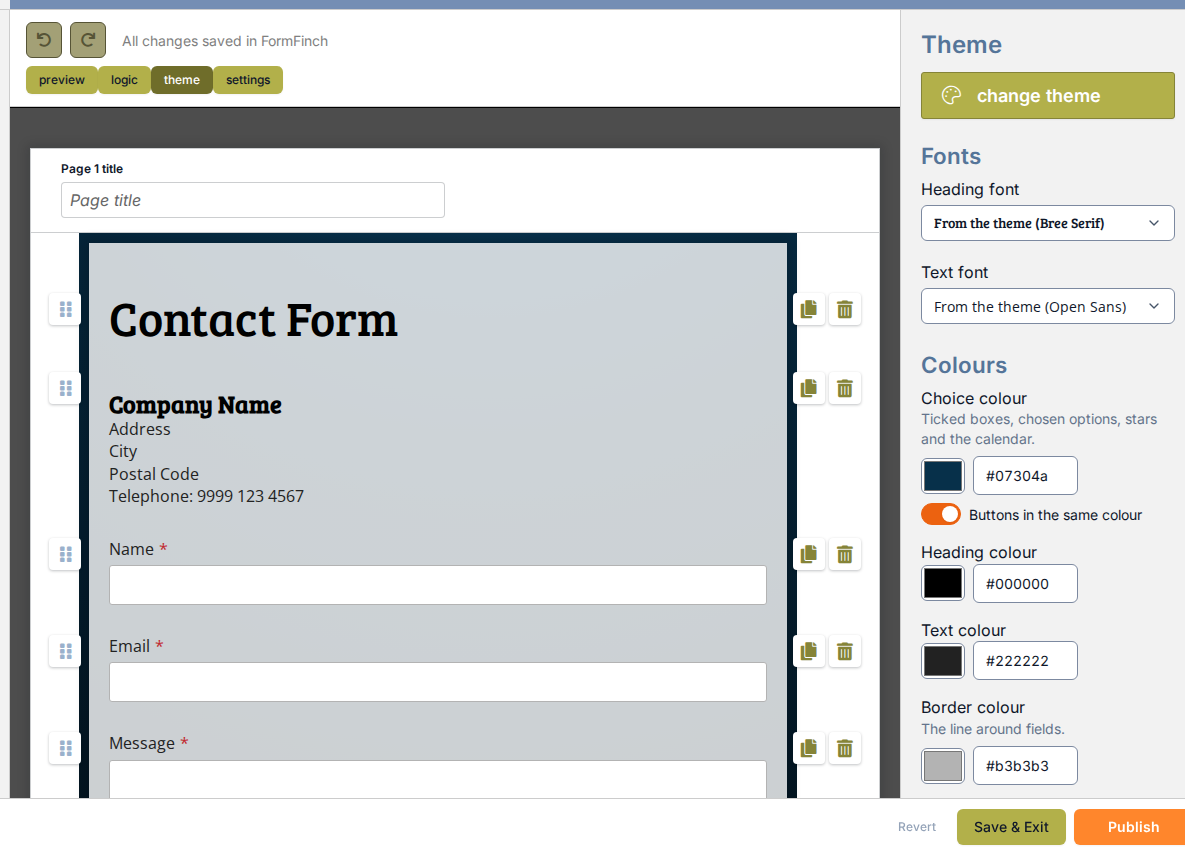
The Fonts section sits at the top of the panel, with dropdowns for headings and body text.
Fonts
Choose from 38 fonts in four styles: sans serif, serif, display, and monospace. The first option in each list is From the theme (…), which restores the theme’s own font.
- Heading font: used for question titles and section headings. In most themes, buttons also use this font.
- Text font: used for the form’s body text.
- Buttons and labels font: appears only when a theme defines a separate interface font.
All fonts are hosted directly by FormFinch, so published forms load quickly without connecting to external font services.
Colours
Each colour has a swatch and a hex field. A changed colour gets a Use theme colour button that restores the theme’s own colour.
Some themes use one colour for choices and buttons. For those, Buttons in the same colour is on. Switch it off to set a separate Button colour.
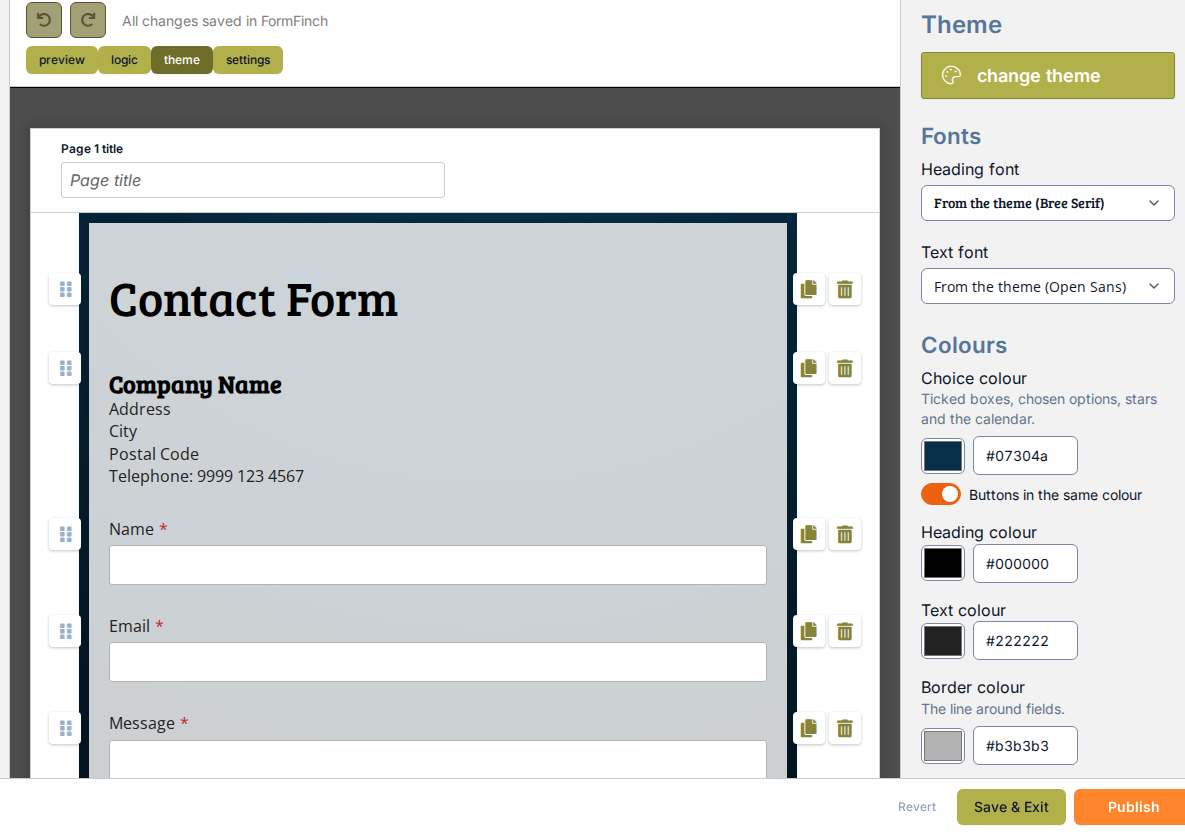
This Elegant theme shares its choice and button colour, and omits Accent colour.
Background
Background settings let you configure the appearance of the page, the form container, and the answer boxes:
- Page: choose From the theme, Own colour (Page colour), or Gradient. A gradient can be Straight with an adjustable angle, or Round, from the top, combining between two and four colour stops. If a theme uses a fixed background pattern or illustration, page controls are replaced with a notice, but form backgrounds remain configurable.
- Form: choose From the theme or Own colour (Form background colour), and set Form transparency. As in the theme restores the theme’s own transparency.
- Answer boxes: choose From the theme or Own colour (Answer box colour).
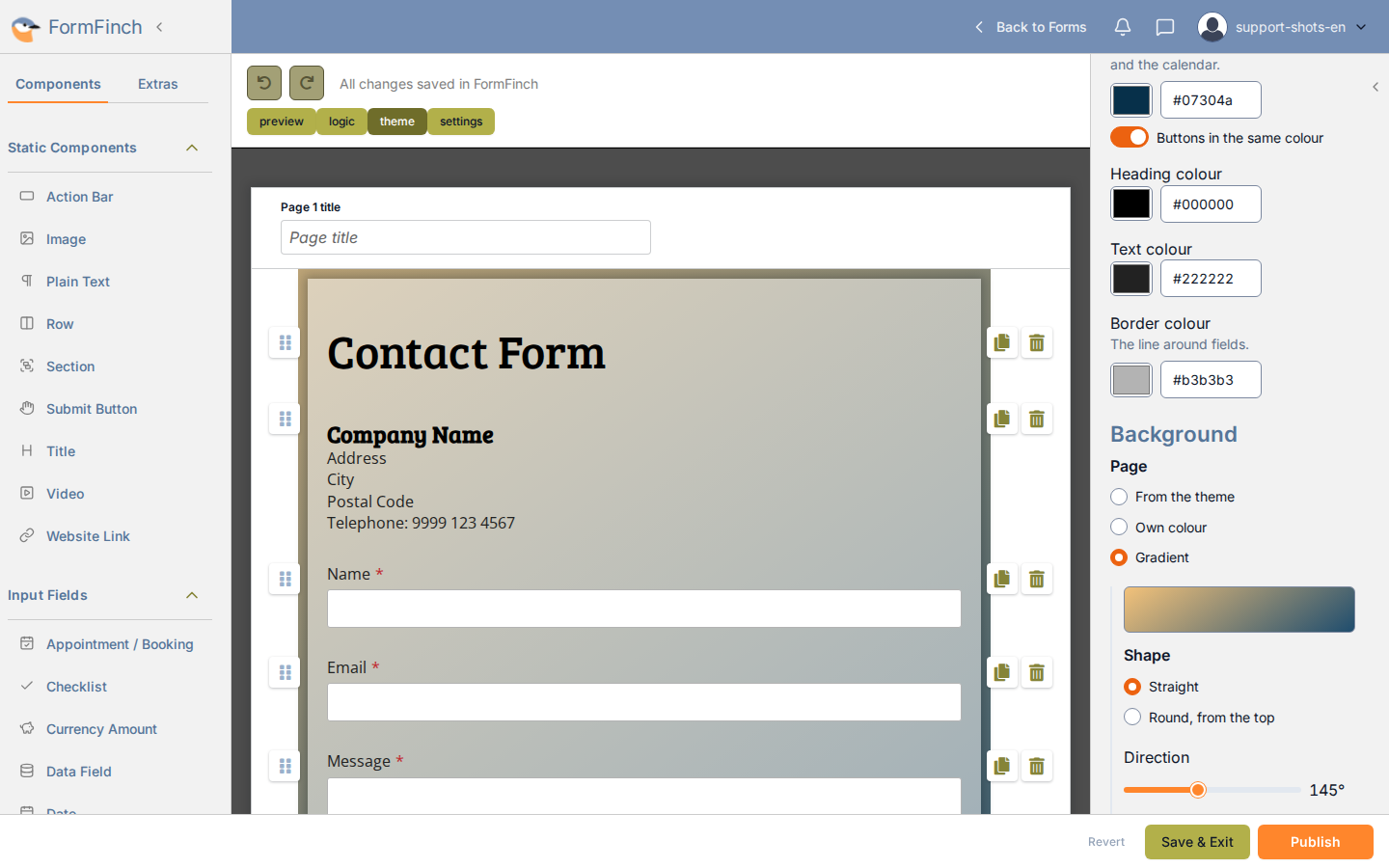
The gradient is the page behind the form. Raise Form transparency if more of it should show through.
Picture
A picture sits on top of the page colour or gradient. Some themes offer a set made for that look. Others start empty. Choose None, pick one of the theme’s pictures, or Upload a picture (JPG, PNG or WebP, up to 25 MB; 100 pictures per account). FormFinch decides whether an upload is line art or a photo. That is never asked.
Themes whose page scene is still part of the design, and not yet a picture layer, have no Picture section.
Once a picture is on, size, place, Mirror, Repeat and Hide on phones apply. Hide on phones keeps the picture off small screens, where it often gets in the way.
Line-art pictures
A drawing or logo in one colour is filled with a theme colour, so it blends into the look as a background.
Picture colour is Theme colour (it follows the theme, usually the choice colour), Own colour, or Original colours when the upload kept its own file. There is no blur.
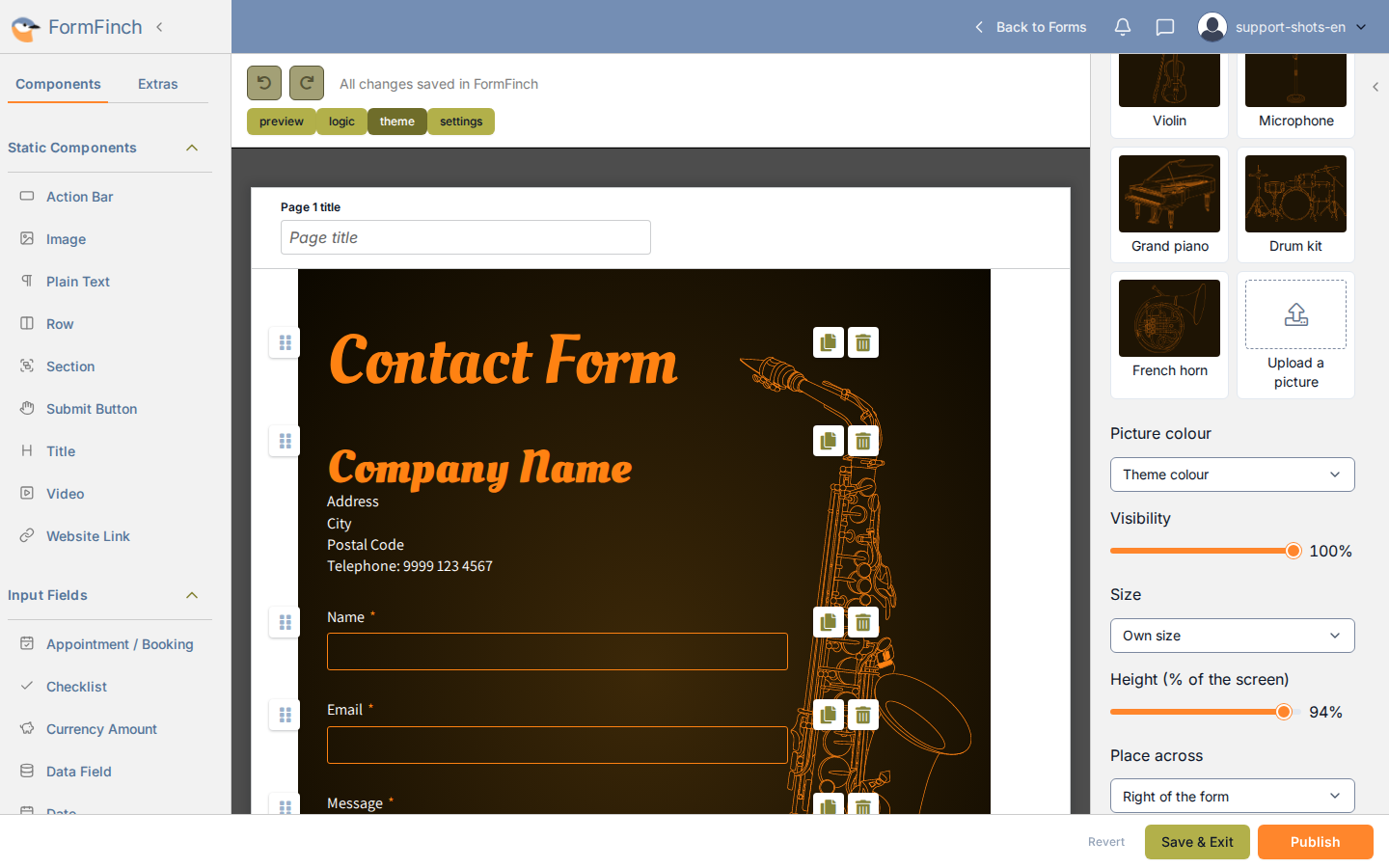
The line drawing takes the theme colour, so it matches the headings and fields.
Photo pictures
A photograph or a full-colour illustration stays itself. The picture is the look.
Mix in a colour tints it toward a chosen colour. Blur softens it. Both are optional. Fill the page is the usual size when the photo should cover the page.
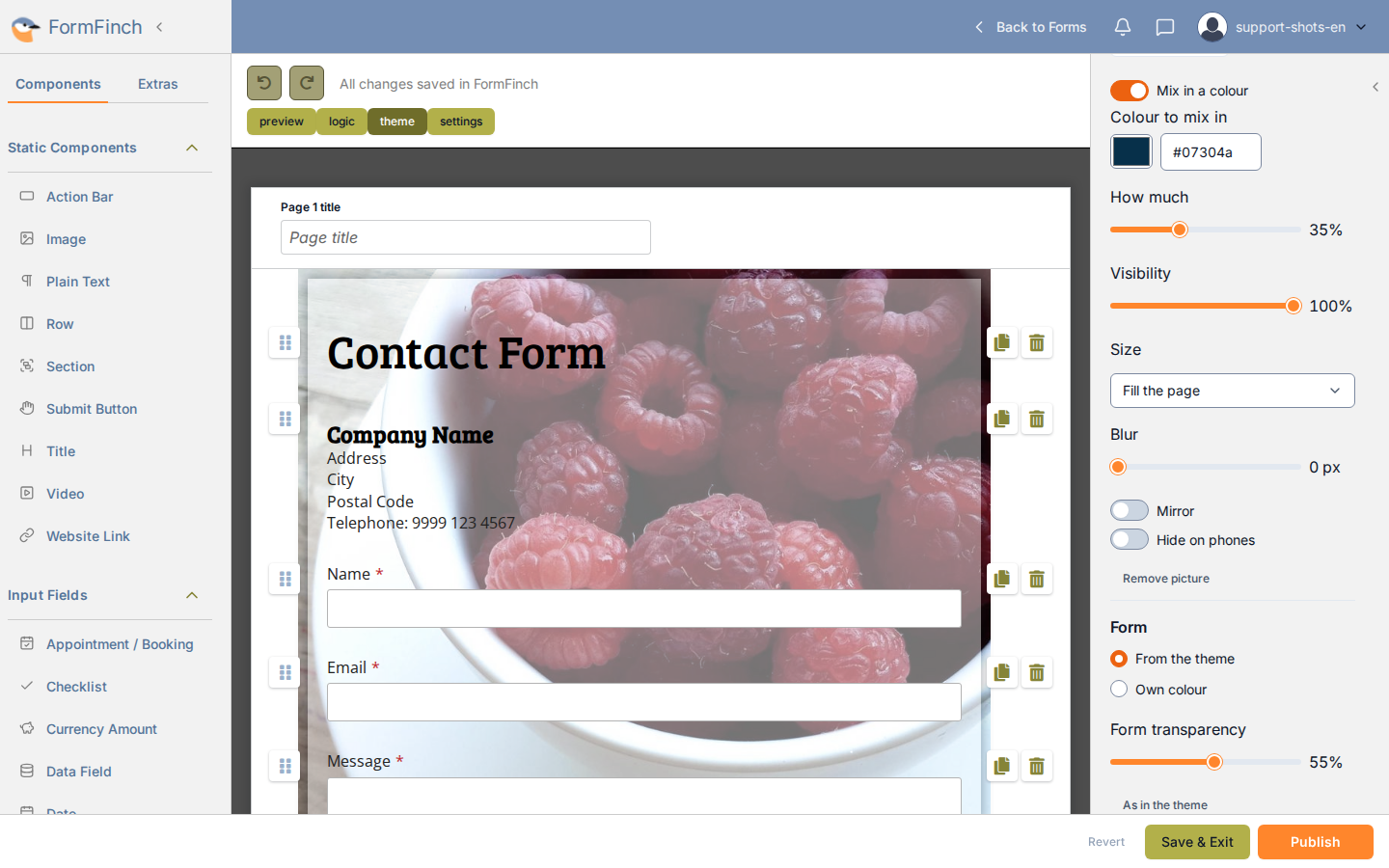
The photograph stays a photograph. A mixed-in colour is optional.
Contrast notices
If you change Heading colour or Text colour so that it is clearly harder to read on the form background, a notice shows the measured contrast ratio (for example, Hard to read on the form background (contrast 3.2:1)). A similar notice appears if the text is hard to read in the answer boxes. It shows under Text colour, or under Answer box colour when you set your own.
Contrast notices are advice only. They never block saving or publishing. Choice, button, and accent colours do not trigger them.
Undo changes
- Use theme colour: appears next to a changed colour in Colours and resets only that colour.
- Undo all changes to the theme: at the bottom of the panel. It resets all colours, fonts, backgrounds, and pictures of the theme.
- Undo in the top toolbar (the undo arrow): steps back through your changes one at a time.
After customising, Save as my theme appears below change theme at the top of the panel. See My themes.