My themes lets you save a customised theme under a name on your account. You can then apply the same fonts, colours, background, and picture to any of your other forms.
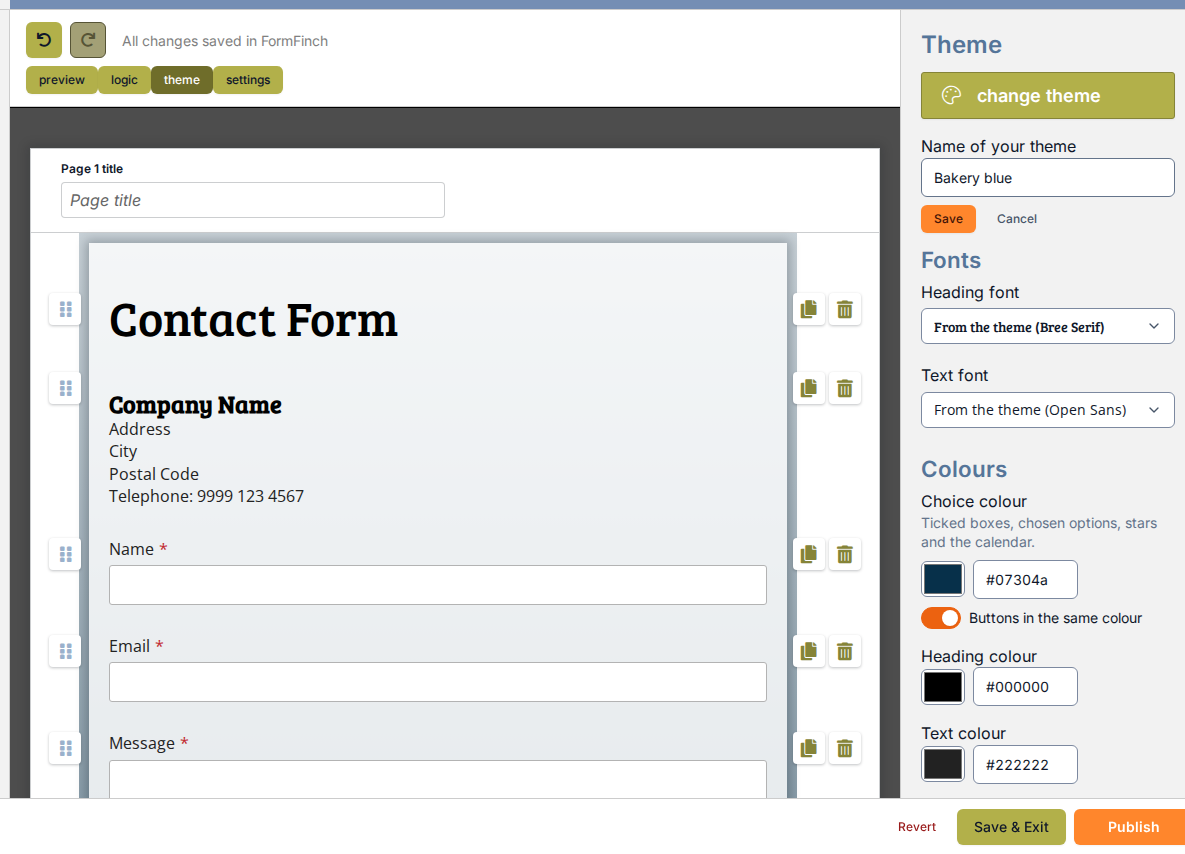
A confirmation appears in the panel once the theme is saved.
Save as My theme
Once you have adjusted colours, fonts, or backgrounds on a theme, save the look so you can reuse it on future forms:
- In the Theme panel, click Save as my theme.
- Enter a name under Name of your theme.
- Click Save.
The theme is added to My themes and becomes available immediately in the theme catalog.
Use a saved theme
Applying a saved theme replaces the form’s current theme with the saved one, including all its custom styling:
- In the top toolbar, click theme, then change theme.
- Under My themes at the top of the catalogue, find the saved theme. Each card displays the base theme it was created from.
- Click Preview to review the styling on your form, or click Select.
- Click Change theme in the bottom bar to apply it.
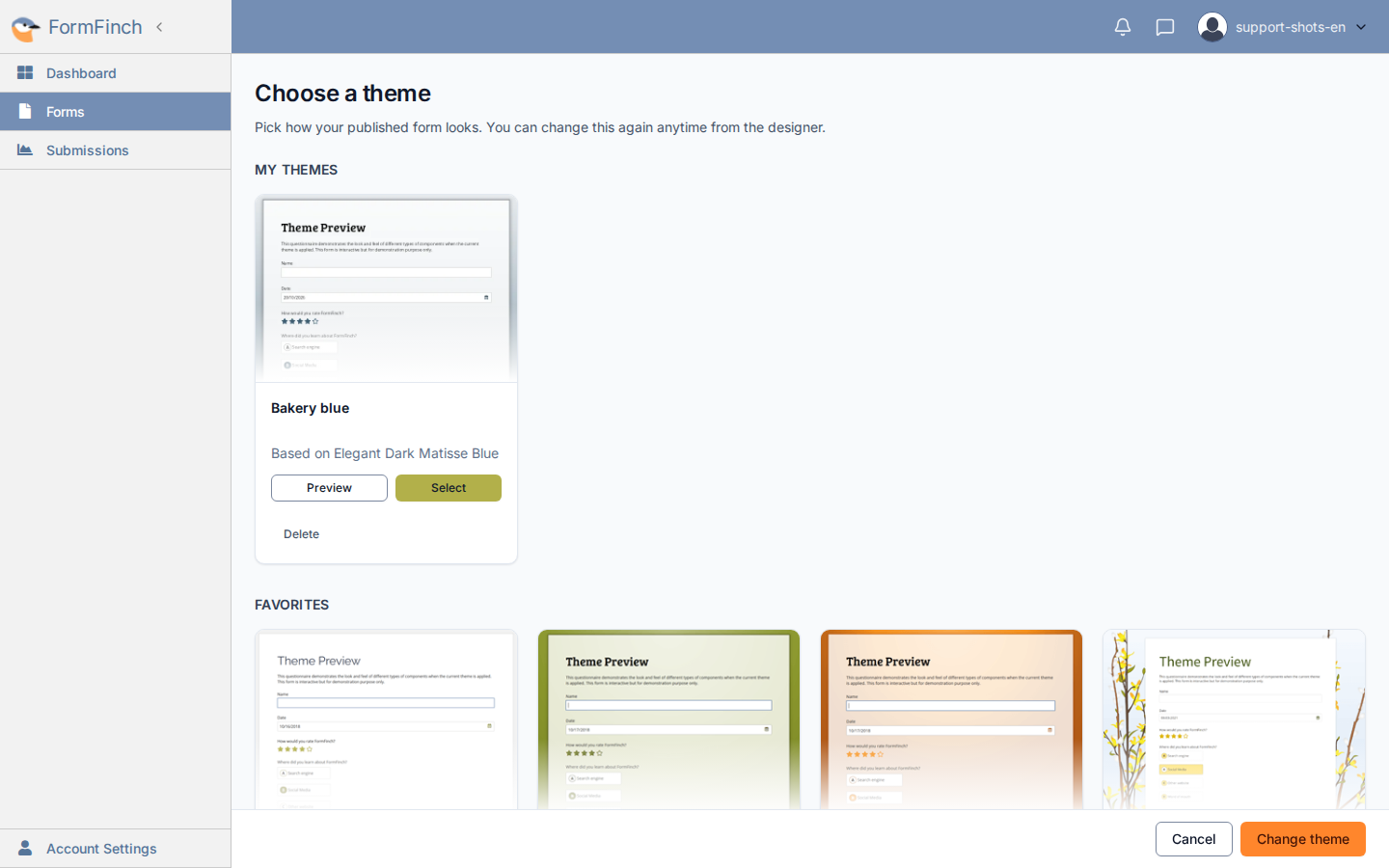
Each saved theme has its own Delete button.
Delete a saved theme
Delete it from the catalogue:
- In the Theme panel, click change theme.
- On the theme’s card under My themes, click Delete.
- When prompted with Delete this theme?, confirm with Yes, delete.
Forms that already use the deleted theme keep their styling, because each form has its own copy.
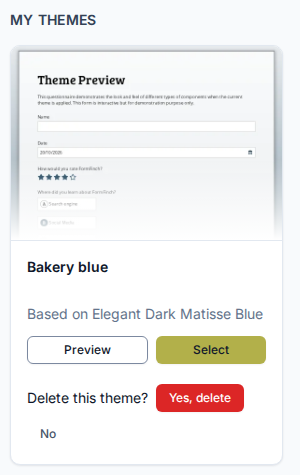
The confirmation replaces the card’s Delete button.