Show a published form on your own website with an iframe, or share its link to open the form as a separate page.
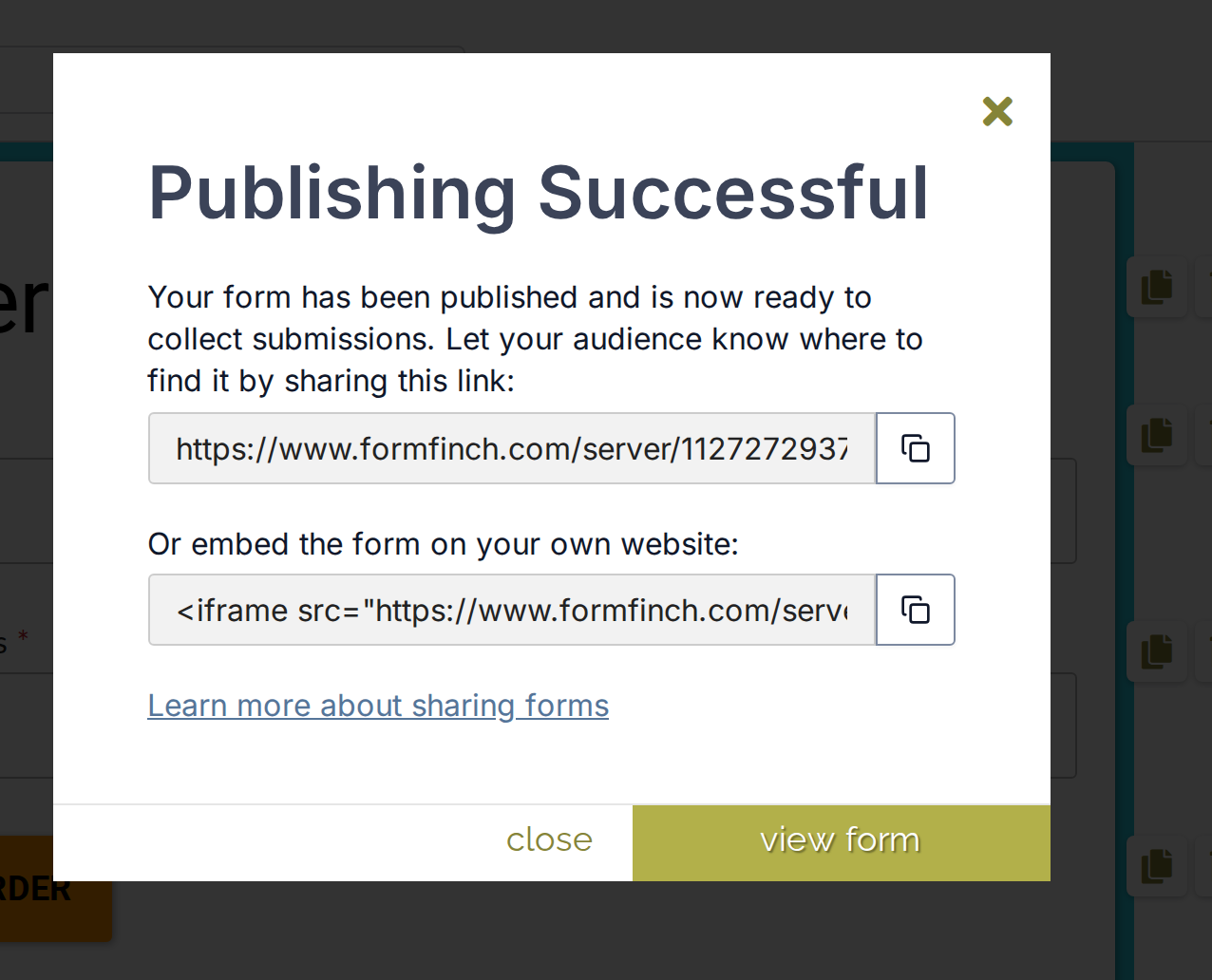
The dialog after a successful publish. The second field is the iframe snippet.
Get the embed code
- Open the form in the form designer.
- Click Publish and confirm with publish form.
- In Publishing Successful, click copy on the field under Or embed the form on your own website:.
Put the form on a page
Paste the embed code into the HTML of the page, or into a custom HTML or embed block of the website builder.
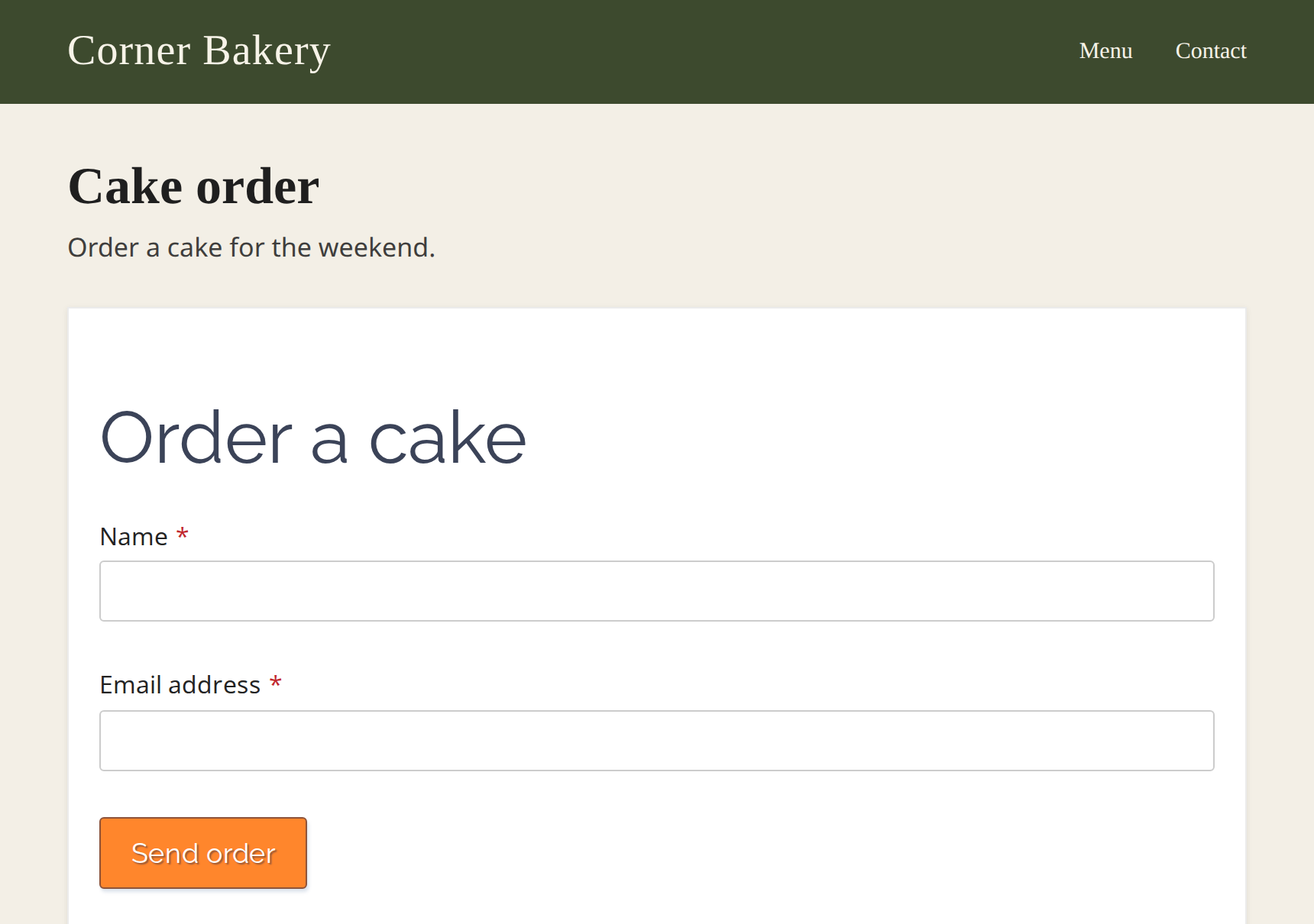
The iframe sits in the page. The website around it stays visible.
The thank you page and a Go to external url redirect also load inside the iframe.
Open the form as its own page
The first field in Publishing Successful holds the public address of the form. view form opens it in a new tab. On Form Details the same address is called Form link, and Live Form opens it.
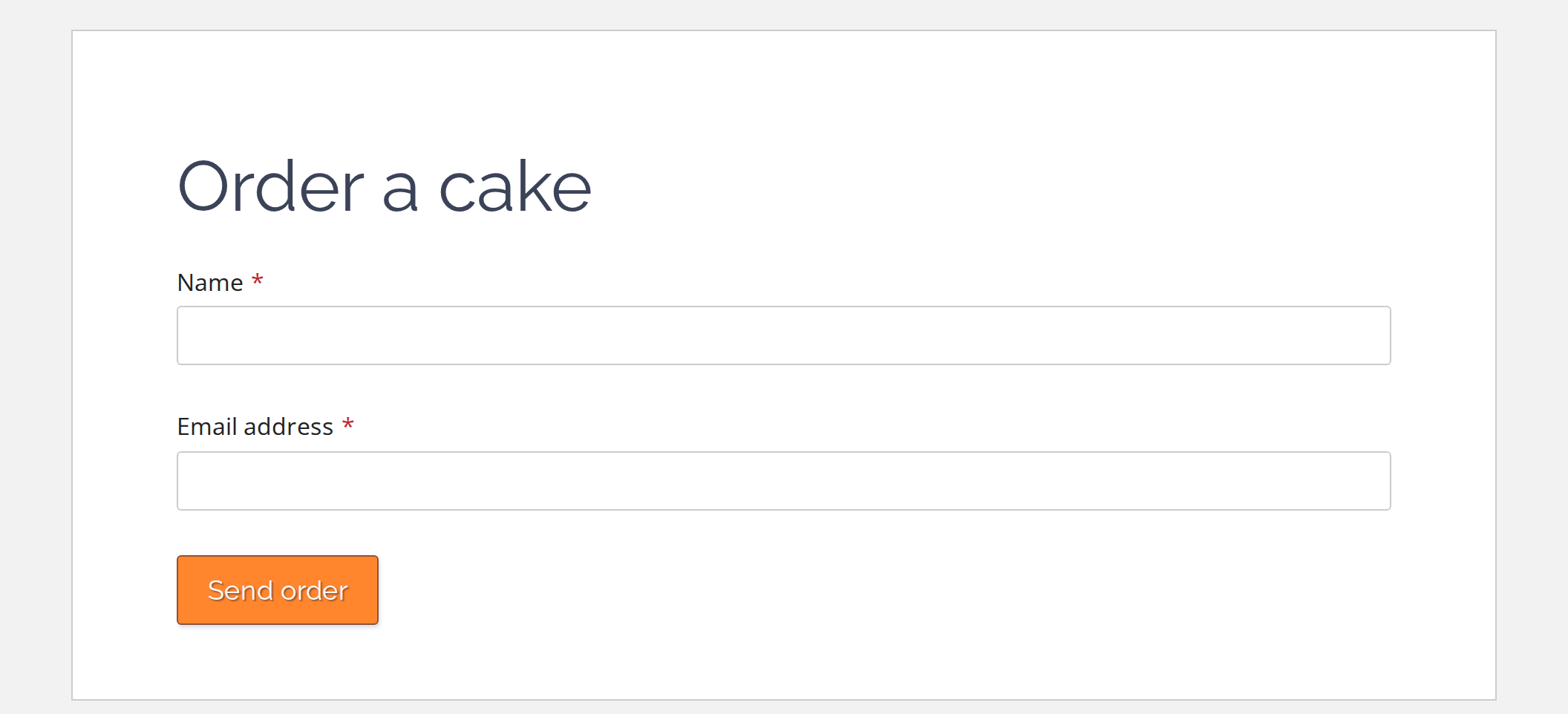
The form link opens the form as its own page on FormFinch.
Copy the code again later
Click the form name in Forms to open Form Details. Form link and Embed code are listed while the form is Published or Republished.
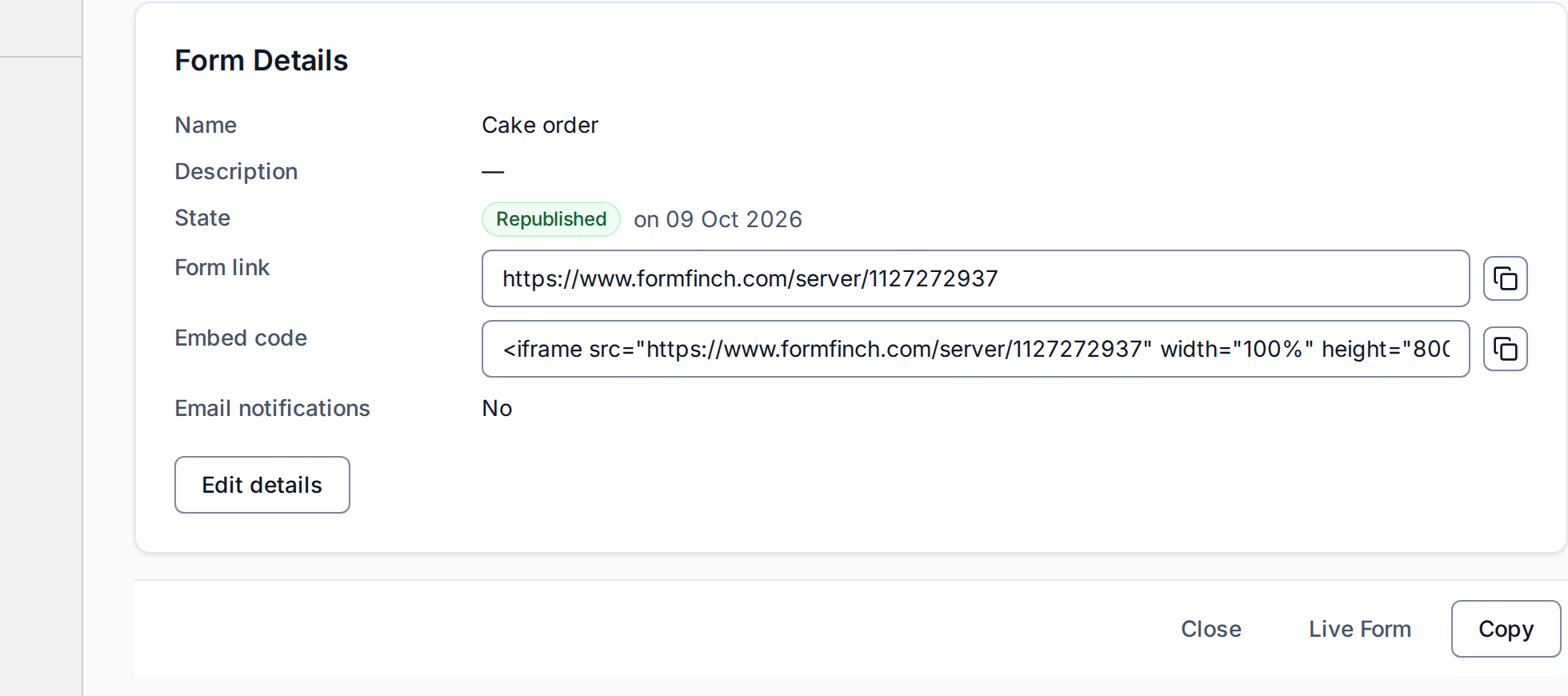
Form Details keeps the same iframe snippet after the publish dialog is closed.
After you publish again or close the form
Publishing again after design changes keeps the same link and embed code. Without changes, No changes appears instead of the publish dialog. The code is still on Form Details.
Closing the form removes both rows from Form Details. The link and the iframe then show a message that the form no longer accepts submissions. After publishing again, the same link and embed code work as before.