Use a Slider when respondents should pick a number by dragging a handle along a track, such as hours, a budget, or a percentage. With two handles it collects a from–to range. For answers on a fixed scale, such as stars, use Rating.
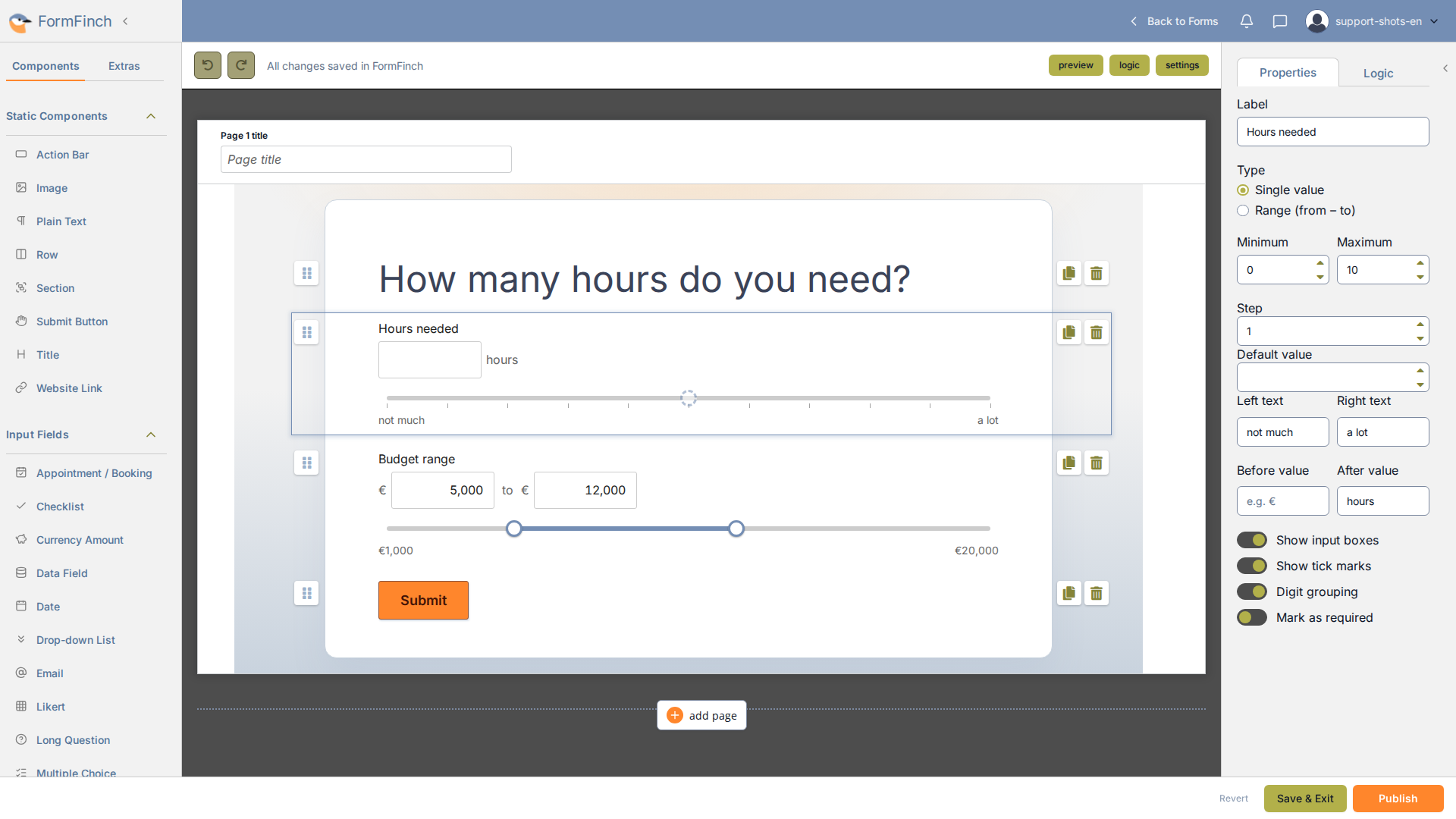
Slider on the canvas, with its properties open.
Add a Slider
A new Slider is a Single value slider that runs from 0 to 100 in steps of 1.
Choose single value or range
Type sets what a respondent answers with:
- Single value: one number.
- Range (from – to): two handles on the same track. The lower handle cannot pass the higher one, but they can meet at the same value.
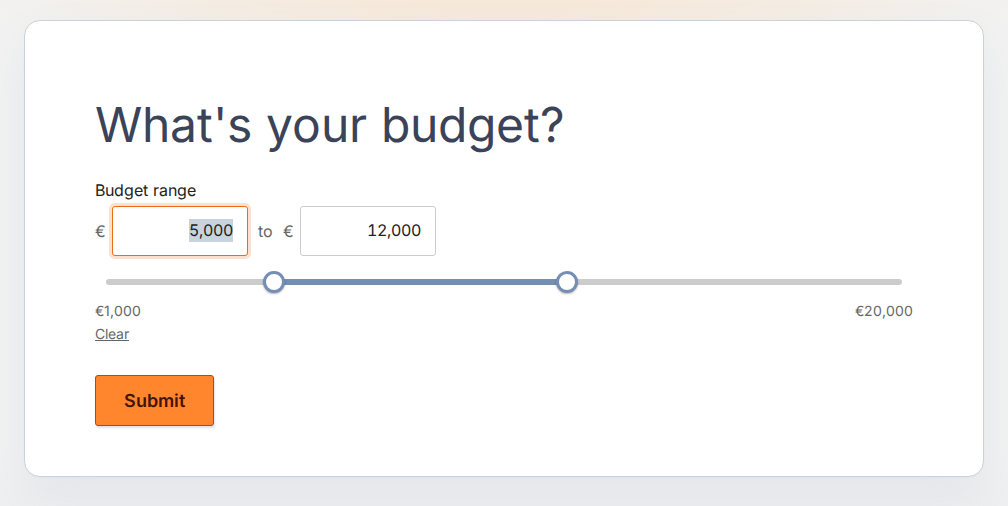
A range Slider on a published form.
Limits, step, and tick marks
- Minimum and Maximum: the ends of the track.
- Step: the size of one step. The track can have at most 10,000 steps, so 0 to 1,000,000 needs a step of at least 100.
- Show tick marks: draws one tick per step. The setting appears when the track has 20 steps or fewer, counted as (Maximum - Minimum) / Step. If the track later gets more steps, the ticks no longer show on the published form.
- Left text and Right text: text under the two ends of the track, up to 40 characters, such as not much and a lot. When empty, the minimum and maximum are shown instead, including any Before value and After value.
- Before value and After value: a symbol or unit next to the value, up to 20 characters, such as €, %, or hours.
- Show input boxes: respondents can type a value as well as drag. When switched off, the value is shown as plain text and the handles are the only way to choose.
- Digit grouping: shows thousands separators. Separators and the decimal mark follow the respondent’s browser language.
Defaults and unanswered until touched
Enter a Default value, or for a range both Default from and Default to, to start with an answer. A range default needs both values: clearing one removes the default. Switching Type also clears the default.
Without a default, the slider starts unanswered. The track has no fill, the handles have a faded, dashed border, and the value boxes are empty. A single handle rests in the middle of the track, rounded to a step. The two range handles rest at the two ends. An unanswered optional slider adds nothing to the submission.
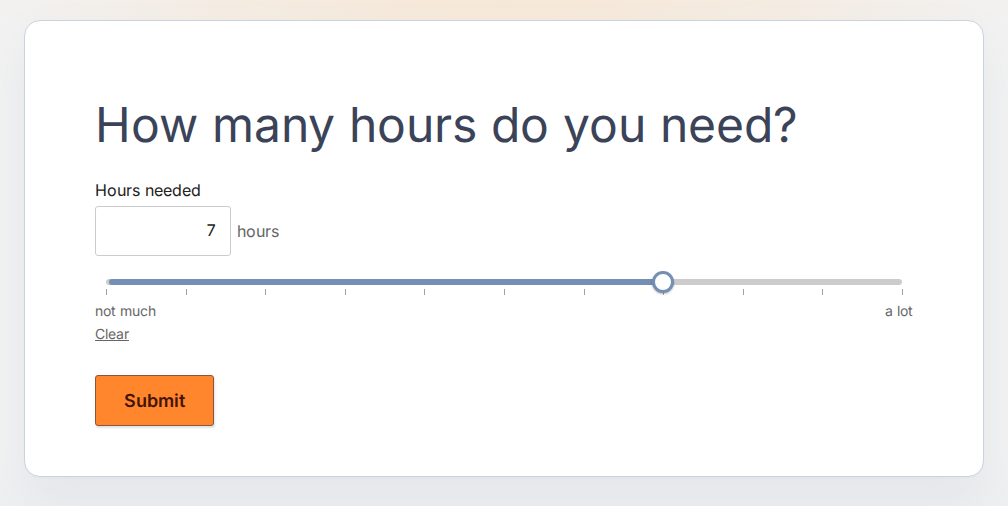
A single Slider after the respondent has chosen a value.
What respondents see
- Drag or click: drag a handle, or click the track on a single slider to jump there. Clicking the resting handle also records its value. On a range slider only the handles react, so respondents drag a handle or type.
- Type: a typed value snaps to the nearest step, and a value outside the limits becomes the nearest limit. If a range gets a from higher than the to, or the other way around, the two values swap when the respondent leaves the box or presses Enter.
- Keyboard: on a handle, the arrow keys move one step, Page Up and Page Down jump further, and Home and End go to the minimum and maximum.
- Clear: an answered optional slider shows Clear under the track, which returns it to unanswered. A required slider has no Clear.
On a phone the slider works the same. The track spans the full width of the form and is tall enough to use with a finger. Input boxes move to the next line when they do not fit.
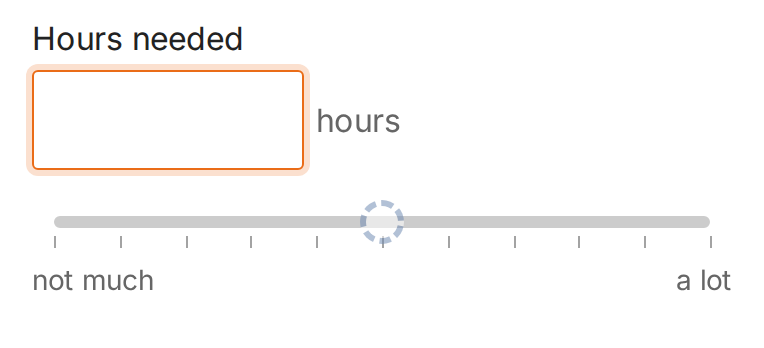
An unanswered Slider on a phone-sized screen.
Prefill, formulas, and logic
- Query prefill: works on a Single value slider with a number in the URL. The number must be within the limits and is rounded to the nearest step. A range slider ignores the parameter. See Query prefill.
- Formulas: a Single value slider works like a Number field, as an input in a formula or as the field that shows the result. A range holds two numbers, so formulas cannot use it.
- Conditional logic: a slider offers the conditions is empty, is not empty, equals, and does not equal. For a range, use is empty and is not empty: equals compares one number, so a range never matches it.
What you see in submissions
A Single value slider has one numeric column, named after the field label. A range has two: for a field labelled Budget range, Budget range (from) and Budget range (to). The suffix follows the language of the app, so Dutch shows (van) and (tot). An unanswered slider leaves its cells empty.