
When you run a club membership drive, handle school enrolments, or collect applications for a charity, a short contact form is rarely enough. You often need several pages of details and supporting documents. Longer forms ask more from respondents, and small hiccups along the way can mean lost submissions or wasted follow-up work for your organisation.
Two problems with longer forms
Two issues cause most of the trouble with multi-page forms. First, a typo in the email field means you cannot reach the person. Someone fills in four pages, writes .con instead of .com, and submits the form. When you try to reply, your message bounces.
Second, a closed browser tab means starting over. An applicant starts your form, then realises they need to look up a membership number or find a file. If they close the tab by mistake, or decide to finish the next evening, their answers are gone. Starting again from page one makes many people give up halfway.
Confirm email addresses with a code
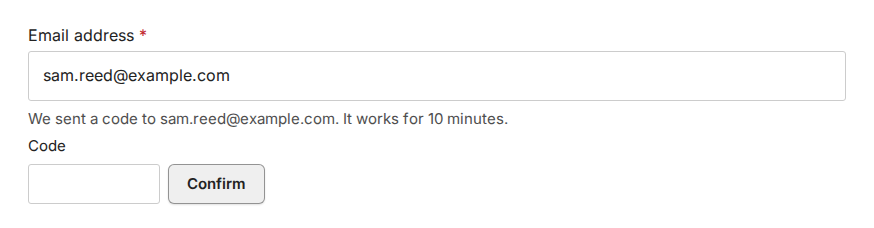
The Email component under Input Fields always checks the address format. It can also ask respondents to confirm the address with a code, so you know they can receive mail there. This is especially helpful when an email notification sends the submission as the email content, because a reply goes to the form’s first Email field.
To set this up in the Form Designer, select the Email component, turn on Mark as required first, and then turn on Verify the address with a code. The switch needs a paid plan and only works on a required field. Turning Mark as required off later turns confirmation off too. In the designer preview, no code is sent and any address is accepted.
What respondents see when they confirm
The respondent types a valid address and clicks Send code, then enters the code from the email. If no code arrives, they can click Send a new code after a short wait. Respondents can go to the next page or send the form only after the address is confirmed. Changing the address or reloading the form means confirming again.
Answers survive a refresh, automatically
Every published form keeps entered answers in the active browser session automatically. After a refresh or when using the back and forward buttons in the same tab, the answers come back right away. This does not work after closing the tab, in a new tab, or in another browser.
Let people save and continue later on their device
For longer forms, you can turn on optional device storage. It is off by default, per form. In the Form Designer, click Settings in the status bar, under Page Settings turn on Allow respondents to save progress on this device, and then publish the form.
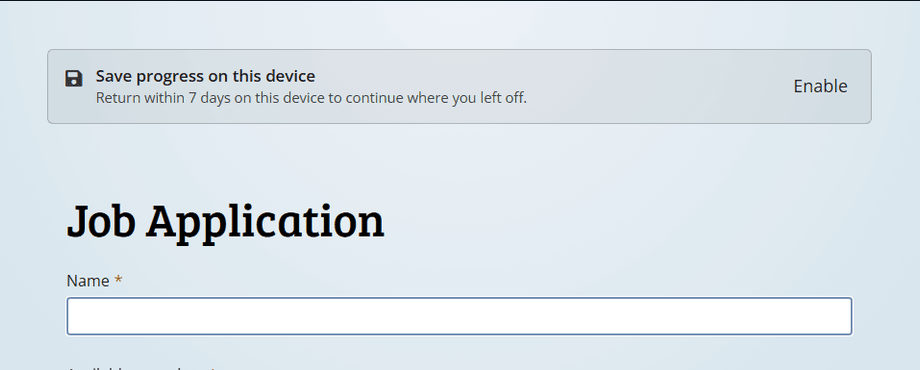
Respondents then see the bar Save progress on this device with the button Enable. After one click, their answers are saved on their device until they submit, discard the draft, or it expires. Further changes save automatically when the respondent leaves a field, picks an option, or goes to another page. Text still being typed is not saved yet.
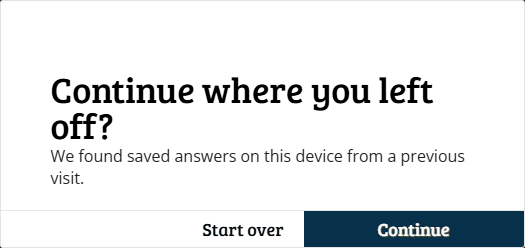
When they come back within seven days, FormFinch asks Continue where you left off?. They can continue or click Start over. They can also delete the draft at any time with Discard saved progress on this device.
Good to know before you turn it on
Keep these limits in mind before enabling saved progress:
- Drafts stay on that device and browser, and are not synced to other devices.
- FormFinch does not store draft answers on its servers. The only exception is uploaded files in a draft, which are stored on FormFinch servers for about 24 hours.
- Saved progress is deleted when the form is submitted, when the respondent starts over or discards it, or when you publish a new version of the form.
- A draft is also deleted when it was not updated for more than seven days, or created more than 30 days ago.
- In private browsing, or when the browser blocks storage, saving is off and the form works normally.
Both features fit well together on multi-page forms, so you can verify contact details early and let people finish at their own pace. Read more in our guides on the Email component, save and resume progress, and form settings.