
When you organise a club event, run a school office or take orders for a small business, one form often serves different people. Showing every question to everyone makes a form feel long. With rules in FormFinch, your form adapts as someone fills it in, showing only what applies to them.
Why a form that adapts is shorter for everyone
Imagine you are a club secretary setting up an event sign-up form. Both members and non-members can register, and anyone can bring a guest. On a static form, everyone scrolls past membership and guest questions, even when coming alone.
An adaptive form stays short. Ask “Are you a member?” and show the membership number field only for members. Ask “Will you bring a guest?” and ask the guest’s name only when someone answers yes.
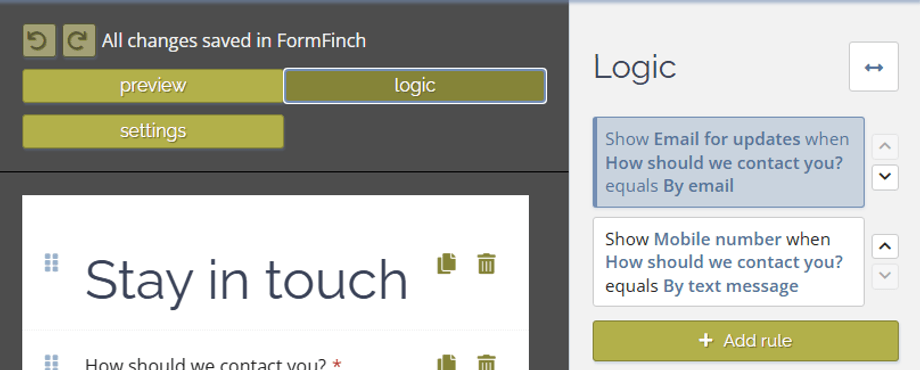
Every rule follows the same pattern: when this is true, take this action. You set up rules in The Form Designer. Select Logic in the status bar to open the form-wide Logic panel, or use the Logic tab next to Properties on any field to see only the rules for that field. Click Add rule to begin. There are five rule types: show/hide, required, page jump, calculated value and change options. Rules work in the Form Designer, in Preview and on the published form.
Show or hide questions, sections and pages
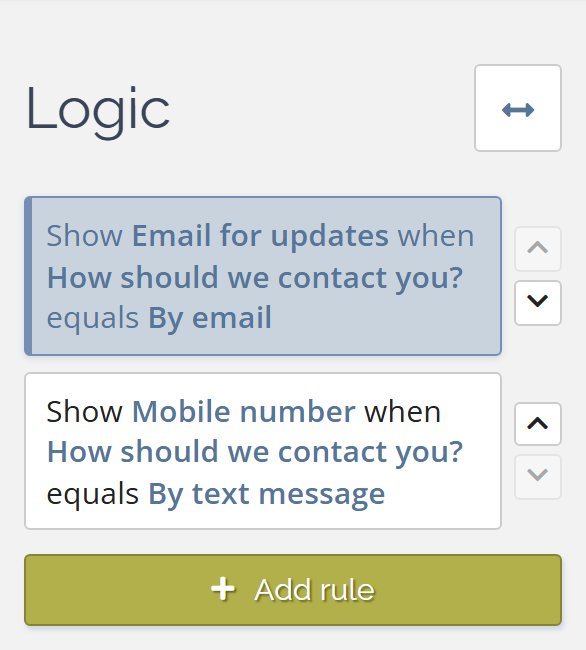
Each condition uses a field, an operator (is empty, is not empty, equals, does not equal) and a value. Under Match, choose All of these, Any of these or Always (no conditions). The Logic panel shows each rule as a readable sentence, for example: “Show Mobile number when How should we contact you? equals By text message”. Renaming a field does not break its rules.
Show/hide works on a single field, a whole section or a whole page. A hidden field is not required, its value is left out of the submission, and other rules treat it as empty. If it becomes visible again during the same session, the earlier answer comes back.
With a change options rule, you limit the choices in a drop-down list, radio options, multiple choice or checklist based on an earlier answer, such as showing only the offices in a chosen region. Any choice that is removed is cleared.
Make an answer required only when it matters
Some questions should stay visible for everyone, but only require an answer in specific cases. A required rule makes a visible field required or optional only in the situations you choose. For example, on an event or order form, you can require “Company name” only for business customers while leaving it optional for individuals.
Skip pages people don’t need
On multi-page forms, a page jump rule decides what happens after a page. You can send respondents to a later page, Submit the form, or End without submitting.
Jumps only move forward. Fields on skipped pages are not required and are not included in the submission. In our club example, existing members can skip the contact details page that non-members need to fill in.
If your first page is an eligibility check, End without submitting shows a final message and creates no submission when someone does not qualify. FormFinch also flags two jump rules from the same page that can match at the same time, and will not save or publish until the conflict is fixed.
Calculate totals and fill fields from other answers
A calculated value rule fills a field from other answers, making that field read-only for the respondent. A formula can copy a value, set a fixed value, add, subtract, multiply, divide, round, join text (first name plus last name), and choose between two results with a simple if/else.
A typical example is an order total from quantity times price. To keep a score or total off the form but in the submission, target a Data Field so the Data Field stores the result without showing it on the page.
Test your rules before you publish
Incomplete or conflicting rules cannot be saved or published. Start with one clear rule and test it before adding more, and give fields distinctive labels so rule sentences stay readable.
Before sharing your form, test it in Preview: check the ordinary path, try every answer that shows or hides something, follow every jump, and check calculations with empty answers.
Read our support article on conditional logic for the full reference on rules and formulas.